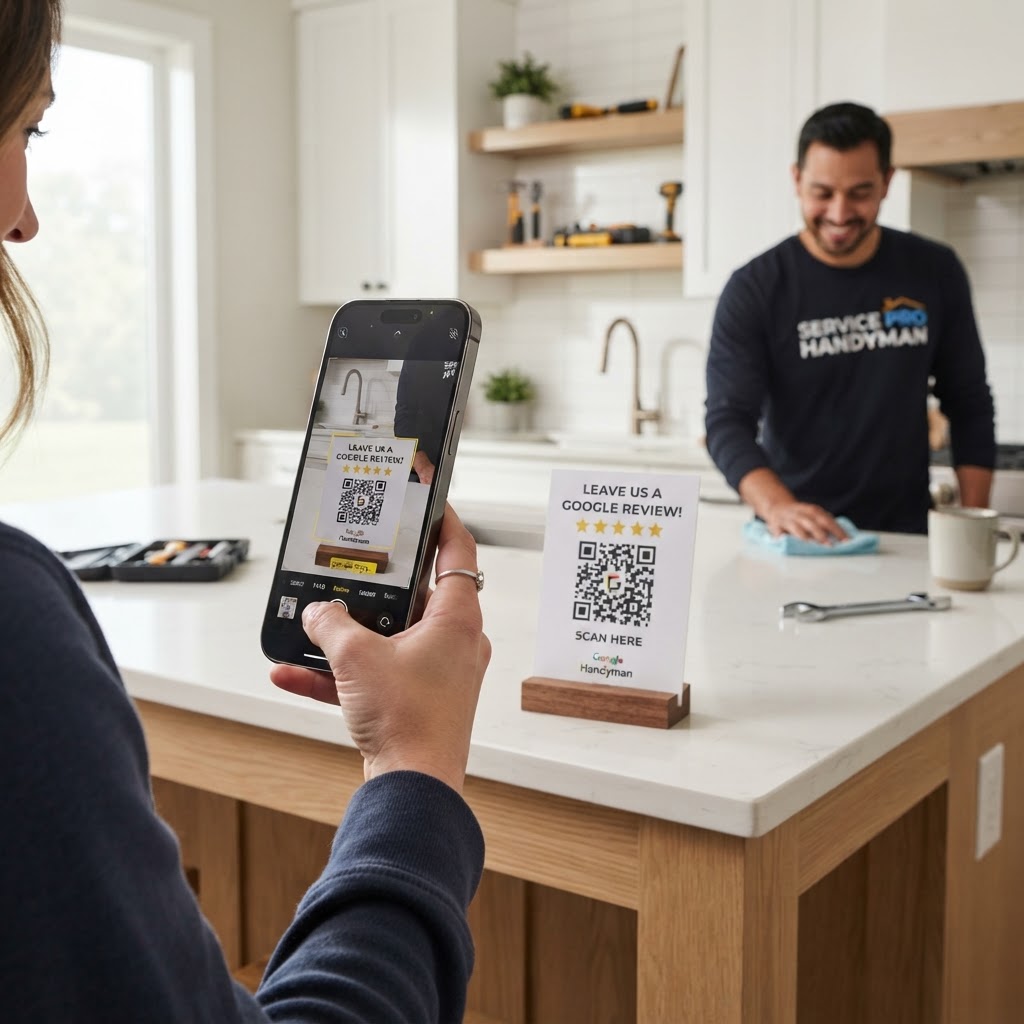
Why a review QR code matters
Trust is the currency of the home repair industry, and prospective clients almost always check your Google Business Profile before hiring you for a task. When you rely solely on verbal requests, your review count stays low, making it harder to beat out competitors with more social proof.
A physical code creates a direct shortcut to your review form, removing every hurdle for the customer. Imagine handing a client an invoice or a business card with a clear call to action; you are effectively automating your marketing. This simple addition can drastically increase the number of five-star reviews you receive each week.
What you need before you start
Before you generate your code, ensure you have your Google Business Profile set up and verified. You need to be able to access your business dashboard to retrieve your unique review link.
You should also have a basic design plan for where you intend to display the code. Whether it is on your work truck, a printed invoice template, or a laminated card, having the placement ready makes the process seamless. You can generate yours in seconds using our intuitive platform.
How to create a Google review QR code for handyman businesses
- Locate your review link: Log into your Google Business Profile and select 'Get more reviews' to copy your unique URL.
- Visit the generator: Head over to our free Google Review QR Code Generator to begin the process.
- Paste the URL: Enter the link you copied from Google into the specified input field on the page.
- Customize the design: Use the Blue QR Code Generator interface to choose a color scheme or frame that matches your professional branding.
- Preview the output: Double-check that the code leads directly to the review submission page by scanning it with your phone's camera.
- Download the file: Save your high-resolution QR code image so you can easily print it on your marketing materials.
How to test and deploy it
Never print hundreds of business cards before testing the functionality. Scan the code with different smartphone models, including both Android and iPhone devices, to ensure the landing page loads perfectly every time.
Once tested, integrate the code into your physical touchpoints. You can even use Blue QR Code Generator's Google review QR codes tool to create a custom sign for your shop or vehicle window. Reliability in the digital world is just as important as reliability in the physical one.
Common mistakes that ruin results
- Low contrast: Printing a light-colored QR code on a light background makes it impossible for cameras to focus.
- Poor placement: Putting the code where it is hard to reach or in a dark area means customers will simply give up.
- Too many distractions: Adding too much text around the code can make it look cluttered and suspicious to a customer.
- Broken links: Always verify that the link hasn't expired or changed after you have published your printed materials.
Real examples
Consider a local plumber who attaches a small sticker with a QR code to the side of every water heater they install. This acts as a long-term reminder for the customer to leave feedback long after the service is finished.
Another example is an interior painter who includes the code on the bottom of their thank-you note left with the final invoice. It feels like a polite request rather than an intrusive demand. Whenever you are ready to start, create your Google review QR codes — free using the Blue QR Code Generator today.