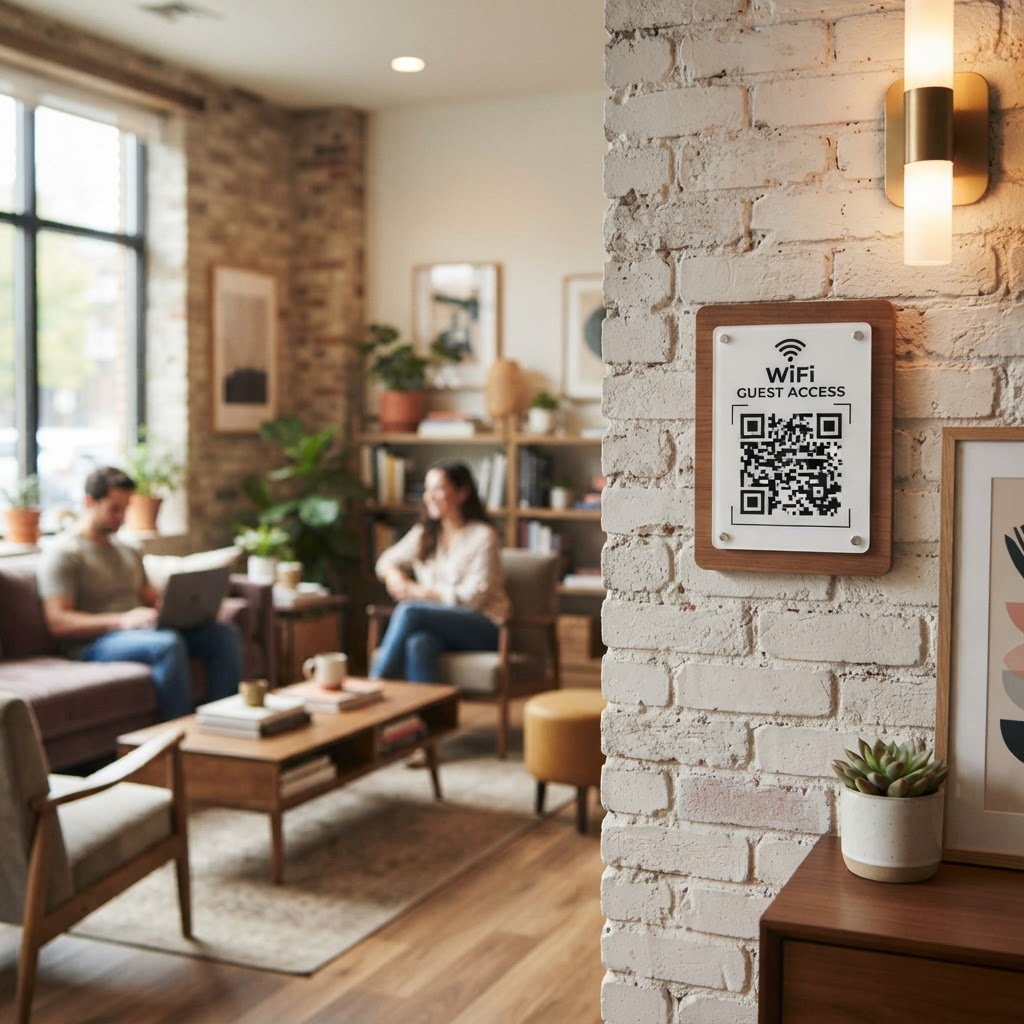
Why a WiFi QR Code for Co-living Space Matters
In a high-turnover environment like a co-living residence, residents and short-term guests constantly ask for WiFi credentials. Manually typing in complex passwords leads to typos, frustration, and a deluge of support requests for your front-desk team.
A well-placed QR code changes this experience entirely. By providing a scan-to-connect solution, you minimize administrative overhead while ensuring that new residents get online the second they drop their bags in their room. You can easily generate yours in seconds to modernize your building's amenity experience.
What you need before you start
Before you jump into the setup process, ensure you have the correct technical details ready to go. You will need your exact network name, also known as the SSID, which must match the capitalization of your router settings perfectly.
You should also verify your network encryption type, which is usually WPA or WPA2, and have the actual password handy. Finally, you need a high-resolution version of your building's logo if you intend to brand the code for a professional, cohesive look.
How to create your WiFi QR code — step by step
- Open the generator: Visit our free WiFi QR Code Generator to begin the setup process.
- Input your network name: Enter your exact SSID into the designated field to ensure guest devices can identify your network.
- Select your security type: Choose the appropriate encryption method from the dropdown menu, typically WPA/WPA2 for most modern residential routers.
- Enter the password: Carefully type in your current WiFi password, keeping in mind that these codes are case-sensitive.
- Customize the design: Use the Blue QR Code Generator interface to adjust the foreground color or add your property logo for better brand recognition.
- Download your file: Export your generated code as a high-quality PNG or SVG file, which ensures it remains scannable even when printed at large sizes.
How to test and deploy it
Once you have your code, print a sample and test it with both iOS and Android devices before finalizing your installation. Place the codes in high-visibility areas like the reception desk, the common kitchen, or inside individual units to maximize utility.
For durability, consider laminating the printed cards or mounting them in small acrylic frames. When you use Blue QR Code Generator's WiFi QR codes tool, you ensure that every guest has a reliable, seamless pathway to high-speed internet.
Common mistakes that ruin results
- Incorrect SSID: Forgetting to match the exact casing of your network name will prevent all devices from connecting.
- Low Contrast: Printing a light-colored QR code on a light background makes it impossible for most phone cameras to focus or detect the pattern.
- Ignoring Security Settings: Selecting the wrong security protocol (like WEP instead of WPA2) is a frequent error that results in 'Invalid Password' errors.
- Poor Physical Placement: Tucking the code into a dark corner where lighting is dim will significantly reduce scan success rates.
Real examples
In a large urban co-living space, managers can print a small, elegant QR code sticker on the back of the room's main door. This allows the guest to see the code immediately upon entering, effectively answering their first question before they even have to ask staff.
Another effective strategy involves placing a framed print on the coffee table in the shared living room. This invites residents to connect their devices while they lounge, turning a mundane utility into a premium, user-friendly experience. Before you finalize your signage, feel free to use Blue QR Code Generator's WiFi QR codes tool to test different colors that match your building's interior design.