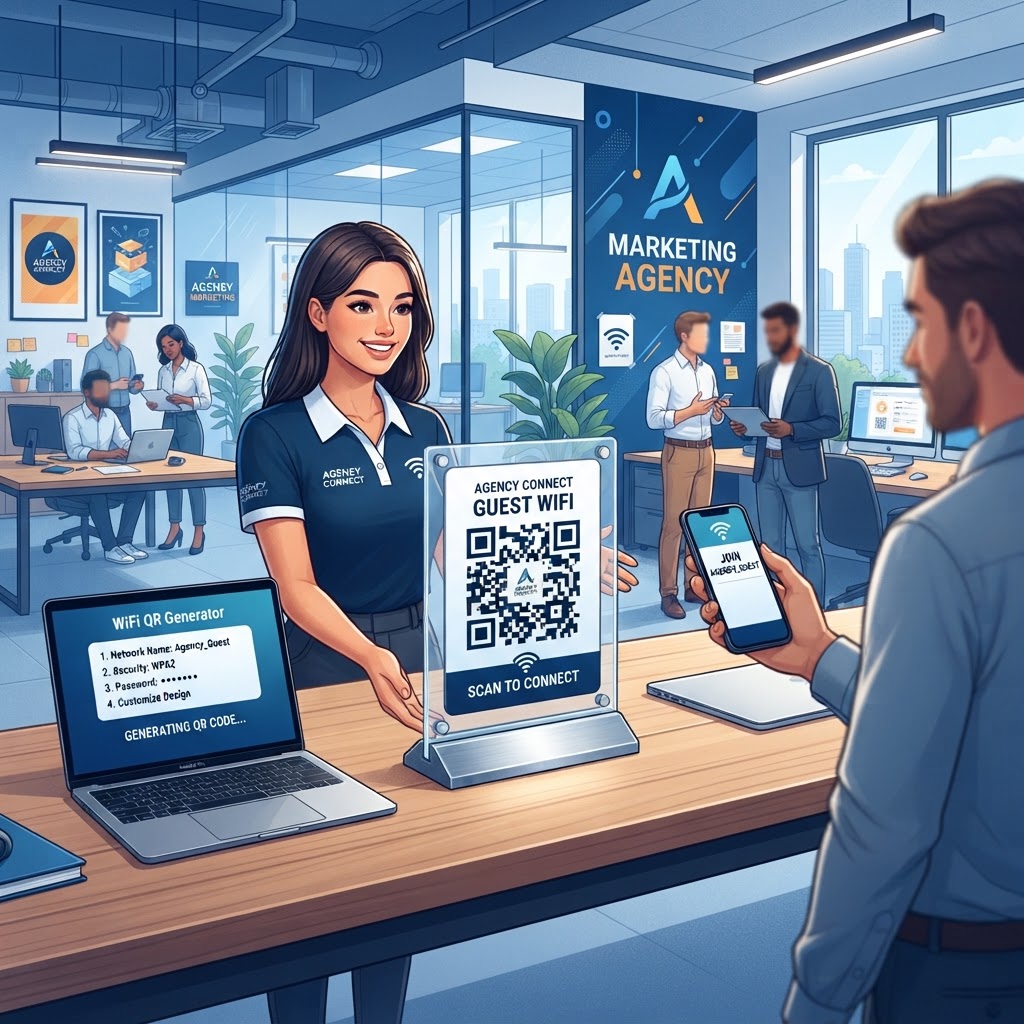
Why having a wifi qr code for marketing agency spaces matters
In the high-paced world of digital strategy and creative brainstorming, your agency office should represent efficiency and innovation. When a new potential client walks into your lobby for a pitch, they expect a seamless experience from the moment they step through the door. The physical office environment serves as the first tangible proof of your agency’s operational capabilities. If the experience begins with a tedious, manual process like typing in a complex, 24-character alphanumeric WiFi password, you have already created a friction point that subtly contradicts your brand’s promise of "optimization" and "user-centric design."
Struggling with a complex, case-sensitive password is the exact opposite of an efficient first impression. A modern, minimalist QR code displayed on your reception desk or printed on a welcome card shows that your firm values attention to detail and user experience. It signifies that you have anticipated the needs of your guests—who are likely already juggling laptops, tablets, and mobile devices—and removed a technical hurdle before it even manifested. This proactive service design demonstrates that you treat client time as a precious resource, an attribute highly valued in marketing partnerships.
By implementing a WiFi QR code for marketing agency networks, you remove the burden from your office manager and help guests get straight to work. When an office manager isn't forced to repeat the guest network password for the tenth time that morning, they can focus on higher-level administrative tasks that actually support agency growth. Furthermore, it prevents the "password leakage" that often happens when guests ask for written sticky notes that end up discarded in common areas. Whether they are accessing a cloud document, downloading assets, or checking their own emails during a meeting, instant connectivity fosters a more productive environment.
The Blue QR Code Generator makes this transition effortless by providing a clean, professional interface. Beyond the utility, this small design element reinforces your brand's commitment to tech-forward solutions, proving that you optimize experiences in every aspect of your operations. When you move beyond analog connectivity, you signal to your clients that you understand modern workflows, effectively setting a tone of professional competence that carries through into your creative output.
What you need before you start
Before you jump into the process, gather the specific technical details of your office network. You will need your exact Network Name (SSID) as it appears when searching for available connections on a smartphone or laptop. This is critical because smartphones are unforgiving; even a stray space at the end of the SSID can render the QR code useless. Verify the SSID by checking your router’s administration panel or the list of available networks on your own workstation.
You must also have the precise network password, including any special characters or capitalization nuances, as the QR code will not function if these are incorrect. It is highly recommended to copy and paste this password into a temporary text file to ensure no "invisible" characters are included before transferring it to the generator. It is also helpful to know your encryption type, which is usually WPA/WPA2, found in your router settings. Most modern businesses operate on WPA2-Personal (AES) or WPA3, and selecting the wrong protocol in the generator will lead to an "Incorrect Password" error on the user’s device, even if the password itself is typed correctly.
To design the final asset, you might want a high-resolution version of your agency logo to personalize the code. Ideally, prepare a PNG file with a transparent background, ensuring the logo is square or easily cropped to fit within the center of the QR matrix. If your brand guidelines involve specific color codes (Hex or RGB values), have those handy as well. A custom color QR code that aligns with your brand’s visual identity looks like an intentional piece of marketing collateral rather than a generic utility tool. When you are ready to assemble these details, head over to our free WiFi QR Code Generator to begin the process.
How to create a WiFi QR code for your agency — step by step
- Access the tool: Navigate to the WiFi QR Code Generator dashboard to begin. Ensure your browser is updated to support the latest web standards for the most reliable generation experience.
- Enter your network name: Type your WiFi SSID exactly as it appears in your network list into the designated field. Double-check for trailing spaces or hidden characters that might cause authentication failures.
- Input the password: Carefully type your network password into the secure input box, ensuring all uppercase and lowercase letters match your router settings exactly. Use the "reveal password" toggle if the interface allows it to ensure no typos exist.
- Select your security protocol: Choose the appropriate encryption method from the dropdown menu, typically WPA/WPA2 for most modern office networks. If your enterprise utilizes an enterprise-grade WPA2/WPA3-Enterprise protocol with RADIUS servers, be aware that simple QR codes may have limited functionality; standard WPA2-Personal is recommended for guest networks.
- Customize the design: Use the built-in design features to add your brand logo or adjust the color of the QR code to match your agency's color palette. For the best scanning success rate, ensure there is high contrast between the background (white) and the QR foreground (brand dark color).
- Generate the code: Click the generate button to finalize your configuration and view a preview of your custom QR code. This preview is your chance to scan the code with your own phone to verify it actually works before you finalize the download.
- Download your file: Select your preferred file format, such as PNG or SVG, to save the code locally for printing or digital display. For large-format printing (like posters or lobby signage), choose SVG to prevent pixelation. For digital documents like meeting decks or PDFs, high-resolution PNG is perfectly adequate.
How to test and deploy it
Testing is a vital step before you laminate the code or display it on your wall. Grab a smartphone that has never been connected to that specific network and use its camera app to scan the code. You should ideally test on both a late-model iPhone (running the latest iOS) and a current Android device (running the latest Android OS). This ensures that the generated code is fully compliant with the native QR scanning software built into both ecosystems.
If the device attempts to connect and fails, double-check your SSID and password settings in the Blue QR Code Generator. Common points of failure include hidden network settings—if your SSID is set to "Hidden," the device may need an extra step or may refuse the automated join command. Once a new device connects successfully, you know your configuration is perfect for your clients.
For deployment, consider printing the QR code on premium cardstock with a clear, instructional label like "Scan to Join Guest WiFi." Placing this at your reception desk or in your conference room ensures that it remains visible precisely where visitors need it most. Do not hide it on the side of a router or behind a plant; it should be a focal point on your front desk or on the interior door of your conference suite. A simple acrylic frame can elevate the look, turning the functional QR code into a sleek, professional desk accessory.
You can even integrate the code into a digital signage presentation or a PDF welcome document that is emailed to clients before they arrive for their scheduled meeting. By including the QR code in a "Welcome Packet" or "Know Before You Go" email, you prove that your agency values efficiency and respects the client’s time. This proactive approach shows you have thought through every interaction, a trait clients look for in a creative partner. If your agency utilizes a guest check-in tablet, consider displaying the QR code on the final "Success" screen after they sign in.
Common mistakes that ruin results
- Ignoring capitalization: WiFi passwords are almost always case-sensitive, so missing one shift-key stroke will prevent any guest from joining. Verify your password list against the router one last time before committing to the print run.
- Using low-contrast colors: Designing a custom code with light grey on white background makes it impossible for standard smartphone cameras to focus and read the pattern. Always ensure the foreground is significantly darker (black, navy, dark forest green) than the background.
- Failing to test with multiple OS versions: Always test with both an Android device and an iPhone to ensure cross-platform compatibility. Some older legacy devices may struggle with specific error-correction levels in QR codes.
- Obscuring the code: Do not place the code behind thick, glossy glass that causes excessive glare, as this prevents the scanner from correctly identifying the data blocks. If you use a picture frame, choose a matte or non-reflective glass to ensure the scanner can pick up the code from multiple angles.
- Over-complicating the center logo: While adding a logo is great for branding, if the logo covers more than 20-30% of the QR code area, the "error correction" feature of the code may be overwhelmed, making it unreadable. Keep your logo sized appropriately for the specific density of your QR code data.
Real examples of usage
Imagine your agency is hosting a weekend-long hackathon. Instead of having a sign-in sheet for network access, you have a large poster at the entrance with a unique QR code. Attendees scan it as they walk in, and they are online in less than five seconds, which keeps the flow of the event moving without bottlenecking at the check-in desk. You can even include a secondary URL below the code that redirects to the hackathon's rules and collaboration document once they are online.
Alternatively, consider a high-profile pitch meeting in your private conference room. You provide a printed folder to each visitor that contains the meeting agenda and a dedicated WiFi QR code on the back page. This subtle touch provides instant access while maintaining the professional, high-end branding of your firm throughout the physical materials. It shows you have gone the extra mile to integrate technology into every aspect of the client's physical experience, which builds significant trust.
For agencies that utilize "Hot Desking" or shared workspaces, placing a small adhesive QR code on the underside of the desk or on a discreet plaque at each workstation can help visiting contractors or remote employees get set up instantly. This minimizes downtime and keeps the agency operating at peak efficiency throughout the workday. It is these small, functional details that define the difference between a disorganized creative shop and a high-functioning, strategic agency partner.
By taking a few minutes to use the Blue QR Code Generator to generate yours in seconds, you ensure that your agency remains perceived as the most organized and modern firm in the room. This tiny investment of time pays off every time a client arrives, saves them minutes of frustration, and reinforces your identity as a company that prioritizes the user experience in everything you do.
When you use Blue QR Code Generator's WiFi QR codes tool, you are setting a standard for professional accessibility that clients will surely appreciate during their visits. Whether you are a boutique firm or a large agency, the professionalism of your infrastructure is your silent brand ambassador. Keep it modern, keep it accessible, and keep it seamless.