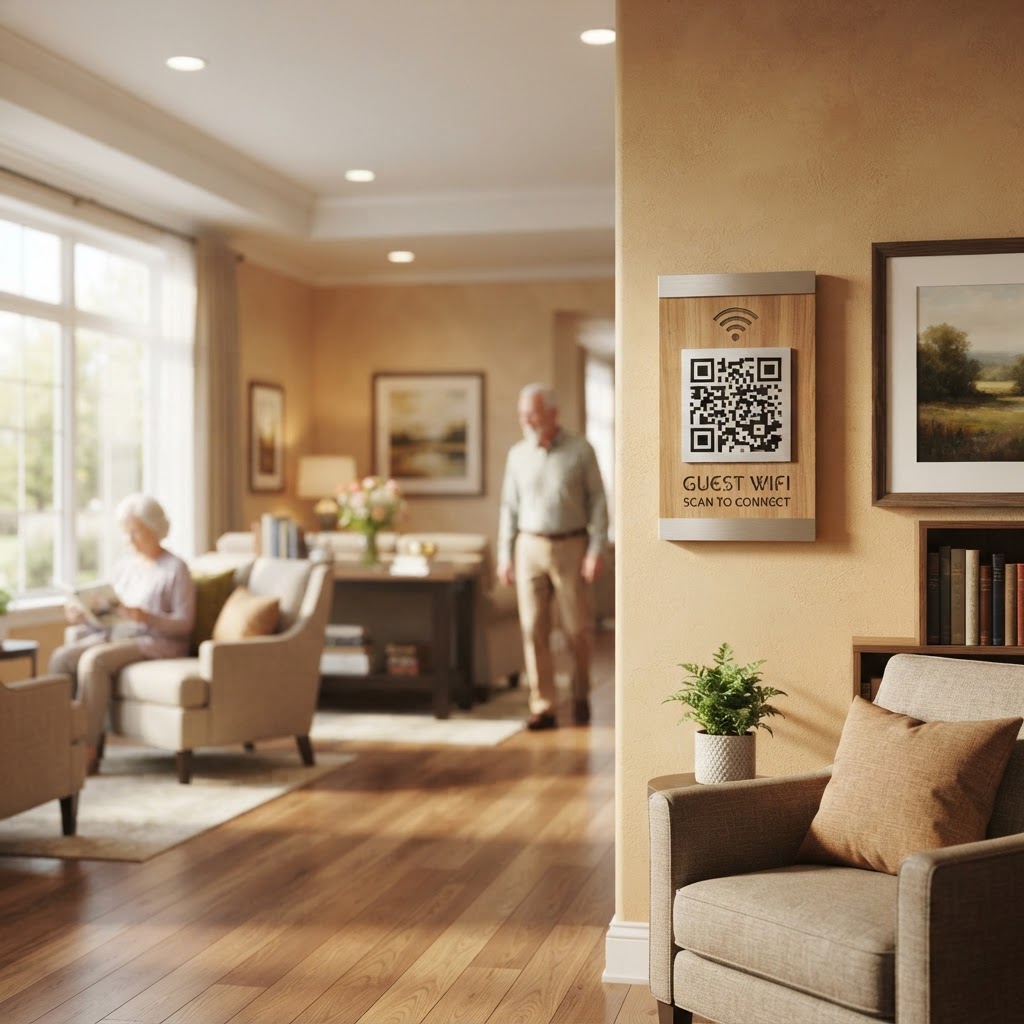
Why a WiFi QR Code for Retirement Home Access Matters
In a retirement home, the demographic ranges from elderly residents who may find typing long passwords on tablets difficult, to visiting family members who need reliable access to coordinate care. Manually typing a complex WPA2/WPA3 password into an iPad or smartphone is a common point of frustration that often leads to support requests for your front-desk staff.
Implementing a wifi QR code for retirement home settings turns this frustrating process into a simple point-and-scan interaction. This reduces the burden on your administrative staff and ensures that residents stay connected with loved ones through video calls and digital messaging platforms without technical hurdles.
What you need before you start
Before you begin, ensure you have your network details ready so the process remains smooth. You will need the exact Network Name (SSID) as it appears in your router settings—keep in mind that these are case-sensitive.
- Network SSID: The exact name of your facility's WiFi network.
- WiFi Password: The current password used for guest or resident connectivity.
- Network Security Type: Usually WPA/WPA2, which you can check in your router's admin panel.
- Internet Access: A reliable connection to use our free WiFi QR Code Generator for immediate results.
How to create your QR code — step by step
Follow these steps to configure your network credentials and generate a scannable image for your common areas. Blue QR Code Generator makes this process streamlined and efficient.
- Open the generator: Navigate to our free WiFi QR Code Generator to begin the configuration.
- Enter your Network Name: Input the SSID exactly as it is broadcasted by your facility's wireless access points.
- Select Security: Choose the appropriate security protocol, which is most often WPA/WPA2/WPA3 for modern residential routers.
- Input the Password: Carefully type your WiFi password into the designated field, ensuring there are no leading or trailing spaces.
- Check your Hidden Network setting: If your network is set to broadcast as "hidden," make sure to toggle that option within the tool so devices can find the handshake.
- Generate and Download: Once the information is entered, click the generate button to finalize your code and download it in your preferred image format.
How to test and deploy it
After you generate the code, print it on high-quality cardstock and place it in frames within your lobby or activity rooms. Before mass printing, test the code with both an Android device and an iPhone to ensure they connect instantly upon scanning.
Blue QR Code Generator allows you to create high-resolution images that won't blur when printed for signage. If you ever change your facility password for security reasons, simply return to our tool to generate yours in seconds and replace the old printouts.
Common mistakes that ruin results
- Case Sensitivity: Failing to match the exact casing of your SSID or password is the leading cause of "connection failed" errors.
- Low Contrast: Printing the QR code in light colors or on low-contrast paper makes it difficult for older camera sensors to focus properly.
- Too Many Characters: Adding complex network settings that the local router doesn't actually support can cause connection timeouts.
- Ignoring Size: Placing the QR code in a tiny frame or behind reflective glass will prevent users from scanning it effectively.
Real examples of successful deployment
One facility manager utilized these codes in their library, mounting them on small acrylic stands near the reading chairs. This simple addition allowed residents to connect their e-readers instantly without asking for help from the librarian.
Another community center placed these codes in the main cafeteria, which significantly reduced the time staff spent manually typing passwords into visitor phones during peak family visiting hours. If you are ready to upgrade your facility, you can use Blue QR Code Generator's WiFi QR codes tool to get started right now.