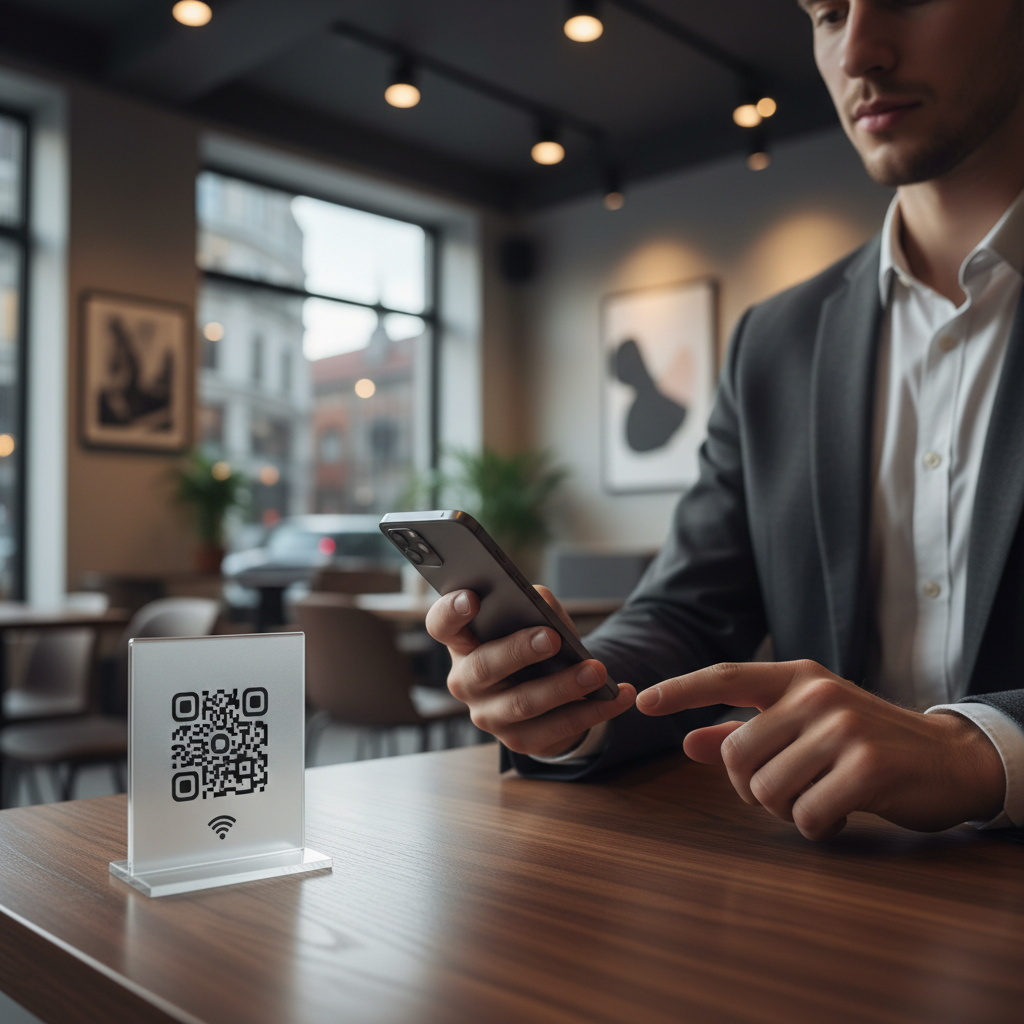
Why creating a WiFi QR code matters
Imagine a busy café during peak hours. Guests are frustrated trying to remember a complex WiFi password or not even bothering to ask for it. Providing a WiFi QR code helps streamline the connection process, leading to happier customers who can immediately access the internet. For business owners, this simple addition can enhance the customer experience, encouraging them to stay longer and return. You can easily create your own QR code using our free WiFi QR Code Generator for hassle-free connectivity.
What you need before you start
- WiFi Network Name: Ensure you know your SSID (network name).
- WiFi Password: Have your network password handy.
- Encryption Type: Identify if your network uses WPA, WPA2, or no encryption.
- Device with Internet: Access to a device to use the Blue QR Code Generator.
How to create a wifi qr code — step by step
- Visit the Blue QR Code Generator: Go to our free WiFi QR Code Generator to start creating your code.
- Choose Qr Code Type: Select the WiFi option from the type of QR codes available.
- Input Network Details: Fill in your WiFi network’s SSID, password, and select the encryption type.
- Customize Your QR Code: You can change colors and designs to match your branding if desired.
- Generate the QR Code: Click the generate button, and your QR code will be created instantly.
- Download and Print: Save the QR code image and print it out for easy access in your establishment.
How to test and deploy it
Before deploying your WiFi QR code, it’s essential to test it to ensure it works correctly. Scan the code using a smartphone camera. Ensure that it prompts a connection to the correct WiFi network. If the test is successful, print the QR codes and place them prominently in areas where guests can easily scan them, such as on tables, menus, or at the reception desk. For additional tips, you may want to explore our article on creating a wifi qr code for hotel guests.
Common mistakes that ruin results
- Incorrect SSID: Always double-check your network name to avoid confusion for guests.
- Missing or Wrong Password: Ensure there are no typos in the WiFi password section.
- Wrong Encryption Type: Choose the right encryption type to prevent connection issues.
- Poor Placement: Don't hide the QR code in hard-to-see areas; visibility is key.
- Neglecting To Test: Always test the QR code before distributing to ensure functionality.
Real examples
For instance, a local café installed WiFi QR codes at all tables, which led to a 30% increase in WiFi usage among customers, who now could relax and browse the internet without hassle. Similarly, a boutique hotel placed QR codes in guest rooms, allowing visitors to connect easily while they unpacked, leading to positive feedback and higher occupancy rates. In both cases, the use of the Blue QR Code Generator created an efficient and hassle-free experience, making guest connectivity seamless.
Step-by-Step Guide: How to Create a how to create a wifi qr code on BlueQRCode
-
Step 1 — Open the WiFi QR generator
Navigate to BlueQRCode and select the WiFi QR code type. The interface is designed for immediate use — no sign-up, no watermark. Choosing the WiFi option is the first step in learning how to create a wifi qr code that allows guests to connect instantly.
-
Step 2 — Enter your network details
Type your network name (SSID), choose the encryption type (WPA/WPA2/WPA3, WEP, or None), and enter the password if required. Be precise: SSIDs and passwords are case-sensitive. These exact fields form the payload of the WiFi QR code and determine whether devices will connect automatically when scanned.
-
Step 3 — Configure advanced options
If your network is hidden, toggle the “Hidden SSID” option so the generated QR code includes that flag. You can also preview how the connection data will be encoded. At this stage you can adjust the label or description that appears beneath the code if you plan to print an instruction sheet — a helpful addition when teaching users how to create a wifi qr code for public display.
-
Step 4 — Generate and test the QR code
Click “Generate” to create the WiFi QR code. Use at least two different devices (an Android phone and an iPhone, if possible) to scan and confirm the automatic connection behavior. Testing ensures that encryption and password fields were entered correctly and that your devices support automatic WiFi provisioning from a QR scan.
-
Step 5 — Download, print, and deploy
Download the QR code in the format you need (PNG, SVG, or PDF), choose an appropriate size and resolution, and print or display it. BlueQRCode codes never expire and include no watermark, so you can place the code on signs, menus, welcome packets, or meeting-room monitors. If you ever change the network password, regenerate a new code — the old one will no longer grant access.
Best Practices for how to create a wifi qr code
-
Use secure encryption: Always select WPA2/WPA3 when possible. Avoid creating QR codes for networks using WEP or unsecured networks unless absolutely necessary.
-
Keep passwords private: While a WiFi QR code is convenient, treat it like a password. Only place codes in supervised public areas or provide them directly to guests to prevent unauthorized access.
-
Test across devices: After you learn how to create a wifi qr code, test it with multiple operating systems and device models to ensure consistent behavior and to catch any quirks on specific phones or tablets.
-
Optimize print quality: When printing, use a high-resolution export (SVG or a large PNG) and ensure the physical code is at least 2–3 cm wide for smartphone cameras to scan reliably. Consider contrast and error correction; black on white works best for most scanners.
-
Label your code with instructions: Add a brief note like “Scan to join WiFi” or specify the network name for clarity. Clear labeling reduces confusion and helps users understand that scanning will connect them to a network.
Common Mistakes to Avoid
-
Incorrect SSID or password entry: The most frequent error when learning how to create a wifi qr code is entering the wrong SSID or including accidental spaces at the start or end of the password. Double-check exact spelling and case.
-
Wrong encryption selection: Selecting “None” for a network that actually uses WPA/WPA2 will produce a code that fails to connect. Make sure the encryption dropdown matches your router’s settings.
-
Printing too small or using poor contrast: Tiny QR codes or low-contrast colors (light gray on white, for example) make scanning unreliable. Maintain adequate size and high contrast to avoid connection failures.
-
Assuming permanence: Although BlueQRCode codes never expire, network credentials can change. Don’t post a QR code publicly if you plan to rotate your WiFi password frequently without updating the displayed code.
Real-World Use Cases
-
Cafes and Restaurants
Provide a quick, contactless way for customers to access guest WiFi. Place a printed how to create a wifi qr code sign at the table or on the counter so customers can connect without asking staff for the password—speeding up service and reducing friction.
-
Events and Conferences
Event organizers can display WiFi QR codes at registration desks, in brochures, and on digital displays. This allows attendees to connect immediately and helps reduce support requests, especially when many visitors need access at once.
-
Offices and Meeting Rooms
Place QR codes in conference rooms or on visitor welcome sheets so guests can join the corporate guest network easily. This is particularly useful for temporary teams, contractors, or clients who need internet access for a short period.
-
Vacation Rentals and Hospitality
Leave a framed QR code in rental properties or hotel rooms so guests can connect instantly without reading long instruction lists. Pair the code with a printed welcome guide that also includes network policies and contact information.
Create Your Free how to create a wifi qr code
No sign-up. No watermark. Never expires.
Generate Free QR Code →