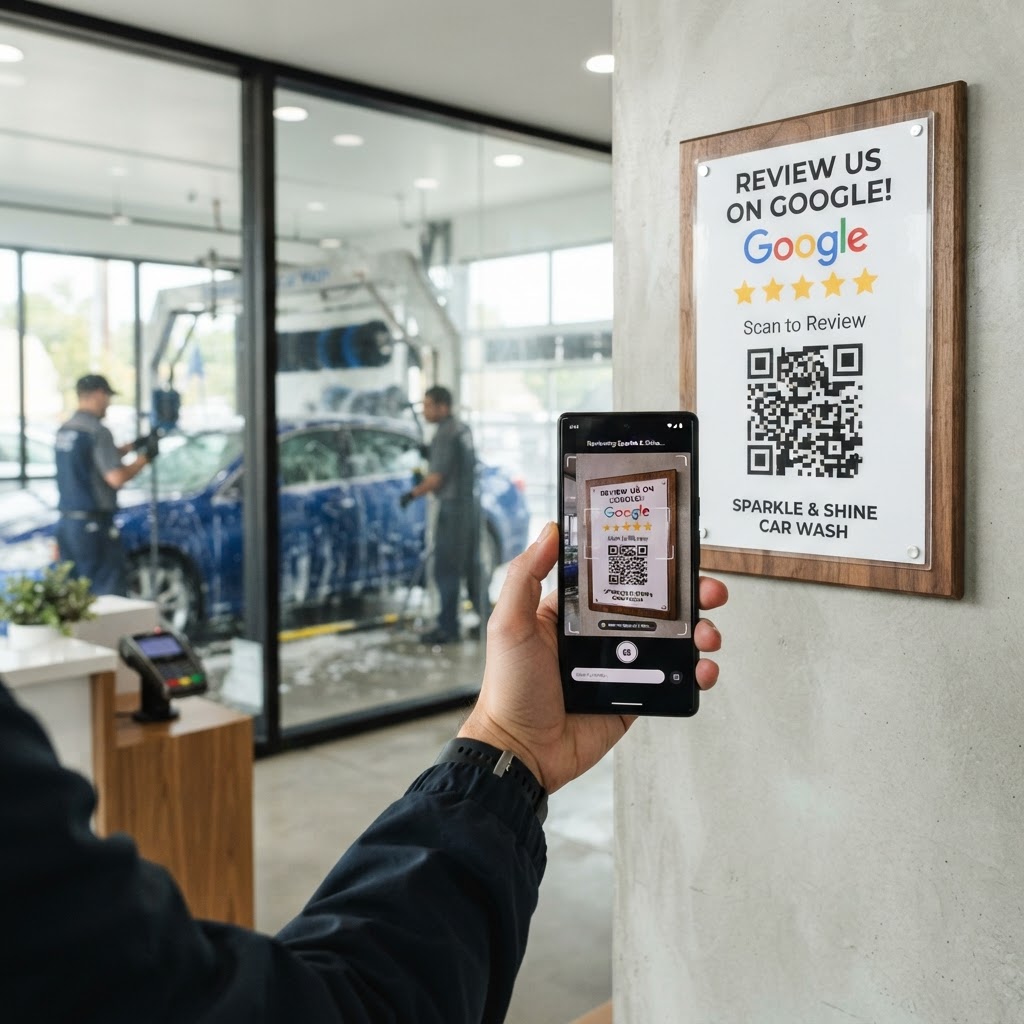
Why a Google review QR code for car wash matters
Imagine a customer pulling away from your facility with a freshly waxed vehicle, feeling impressed by the service. Without an immediate prompt, they will likely drive away and forget to leave feedback entirely, losing you a valuable opportunity for local SEO growth.
A physical QR code placed at your point-of-sale or on a sign near the vacuum stations acts as a constant digital nudge. By removing the friction of searching for your business name, you make it effortless for them to share their positive experience while they are still in their car. If you are ready to streamline this process, you can generate yours here to capture customer feedback instantly.
What you need before you start
Before you get started, ensure you have your official Google Business Profile link ready. You will need to access your dashboard, navigate to the reviews section, and copy the unique review link provided by Google.
You should also decide on the placement strategy, such as printing it on a small card to hand to customers or a larger sign near the exit lanes. Having your brand logo file handy is also helpful, as Blue QR Code Generator allows you to customize the aesthetic to match your car wash branding perfectly.
How to create a Google review QR code for car wash — step by step
- Find your Place ID: Visit your Google Business Profile, select the share review form link, and copy that URL to your clipboard.
- Visit the generator: Navigate to our free Google Review QR Code Generator to begin the creation process.
- Paste your link: Carefully paste the Google review URL into the input field provided on the tool page.
- Customize the design: Use the style options to adjust colors or patterns, ensuring the QR code stands out against your printed signage.
- Upload your logo: If desired, you can add your car wash logo to the center of the code to build trust and brand recognition.
- Generate and download: Click the button to create your unique code and save it as a high-resolution PNG or SVG file for printing.
How to test and deploy it
Testing is non-negotiable before you send your design to a commercial printer. Open your phone’s camera app and scan the generated code to ensure it immediately redirects to your business’s specific Google review submission page.
For deployment, place the QR code where it is at eye level for the driver. Many successful operators use Blue QR Code Generator to create codes placed on a small adhesive sign at the payment terminal or on a flyer attached to the side mirrors after a detail job.
Common mistakes that ruin results
- Lack of Call-to-Action: Simply placing a QR code without a sign saying "Scan to leave a review" will drastically lower your scan rates.
- Bad Placement: Putting the code too far away or in a spot where the sun glares on the sign makes it impossible for customers to scan it while waiting.
- Overly Complex Designs: Avoid heavy patterns that make the QR code difficult for older smartphone cameras to read quickly.
- Broken Links: Always verify your URL before printing hundreds of copies; a typo in the link renders your physical signs useless.
Real examples
A mobile detailing service recently started using our tool to generate a unique code printed on their business cards. Since they began handing these out after every wash, they saw a 40% increase in weekly reviews because the customers already had the card in their hand.
Another high-volume automatic tunnel wash placed a large sign at the end of the dry cycle. By following the steps to use Blue QR Code Generator's Google review QR codes tool, they successfully directed hundreds of drivers to their profile, significantly improving their local map rankings.
Ready to get more reviews? Click here to start now.