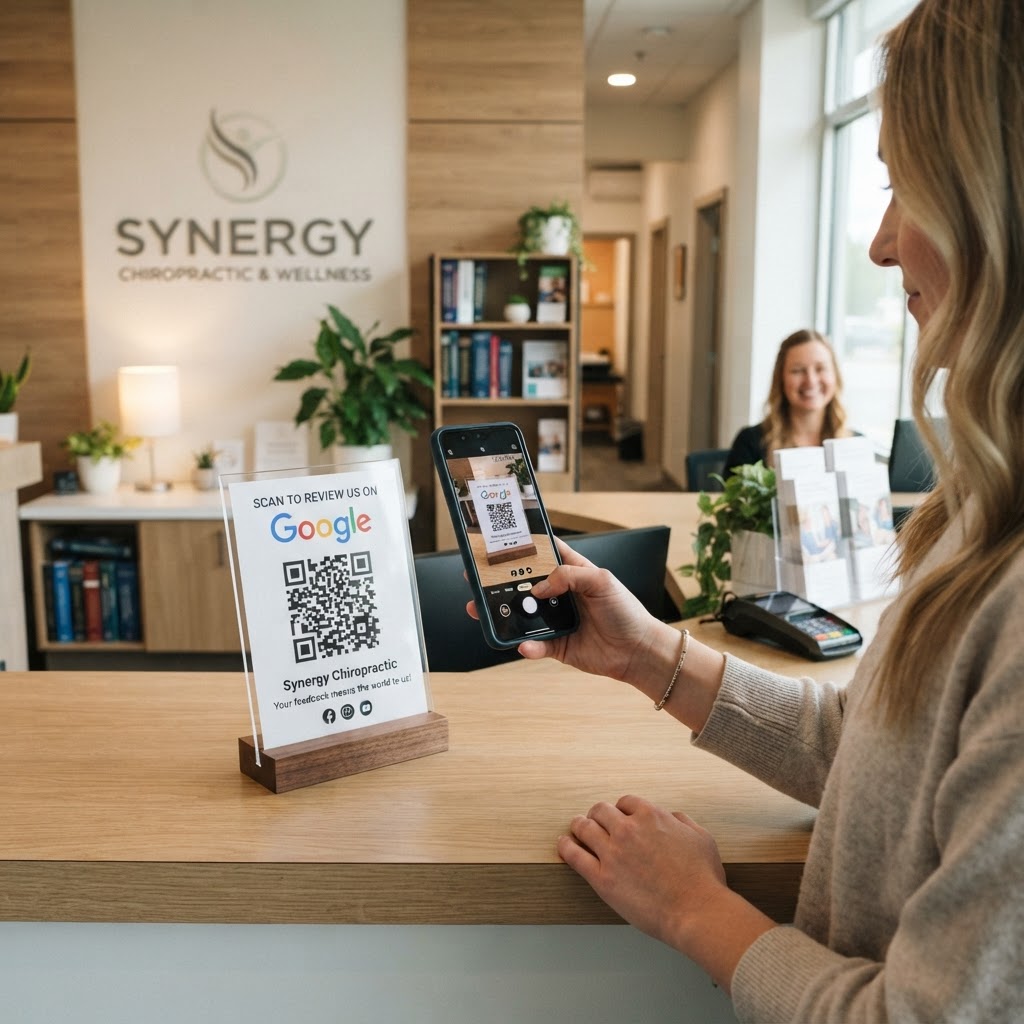
Why a Google review QR code for chiropractor offices matters
Imagine a patient just finishing a spinal adjustment, feeling immediate relief from chronic pain. They are happy and eager to support your practice, but when they leave, they get distracted by their phone or traffic. By placing a custom code on your reception desk, you remove the friction of them having to search for your business on Google later.
Using a Google review QR code for chiropractor clinics effectively captures that moment of patient satisfaction. It turns a verbal 'thank you' into a permanent, public testimonial that attracts new local patients searching for your specific adjustments.
What you need before you start
Before using our free Google Review QR Code Generator, you need a few items ready. First, ensure you have your Google Business Profile set up and verified.
Second, locate your direct review link from your Google Business dashboard. This link must be copied and ready to paste into our tool to ensure the scan leads directly to the submission form. Finally, decide on the design style that matches your clinic's branding to maintain a professional aesthetic for your front desk.
How to create yours — step by step
- Find your Place ID: Log into your Google Business Profile manager and locate the 'Get more reviews' section to copy your unique shareable link.
- Access the tool: Open our free Google Review QR Code Generator to begin the creation process.
- Paste your link: Enter the Google review URL you copied earlier into the designated input field on the page.
- Customize your design: Use the Blue QR Code Generator interface to adjust colors or add a frame, ensuring it matches your clinic's logo and color palette.
- Verify the link: Before finalizing, test the link to ensure it redirects correctly to the review pop-up for your Google Maps listing.
- Download the file: Select your preferred format, such as PNG or SVG, to save the file for printing on signage or appointment cards.
How to test and deploy it
Once you generate your code, printing it is only the first step. You should test the code using both an iPhone and an Android device to ensure the landing page loads instantly without requiring users to sign in multiple times.
Deploy your codes strategically in high-traffic areas, such as the check-out counter or on the back of patient information folders. When patients scan the code, verify that it opens the 'Write a Review' box automatically rather than just taking them to your general website home page. The Blue QR Code Generator ensures these links are direct and efficient.
Common mistakes that ruin results
- Poor placement: Putting the code on a low wall or behind glass where scanning is physically difficult for patients.
- Lack of instructions: Failing to add a small sign like 'Scan to leave a review' which tells the patient exactly what to do.
- Incorrect links: Using a link to your business profile instead of the specific 'Write a review' overlay link.
- Low contrast: Designing a code with colors that don't stand out, making it impossible for phone cameras to focus on the pattern.
Real examples
A neighborhood chiropractor placed a small QR code sticker on the clipboard used during the post-appointment payment process. Because patients were already holding their phones to pay, they found it incredibly easy to snap a photo and submit a review while waiting for their receipts.
Another clinic owner printed the code on a small desk tent card placed near the clinic exit. They reported a 40% increase in monthly reviews after three months because they asked patients, 'Could you share your experience today?' while pointing to the sign. It is a simple, low-cost way to scale your online presence.
Ready to get started? You can generate yours in seconds and start building your reputation today.