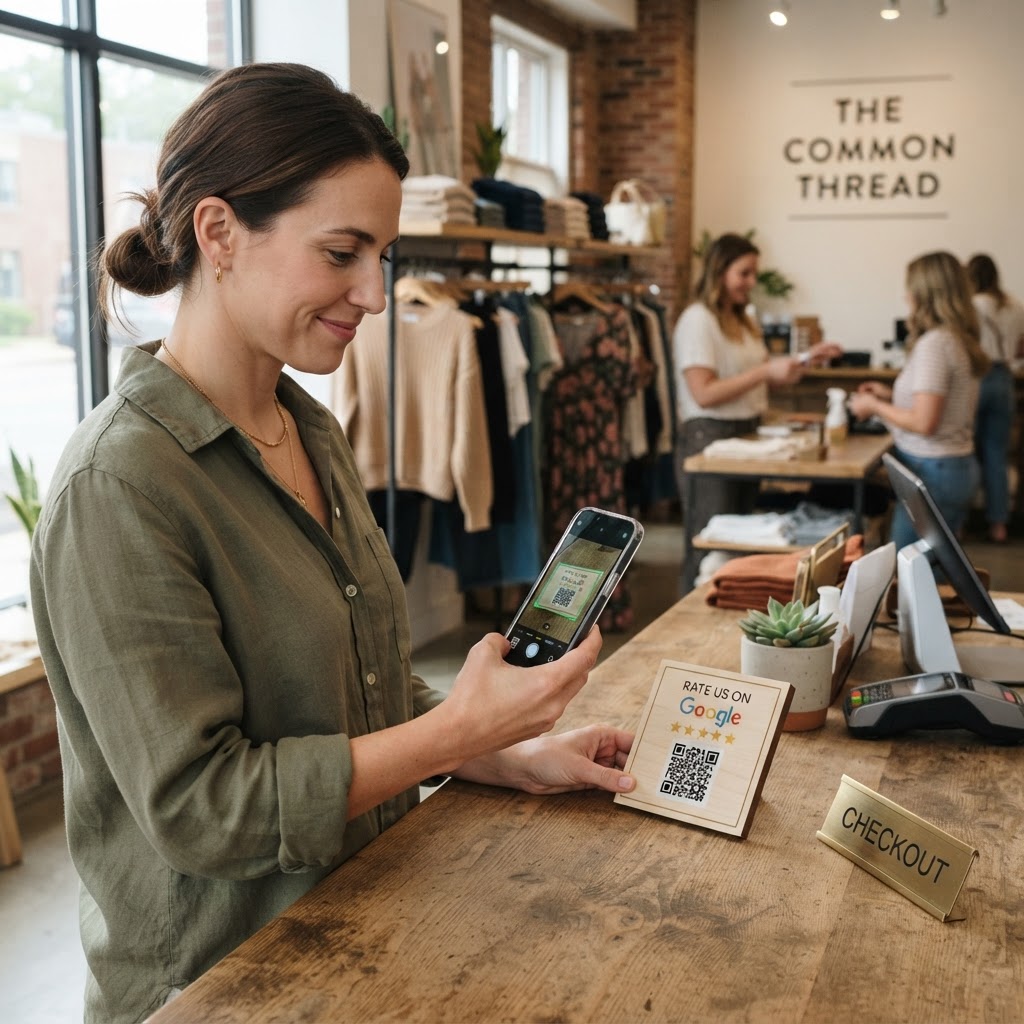
Why a Google review QR code for clothing store success matters
In the competitive world of retail fashion, customer trust is your most valuable asset. When a shopper walks past your store, they often check their phone to see if you have recent, positive feedback before deciding to step inside.
By having a simple scanning method at your checkout, you remove the friction that prevents happy customers from leaving a review. This quick digital interaction creates a bridge between an in-store purchase and a glowing five-star rating that helps your boutique dominate local search results.
What you need before you start
You don't need expensive software or technical skills to get started today. Before you begin, ensure you have access to your Google Business Profile manager account so you can retrieve your unique review link.
You should also have a clear idea of where the QR code will be displayed, such as on a printed stand at the cash wrap or a small card slipped into shopping bags. Finally, ensure your business is verified on Google Maps so that the review link directs people to the correct location page.
How to create a Google review QR code for clothing store growth — step by step
- Access your Google Business Profile: Log into your Google Business account and locate the 'Get more reviews' button on your dashboard to copy your unique shareable review link.
- Visit the generator: Navigate to our free Google Review QR Code Generator to begin the creation process without needing to sign up.
- Paste your link: Carefully paste the URL you copied from Google into the input field on the generator page.
- Customize your design: Use the Blue QR Code Generator interface to adjust the colors or add your clothing store logo to ensure the code matches your brand identity.
- Generate the code: Click the generate button to see your unique QR code appear instantly on the screen.
- Download your asset: Save the file in a high-resolution format like PNG or SVG so it remains scannable when you print it on flyers or receipts.
How to test and deploy it
Before mass-printing your new signage, pull out your own smartphone and scan the code to ensure it redirects correctly to your specific review submission window. If the link goes to your homepage instead of the write-a-review pop-up, go back to the tool and verify the link provided by Google.
Placement is everything for retailers, so consider printing a small tent card for your counter or using the Blue QR Code Generator to create a sticker for the bottom of your sales receipts. This ensures the prompt to review occurs right when the customer is most satisfied with their new purchase.
Common mistakes that ruin results
- Printing too small: If the code is smaller than an inch, older smartphone cameras may struggle to focus on it, leading to customer frustration.
- Using a broken link: Always double-check that your URL is the direct review link provided by Google, rather than a generic link to your brand's website.
- Ignoring the surrounding design: A QR code by itself often gets ignored; add a short instruction like 'Scan to share your feedback' to increase scan rates.
- Forgetting to test in bad lighting: Ensure your checkout counter is bright enough that a phone camera can easily detect the contrast of your printed QR code.
Real examples of success
A boutique owner in Chicago placed a small, branded QR code on their fitting room mirrors, which saw a 30% increase in weekly reviews. Because the shopper was already engaged with the clothing, it was the perfect moment to ask for their opinion.
Another shop owner included a QR code on a 'Thank You' card inside every shopping bag, using the Blue QR Code Generator to create a sleek, minimal design. This allowed them to reach customers even after they left the store, turning a simple purchase into a long-term reputation-building opportunity. If you are ready to see similar results, you can generate yours in seconds using our platform.