Why a google review qr code for dance studio success matters
Imagine a parent watching their child finish a successful dance recital, beaming with pride and excitement. That moment is the perfect time to request a review, but asking them to manually search for your business on Google is a massive hurdle that leads to procrastination and forgotten promises. When you generate yours in seconds, you eliminate the friction entirely by taking them directly to the submission form.
High review counts act as a powerful form of social proof that validates your dance instruction quality to prospective new students. Having a consistent stream of feedback also improves your local SEO rankings, helping you stand out when people search for classes in your city.
What you need before you start
Before using our free Google Review QR Code Generator, you need a few basics prepared. First, ensure your Google Business Profile is fully set up and verified so that customers can actually leave reviews for your specific studio address.
You will need your Place ID, which is a unique identifier assigned by Google to every business location. If you don't have this, our tool helps you find it easily. Finally, make sure you have a high-resolution logo or a brand color palette ready if you want to customize your code to match your studio's unique style.
How to create a custom QR code — step by step
Getting your system up and running is straightforward. Follow these steps to ensure you get it right on the first try.
- Find your Place ID: Visit your Google Business Profile dashboard to find the unique identifier for your studio or search for it directly within our free Google Review QR Code Generator interface.
- Input your business details: Enter your Place ID into the generator to create a direct link that opens the "Write a Review" dialog box automatically for your visitors.
- Customize the design: Use the Blue QR Code Generator settings to change the foreground color or add a frame to ensure the code stands out on your studio posters or brochures.
- Verify the link: Before printing, scan the code with your smartphone to ensure it redirects correctly to your specific review submission page.
- Download your assets: Save your QR code as a high-quality PNG or SVG file, which allows you to print it on various marketing materials without losing clarity.
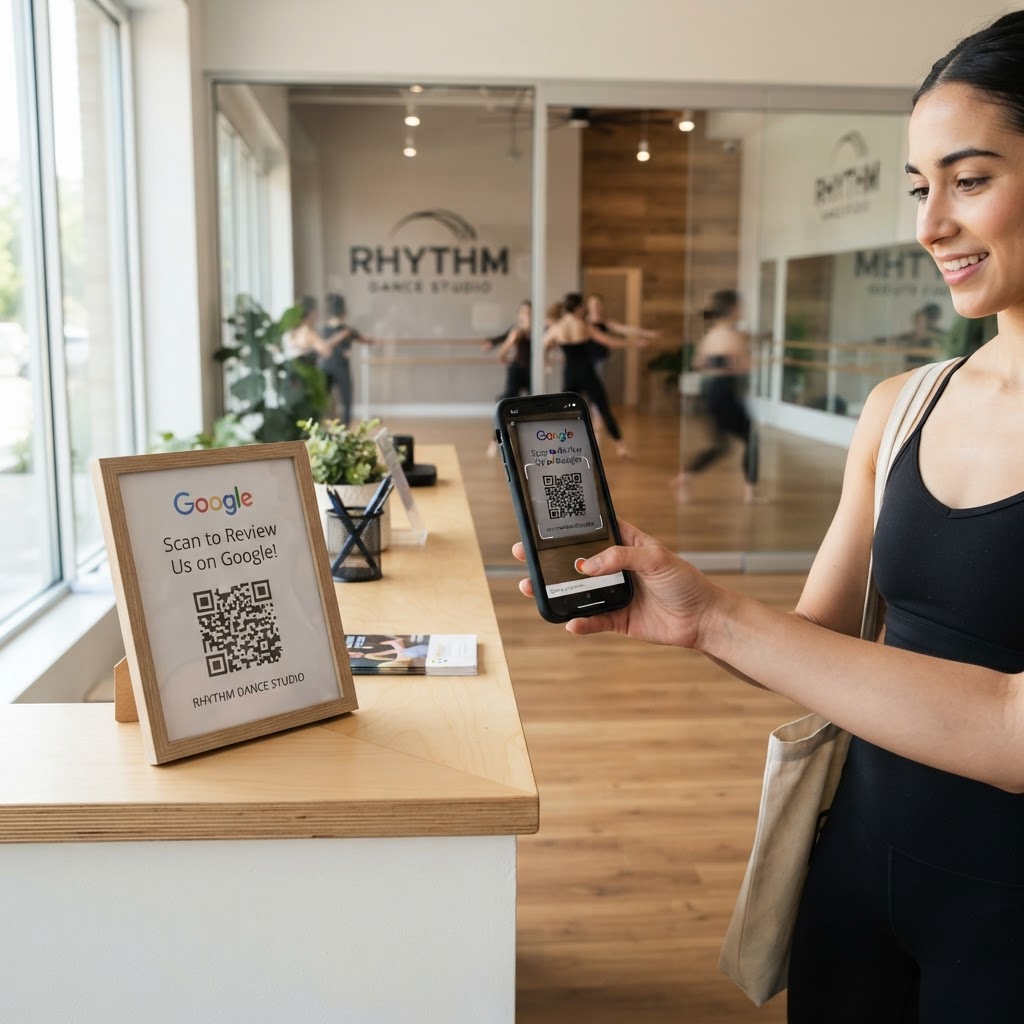
- Place strategically: Print the code and display it at high-traffic areas in your studio, such as the check-in desk or the waiting area where parents sit during rehearsals.
How to test and deploy it
Testing is vital to ensure you aren't sending visitors to a dead link. Always test your generated code with both an iPhone and an Android device to confirm the user experience is consistent across platforms. Blue QR Code Generator makes this easy by allowing you to update the destination URL if you ever rebrand or change your business link.
For deployment, think about where your dance community interacts most. Place a small print-out near the mirrors in the changing room or include a link on your monthly newsletter email signature. You can also use Blue QR Code Generator's Google review QR codes tool to print these on recital programs so parents can review you while the applause is still fresh.
Common mistakes that ruin results
- Low contrast design: Avoid using light colors for the QR code squares on a light background, as this makes the code unreadable for many cameras.
- Small print size: If your QR code is smaller than one inch, smartphones may struggle to focus and scan it, leading to user frustration.
- No call to action: Never print the code by itself; always include a small note like "Scan to tell us how your child's dance class went today!"
- Bad placement: Placing the code in a dark corner or an area where people cannot comfortably stand for a few seconds will result in zero scans.
Real examples
Consider a dance studio that placed a framed sign with a QR code at their summer camp registration desk. By pairing the QR code with a sign saying "Love your progress? Share your feedback!", they saw a 40% increase in weekly reviews compared to previous months. Another example involves a studio printing the code on the back of recital tickets; parents waiting for the curtain to rise had nothing but time, leading to a surge in high-quality, descriptive reviews about the performance.
By integrating these into your studio's daily rhythm, you turn every interaction into an opportunity for growth. Take the first step and create your Google review QR codes — free today.