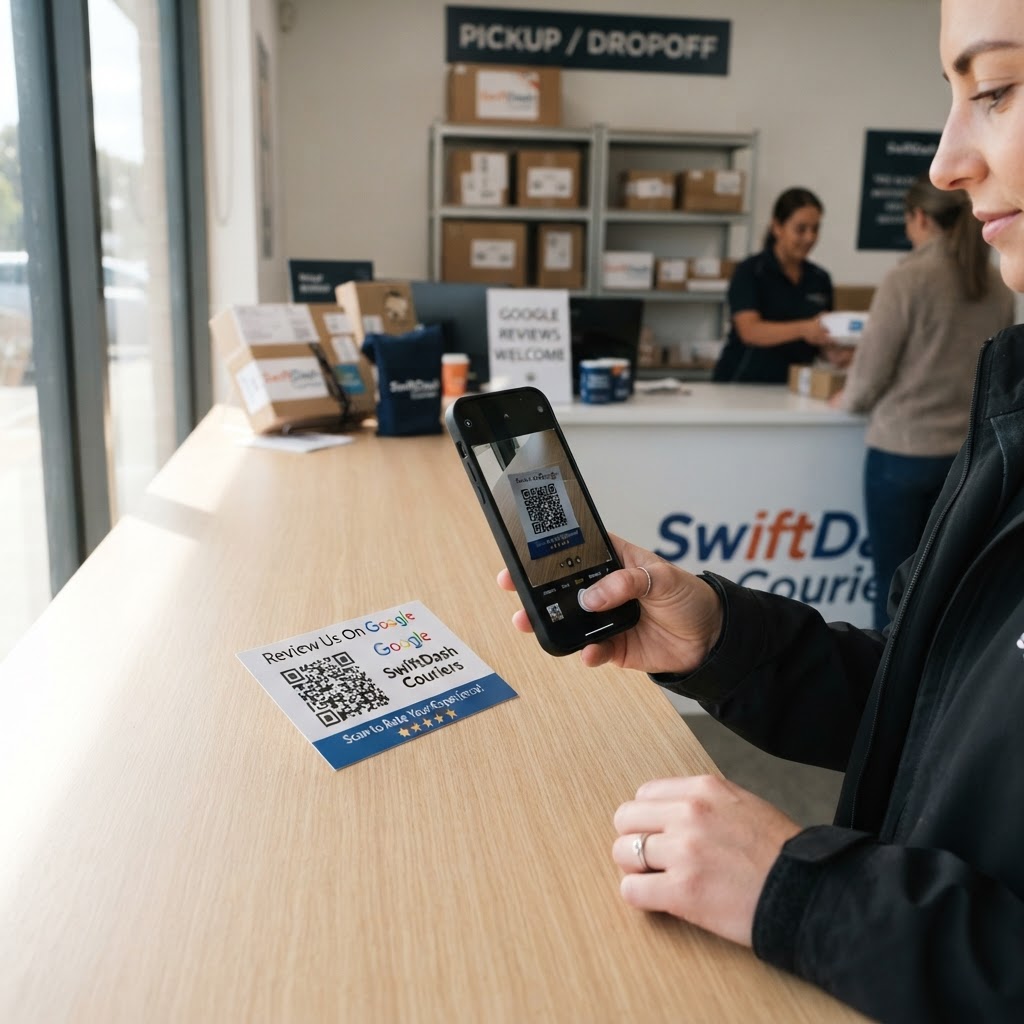
Why a Google review QR code for delivery service matters
In the competitive world of local logistics and courier work, trust is your most valuable currency. A five-star rating on Google often determines whether a potential client chooses your delivery service or a competitor, yet most satisfied customers simply never think to leave a review.
By placing a physical QR code on your packaging, invoices, or delivery confirmation slips, you bridge the gap between a successful delivery and a positive review. It removes the friction of searching for your business name online, making it effortless for the client to share their experience immediately upon receipt of their goods. To streamline this for your own business, you can use our free Google Review QR Code Generator to create a custom link in seconds.
What you need before you start
Before you begin, ensure you have your official Google Business Profile link handy. This is the specific URL that directs users straight to the "Write a review" pop-up box, rather than just your homepage.
You will also need a printer or a digital file storage system to keep your QR codes organized. Using Blue QR Code Generator ensures your codes are high-resolution and reliable, which is essential when printing stickers or attaching them to shipping labels. Having a mobile device to test your code after creation is the final essential step in the process.
How to create your code — step by step
- Find your Review Link: Open your Google Business Profile dashboard and select the "Get more reviews" button to copy your unique short URL.
- Access the Tool: Navigate to our free Google Review QR Code Generator to get started.
- Paste the Link: Insert your copied Google review URL into the input field provided on the screen.
- Customize the Design: Adjust the colors or add a logo to match your delivery brand identity if desired.
- Generate the Code: Click the button to create your custom QR code instantly.
- Download and Print: Save your file as a high-quality PNG or PDF to use on your delivery packaging.
How to test and deploy it
Once you have your code, don't just stick it on a hundred boxes immediately. Always scan it with at least two different mobile devices to verify it opens the correct review window directly.
Strategic placement is key to getting the most scans. Include the code on the packing slip inside the bag, on a "Thank You" card attached to the exterior, or even on the back of your delivery vehicle if you operate a local courier service. When you use Blue QR Code Generator, you get a crisp, clean output that remains scannable even when printed on smaller formats like stickers.
Common mistakes that ruin results
- Poor Quality Prints: Printing your QR code on low-quality paper or in a low resolution makes it difficult for smartphone cameras to read.
- Incorrect URL: Linking to your general website instead of the specific review overlay adds extra steps and ruins conversion rates.
- No Clear Call to Action: Failing to include a simple instruction like "Scan here to rate your delivery" leaves customers guessing why they should scan it.
- Ignoring Size Requirements: Making the code too small (smaller than 1x1 inch) often leads to scanning errors during the hectic process of receiving a delivery.
Real examples
A local floral delivery business started placing a QR code on every bouquet card, which increased their monthly review count by 40% in just two months. Because the customer was already happy with the flowers, they were highly motivated to scan the code as soon as they received their delivery.
Another example involves a regional courier service that added the QR code to their digital delivery confirmation emails sent to recipients. This hybrid approach allowed them to capture reviews from both in-person hand-offs and door-step deliveries, proving that you should use Blue QR Code Generator's Google review QR codes tool across all customer touchpoints for maximum impact. Ready to see the difference for yourself? Click here to generate yours in seconds and start building your reputation today.