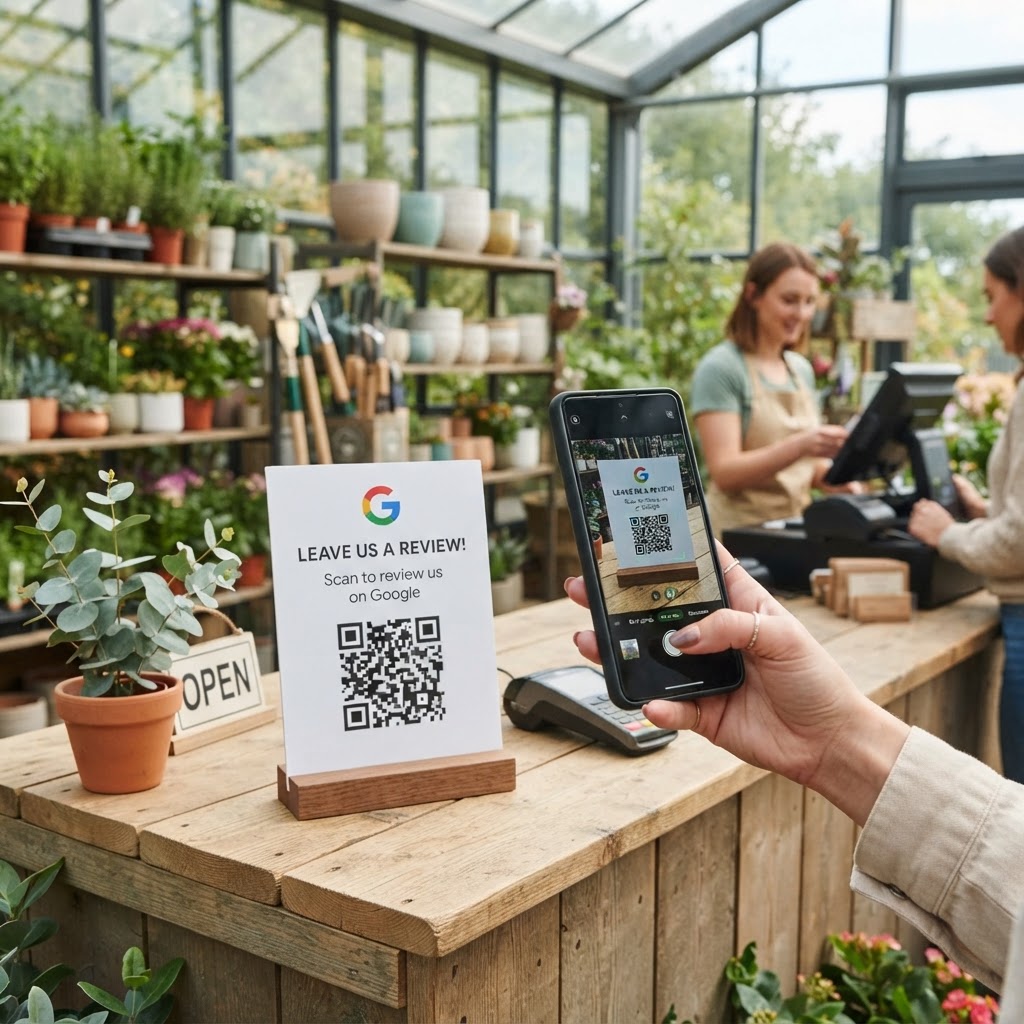
Why a Google review QR code for garden center growth matters
Imagine a customer just finished browsing your greenhouse, bought a beautiful selection of seasonal perennials, and left feeling inspired. If they walk away, the chance of them taking the time to search for your business on Google later is slim.
By placing a QR code at your checkout counter, you bridge that gap instantly. It turns a passive happy shopper into an active reviewer before they even reach their car, directly impacting your local search rankings. If you are looking to simplify this process for your business, you can generate yours here to start collecting feedback immediately.
What you need before you start
Before you begin, ensure you have your business Google Place ID ready, as this is essential to direct users to the correct review page. You should also have a clear, high-resolution logo if you want to customize your code to match your nursery's branding.
Most importantly, have access to our free Google Review QR Code Generator to simplify the technical side of the process. Having these pieces ready will allow you to generate yours in seconds without any technical headaches.
How to create a Google Review QR Code for garden center customers
- Find your Google Place ID: Visit your business profile on Google Maps and extract the unique URL or ID that links directly to your "write a review" section.
- Access the tool: Navigate to our free Google Review QR Code Generator to begin the creation process.
- Enter your link: Paste the copied URL into the input field within the generator to ensure the QR code routes customers to the correct feedback form.
- Customize the design: Use the options in the Blue QR Code Generator to add your brand colors or a professional frame that stands out at your point of sale.
- Preview the output: Verify that the generated code functions correctly by scanning it with your smartphone camera to ensure it lands on your review page.
- Download your file: Save the final QR code as a high-quality PNG or SVG file so you can print it clearly on signage or flyers.
How to test and deploy it
Once you have your code, don't just print it and hope for the best. Perform a "live test" by placing the code on a counter and having a staff member scan it from different distances to ensure lighting and glare don't interfere with the scan.
The Blue QR Code Generator produces highly reliable codes, but placement is everything. Consider printing the code on a small acrylic stand next to your register or adding it to the bottom of your printed receipts to maximize exposure.
Common mistakes that ruin results
- Poor contrast: Printing a light-colored QR code on a light background makes it impossible for most cameras to focus and scan.
- Lack of incentive: Failing to mention why they should scan it; try a small sign that says "Help us grow—rate your experience!"
- Bad placement: Putting the code behind a glass display or in a dark corner where customers can't reach it comfortably.
- Broken links: Forgetting to test the link after any major changes to your business website or Google profile URL.
Real examples for your store
You might place a large, branded sign near the exit where customers leave with their heavy bags of soil, featuring the text: "Love your new plants? Scan to let us know!" This creates a natural interaction point while they are already feeling positive about their purchase.
Alternatively, you could use our tool to print the code on business cards that are tucked into the bags of every customer. This gives them a moment to review you once they get home and are actually planting their new additions in their own garden. You can use our free Google Review QR Code Generator to scale these efforts across multiple store locations efficiently.