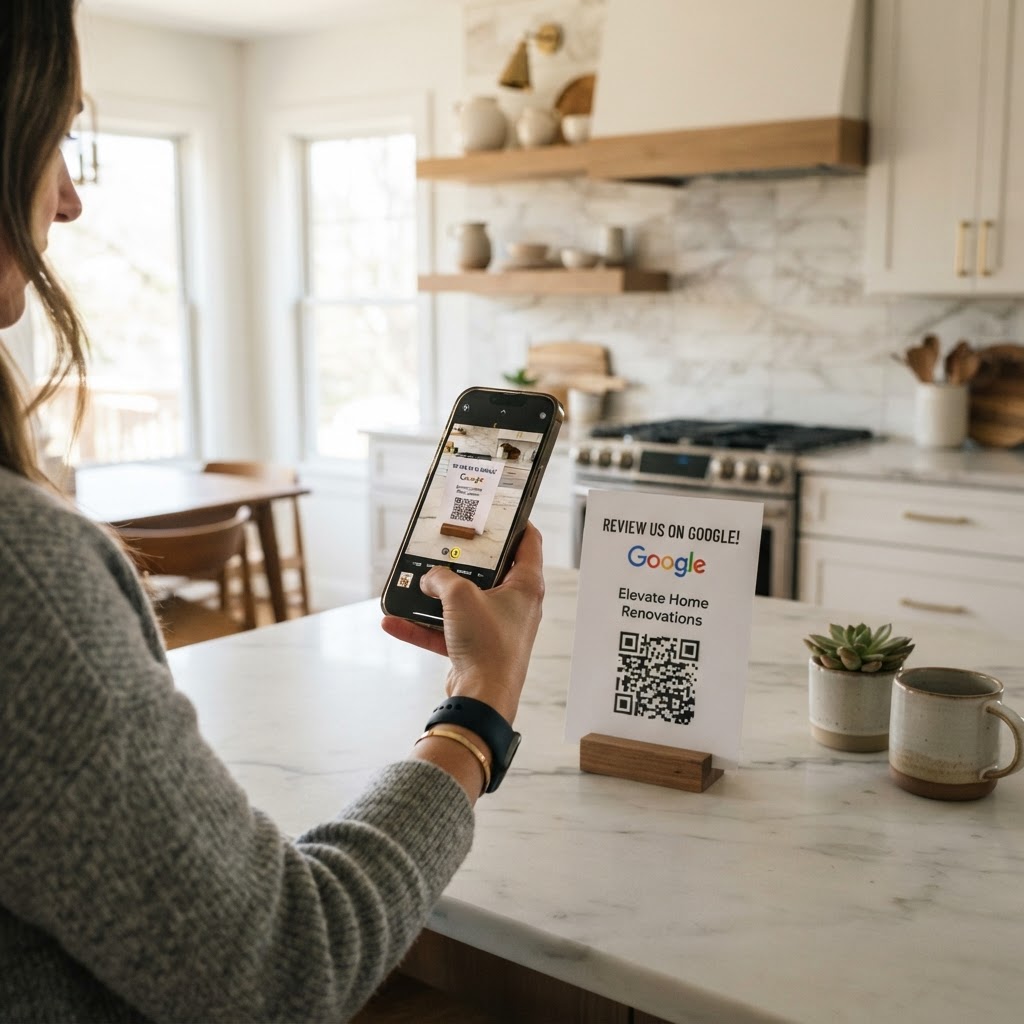
Why a google review qr code for home renovation matters
In the home improvement industry, your reputation is built on trust and visual proof. Potential customers are far more likely to hire a contractor if they see consistent, recent five-star reviews on Google.
A QR code acts as a physical bridge between a completed project and your digital presence. By placing a code on your invoice, project sign, or business card, you remove the friction that prevents happy clients from sharing their feedback.
What you need before you start
Before jumping into the tool, you need to ensure your digital foundation is set. You must have access to your Google Business Profile to retrieve your specific review link.
- Google Business Profile: Ensure you are logged into the account that manages your company's listing.
- Review URL: Use the direct link to your 'Write a review' form, not just your main business page link.
- Brand Assets: Keep your company logo handy if you want to customize your QR code for better professional branding.
- Design Tool: Access to our free Google Review QR Code Generator for a professional, scannable result.
How to create your code — step by step
- Log in to your Google Business Profile: Navigate to your profile dashboard on Google and locate the button that says 'Ask for reviews'.
- Copy your unique link: Google will provide a specific URL that redirects customers directly to the review pop-up box. Copy this URL carefully.
- Open our generator: Head over to our free Google Review QR Code Generator to begin the setup.
- Paste the URL: Enter your copied Google link into the input field provided by the Blue QR Code Generator.
- Customize the design: Adjust colors or add your logo to ensure the code matches your brand identity.
- Download your file: Export the code as a high-resolution PNG or SVG file for printing on your marketing collateral.
How to test and deploy it
Before printing hundreds of stickers or flyers, always test the QR code with multiple smartphones. Open your camera app, scan the code, and ensure it opens the direct review form without any error messages.
For home renovation professionals, the best deployment strategy is physical integration. Attach the code to the thank-you note you leave on the kitchen counter or stick it to the side of your equipment trailer.
The Blue QR Code Generator provides high-quality images that remain crisp even when scaled up for large banners or truck wraps. This ensures your professional image is maintained across all physical touchpoints.
Common mistakes that ruin results
- Printing too small: If the QR code is smaller than one inch, modern smartphones may struggle to scan it from a distance.
- Low contrast designs: Avoid using light-colored codes on light backgrounds; always use high-contrast combinations like black on white.
- Forgetting the CTA: Never just print the QR code alone; always add a short call to action like 'Scan to leave us a review'.
- Using a dead link: Always verify your link annually, especially if you change your Google business name or website address.
Real examples of success
A local kitchen renovation team started printing a QR code on the final project sign-off sheet. Within one month, they saw a 40% increase in organic reviews because they made it easy for the client to scan and type while the team was cleaning up.
Another contractor decided to use Blue QR Code Generator to add a custom code to their business cards. They now ask every client at the end of a consult to scan the card, which keeps their business at the top of local search rankings.
Whether you are a painter or a full-scale renovation firm, you can use Blue QR Code Generator's Google review QR codes tool to keep your momentum going.