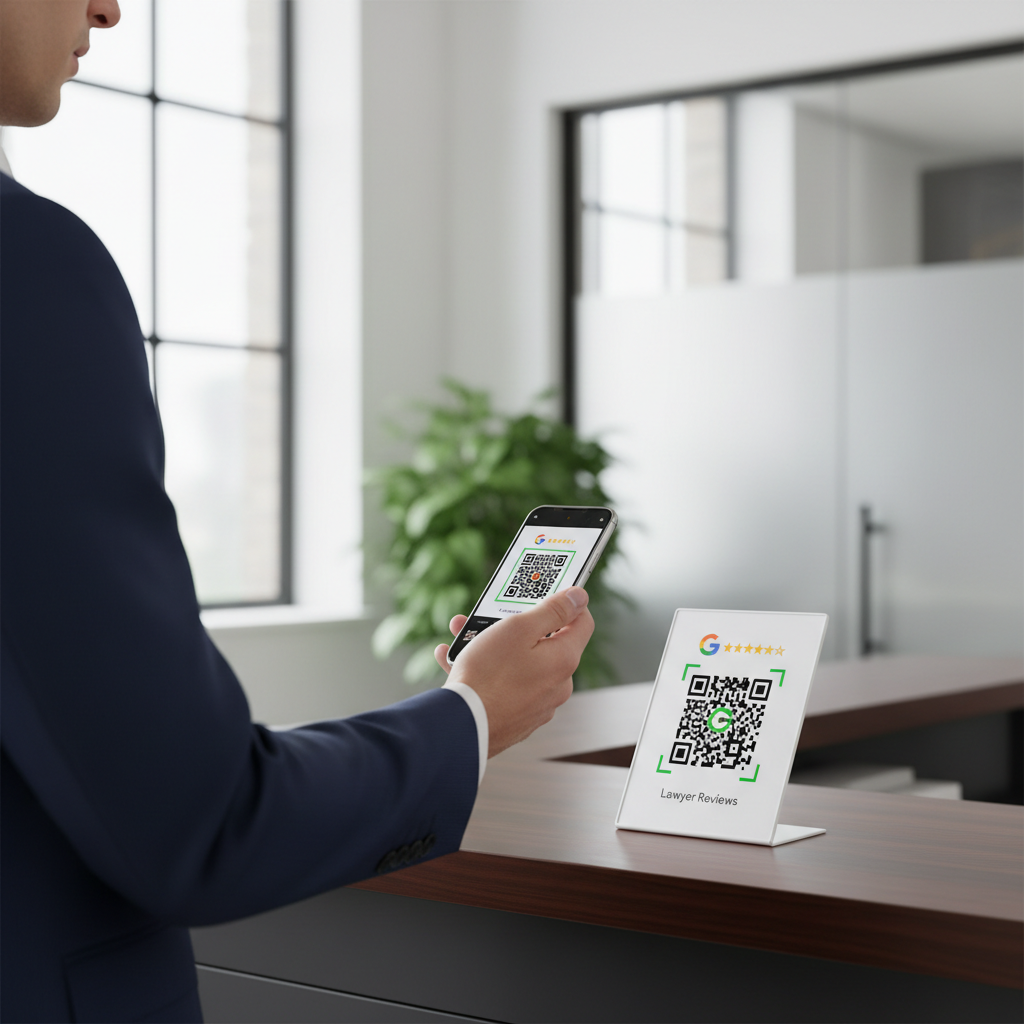
Why Google Review QR Code for Lawyers Matters
In the competitive legal landscape, gaining the trust of potential clients is crucial. Imagine a satisfied client leaving your office and having a simple way to share their positive experience online. By using a Google review QR code, you can streamline the process for your clients, encouraging them to write that glowing review immediately. To make this journey even easier, you can utilize our free Google Review QR Code Generator, ensuring every happy client can quickly share their feedback.
What You Need Before You Start
Before you jump in and create your QR code, ensure you have the following in place:
- Google My Business Account: Make sure your law firm is listed on Google My Business.
- Access to the Internet: A stable internet connection is necessary to use the QR code generator.
- Your Business Information: Have your firm's details handy, such as the name, address, and phone number.
How to Create a Google Review QR Code for Lawyer — Step by Step
- Log into Google My Business: Access your Google My Business account, where you manage your firm's online presence.
- Find Your Review Link: Navigate to the 'Home' section and look for the 'Get More Reviews' card. Click on 'Share Review Form.'
- Copy the Review Link: Copy the URL link provided, which directs clients to your Google review page.
- Go to Blue QR Code Generator: Visit our free Google Review QR Code Generator to start creating your QR code.
- Paste Your Link: Paste the copied review link into the generator and select any customization options you like.
- Generate Your QR Code: Click the 'Generate' button to create your QR code. Download it to your device for use!
How to Test and Deploy It
Once you’ve created your QR code, print it out or display it in your office. Scan the code with a smartphone to ensure it directs clients to your Google review page correctly. Place it on receipts, business cards, and your website to encourage clients to leave reviews. For effective results, you might also explore similar strategies used in other industries, such as the Google Review QR Code for Your Cafe article.
Common Mistakes That Ruin Results
- Using an Incorrect Link: Always ensure that the link you use directs clients to the correct review page.
- Not Testing the QR Code: Failure to test can lead to frustration for clients if it doesn't work.
- Forgetting to Promote the QR Code: Simply having the code isn’t enough; inform clients about it and its purpose.
- Over-Complicating the Design: Keep the QR code simple and recognizable, avoiding overly complex designs.
Real Examples
Many law firms have effectively used Google review QR codes. For instance, a personal injury attorney displayed the code in their lobby, significantly increasing the number of reviews they received after consultations.
Another example is a family law practice that included the QR code in their email signatures, prompting clients to leave feedback after successful case resolutions.
By integrating a Google review QR code into your law firm’s strategy, you can directly influence the number of positive online reviews and bolster your reputation in the legal community.
```Step-by-Step Guide: How to Create a google review qr code for lawyer on BlueQRCode
Creating a google review qr code for lawyer on BlueQRCode is fast and doesn't require any sign-up. Follow these five clear steps to make a QR code that directs clients straight to your Google review form.
Step 1 — Get your Google review link (Place ID)
Before you generate a QR code, locate your Google Place ID and the direct review URL. The easy, recommended format is: https://search.google.com/local/writereview?placeid=PLACE_ID. Use Google’s Place ID Finder or your Google Business Profile dashboard to copy the correct Place ID for your law firm or specific office location. Using the exact Place ID ensures clients are taken directly to the review dialog for your firm.
Step 2 — Open BlueQRCode and choose the Google Review type
Go to BlueQRCode, select the Google Review QR type from the list of QR options, and paste the review URL you created. BlueQRCode is tailored for direct review links, so choosing the Google Review option will optimize the QR code behavior for mobile users and reduce friction when submitting feedback.
Step 3 — Customize the appearance for a professional look
Customize the QR code to match your firm’s branding. Pick colors with high contrast (dark code on light background works best), choose an appropriate size for where you’ll print or display it, and set a higher error correction level if you plan to add a small logo or print on textured surfaces. For lawyers, using your firm logo and a subtle brand color reinforces credibility.
Step 4 — Add context and a call-to-action
Combine the QR code image with a short call-to-action such as “Leave us a Google review” or “Share your experience with [Firm Name].” Place this near the code on business cards, receipts, or the reception counter so clients know exactly what will happen when they scan. Also include a brief sentence reminding clients that reviews are voluntary and that confidentiality is respected.
Step 5 — Test and download
Before distributing, scan the QR code with several devices (iPhone, Android) and ensure it opens the Google review dialog directly. Verify it brings up the correct practice location and that the review experience is smooth. Once tested, download a high-resolution PNG or SVG from BlueQRCode for print and a smaller optimized file for digital use. Because BlueQRCode codes never expire and carry no watermark, you can reuse them across materials without worrying about future access.
Best Practices for google review qr code for lawyer
- Place the QR code where clients wait or sign documents (front desk, consultation room, billing statements) so scanning is convenient and natural.
- Use a clear call-to-action that mentions the firm’s name and the purpose: e.g., “Help [Firm Name] improve — leave a Google review.” Specific language increases conversion.
- Maintain ethical compliance: do not pressure clients for positive reviews, never offer incentives for reviews, and avoid asking for reviews in matters that could breach confidentiality.
- Ensure high contrast and a minimum print size (generally at least 2 x 2 inches for print materials) to guarantee reliable scanning, especially for older clients or low-light environments.
- Create separate QR codes for different offices or practice areas to gather location-specific feedback and understand which teams perform best.
Common Mistakes to Avoid
- Linking to your homepage or general Google Maps listing instead of the direct review dialog — this adds friction and reduces completed reviews. Always use the write-review URL with your Place ID.
- Printing the QR code too small or with low contrast — tiny or low-contrast codes often fail to scan, especially on glossy business cards or promotional materials.
- Failing to test across devices and networks — a code that works on desktop may behave differently on mobile; always test on multiple phones and browsers.
- Soliciting only positive reviews or offering compensation — this can violate professional conduct rules for lawyers and Google’s policies, and it undermines review authenticity.
Related guides
Real-World Use Cases
- Business cards and attorney profiles: Add a google review qr code for lawyer to the back of business cards so satisfied clients can leave feedback immediately after a consultation or court appearance.
- Reception and conference rooms: Place a framed QR code on the reception desk, near the client sign-in tablet, or on a counter-card in meeting rooms. Clients who had a positive in-person experience can scan and review before leaving.
- Client intake packets and settlement documents: Include the QR code in post-service envelopes or digital PDFs sent after a case closes, encouraging clients to share their experience while the interaction is fresh.
- Email signatures and SMS follow-ups: Add a small QR code image or a short link to follow-up emails or texts after an appointment. For mobile-first clients, QR codes embedded in digital receipts are easy to scan from another device.
Create Your Free google review qr code for lawyer
No sign-up. No watermark. Never expires.
Generate Free QR Code →