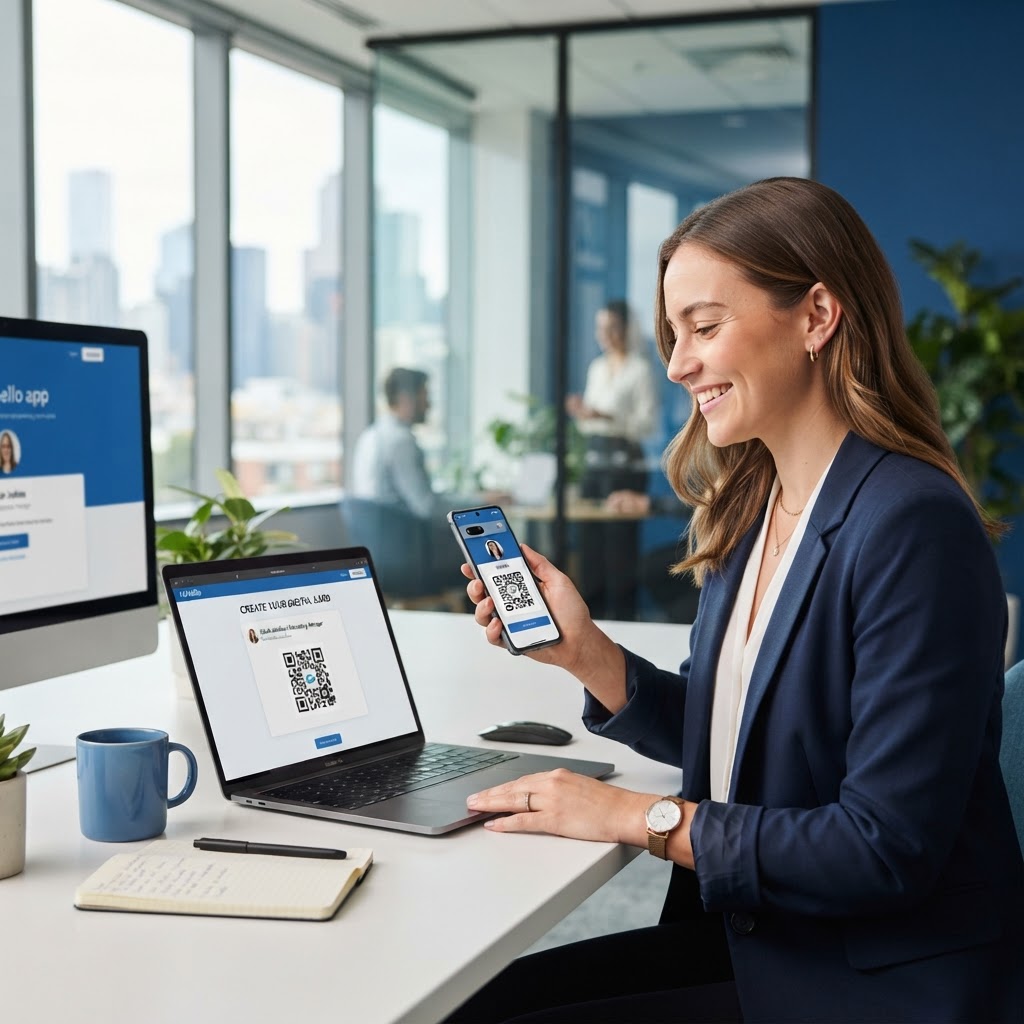
Why Mastering Digital Networking Matters
Imagine being at a high-stakes conference where you meet twenty potential leads in under two hours. You hand out physical paper cards, but by the time you reach the office, ten of those people have misplaced your card, and the other five have forgotten who you are. This scenario is a common bottleneck for sales professionals and freelancers alike, representing a significant loss of potential revenue and long-term brand equity.
A digital business card solves this by turning a passive piece of paper into an interactive gateway. When you use the Blue QR Code Generator, you provide immediate value to your contact. They scan your code, and your information is saved to their phonebook in seconds, bypassing the manual data entry process that often leads to lost connections. In today’s hyper-connected business landscape, speed is currency. If a lead has to manually type your email address into their phone, the probability of a typo—or them simply giving up—is high. By offering a QR code, you eliminate friction, transforming a fleeting handshake into a permanent digital record in their CRM or contact list.
Furthermore, digital business cards allow for real-time updates. If you change your phone number, switch agencies, or update your job title, you don't have to throw away boxes of printed stationery. Your QR code acts as a dynamic bridge to your live information, ensuring that even someone who met you six months ago can still access your current, accurate contact details. This reliability reinforces your professional image as someone who is tech-savvy, organized, and ready for modern business interactions.
What You Need Before You Start
Before you begin the process of digitizing your profile, ensure you have your essential professional data ready. You will need your full name, job title, company name, phone number, and a professional email address. Organization is key here; keeping this information in a simple text file or a dedicated notes app on your desktop will significantly speed up the generation process.
Additionally, keep a high-quality headshot or your company logo handy for branding purposes. A high-resolution JPEG or PNG file (ideally at least 500x500 pixels) will ensure your contact entry looks professional once it is saved to a recipient's device. Having a direct link to your website or a LinkedIn profile URL is also helpful to maximize the utility of your card. Many users also find it beneficial to include a link to a digital calendar (like Calendly) to streamline the appointment-booking process. Access our free vCard QR Code Generator to organize these details into a scannable format instantly.
Beyond the technical requirements, consider the "Why" behind your card. Are you looking to generate leads, land a new job, or simply exchange professional credentials? Knowing your primary goal will dictate which links are most important. For instance, if you are a real estate agent, your website link is critical. If you are a consultant, your LinkedIn profile or a link to your recent case studies might carry more weight. Prepare these links in advance so you can copy and paste them directly into the generator without searching for them mid-session.
How to Create a Digital Business Card with QR Code — Step by Step
- Access the Tool: Navigate to the Blue QR Code Generator website to access the professional vCard creation dashboard. This interface is optimized for both desktop and mobile users, allowing you to build your card on the go.
- Input Contact Information: Enter your core details, including your name, contact phone numbers, and professional title, into the provided fields. Double-check your email address for any typos, as this is the primary channel for future communication.
- Add Professional Links: Include your portfolio, website, or social profiles to give the recipient a deeper look at your work. Providing multiple touchpoints—like a portfolio link alongside a company website—gives your contact a holistic view of your professional identity.
- Upload Visual Elements: Enhance your digital card by uploading a professional photo or company logo to make it visually memorable. When a contact saves your vCard to their phone, this image often becomes their contact avatar, making you immediately recognizable when you call or text.
- Customize the Appearance: Adjust the QR code pattern, eye shape, and color scheme to ensure the design aligns with your brand identity. While standard black and white is functional, a custom color that matches your company palette adds a touch of professionalism and sets you apart from generic codes.
- Generate and Download: Finalize the setup to generate your unique code and save it as a high-resolution PNG or vector file for printing or digital display. For high-quality prints, opt for the vector file, as it can be scaled to any size without losing clarity.
By following these steps, you can generate yours in seconds without needing any technical design skills. The simplicity of the process belies the complexity of the data hidden within the code, creating a seamless experience for your new contact.
How to Test and Deploy It
Once you have your code, always perform a trial run before sharing it publicly. Open the camera app on two different devices—an iPhone and an Android—to ensure the contact card populates correctly every time. This is a critical quality assurance step because different operating systems handle vCard imports slightly differently; testing both ensures universal compatibility.
If you plan to print your code on physical cards, test it at the exact size you intend to print. A QR code that is too small (generally, avoid anything smaller than 0.8 inches or 2cm) or printed on a textured surface might fail to scan. Test the print on a variety of lighting conditions: dim conference halls, bright outdoor sunlight, and fluorescent office lighting. If the scanner struggles in low light, consider adding more padding (the "quiet zone") around the QR code or increasing the contrast.
You can also use Blue QR Code Generator's digital business card QR codes tool to preview how the code looks on your phone screen before moving to production. Beyond just physical printing, consider deploying your QR code as your email signature, on your laptop lid, or as a static image on your smartphone's lock screen. This "always-on" approach ensures you are prepared for networking opportunities, whether they are planned or spontaneous.
Common Mistakes That Ruin Results
- Low Contrast: Using light-colored QR codes on light backgrounds makes scanning difficult; ensure there is high contrast for reliable performance. Dark ink on a white background remains the industry gold standard for maximum scannability.
- Overloading Data: Adding excessive amounts of text or non-essential links can make the QR code dense and harder for older cameras to scan. A denser code (more "pixels" in the pattern) requires a higher-quality camera lens to focus properly. Stick to the essentials.
- Removing Call-to-Action: Never place a QR code without context; always include a brief line of text like 'Scan to Save My Contact' so people know why they should scan it. Without this instruction, many people may assume the code leads to a generic website or an advertisement.
- Bad Placement: Printing the code on a fold or an area where the card might be gripped by fingers will lead to scanning failures. If the code is distorted or obscured by a fingerprint, the camera will be unable to interpret the pattern.
- Static vs. Dynamic Neglect: Failing to use dynamic QR codes means you can't track engagement. If you are using your code for marketing, ensure you understand if your tool allows for tracking, as this helps you analyze which networking events yield the most contact scans.
Real-World Examples for Success
A freelance graphic designer might print a custom QR code on the back of their physical card that leads to a virtual gallery of their top three projects. By choosing a specific landing page rather than a generic LinkedIn profile, they provide a clear value proposition, turning a standard contact exchange into a mini-portfolio showcase that leaves a lasting impression. They can even swap the linked project images monthly to keep the content fresh for repeat prospects.
Alternatively, a real estate agent might place a QR code on 'For Sale' signs. When prospective buyers walk by, they can scan the code to instantly save the agent's name, email, and phone number, making it easier for the buyer to inquire about a listing later that day. By tracking how many people scan the sign, the agent can gain valuable insights into which properties are attracting the most attention. This data-driven approach allows the agent to report back to clients with tangible proof of interest, adding value to the listing service.
Even in a corporate setting, employees are using QR codes on their presentation slides. Instead of asking attendees to write down an email address, the presenter displays a QR code on the final slide, allowing the entire room to download their contact details simultaneously. This reduces the "rush to the stage" at the end of a talk and ensures that the most interested parties have the connection they need immediately. Before you finalize your design, visit the site to create your digital business card QR codes — free and start networking like a pro. The combination of digital efficiency and physical presence is the hallmark of the modern professional.
Finally, consider the longevity of your digital asset. By building a clean, modern vCard that integrates seamlessly with existing smartphone software, you are future-proofing your career. Every encounter becomes an opportunity to build a digital relationship that persists long after the conversation ends. By avoiding common pitfalls and iterating based on the feedback of your peers, you transform your networking from a hit-or-miss activity into a streamlined, automated, and highly effective component of your career growth strategy.