Why efficient WiFi access matters for your business
Imagine your cafe is bustling on a busy Saturday morning. A line of customers is waiting to order, and every three minutes, a new patron approaches the counter asking for the WiFi password. This constant disruption slows down your service, creates frustration for your staff, and keeps paying customers away from their coffee. The bottleneck isn't just a matter of convenience; it represents a significant opportunity cost in labor hours and customer satisfaction.
In the modern hospitality and retail sectors, high-quality connectivity is often considered a utility, much like water or electricity. When customers encounter friction during the connection process, their immediate perception of your business’s digital competence diminishes. Manual entry methods are prone to user error, particularly when passwords involve complex strings of alphanumeric characters, symbols, and mixed-case letters. By the third time a staff member has to dictate "Capital-P, lowercase-a, symbol-dollar, number-nine," the interaction becomes a chore for both parties. You can avoid this hassle entirely when you generate yours here to streamline your network access.
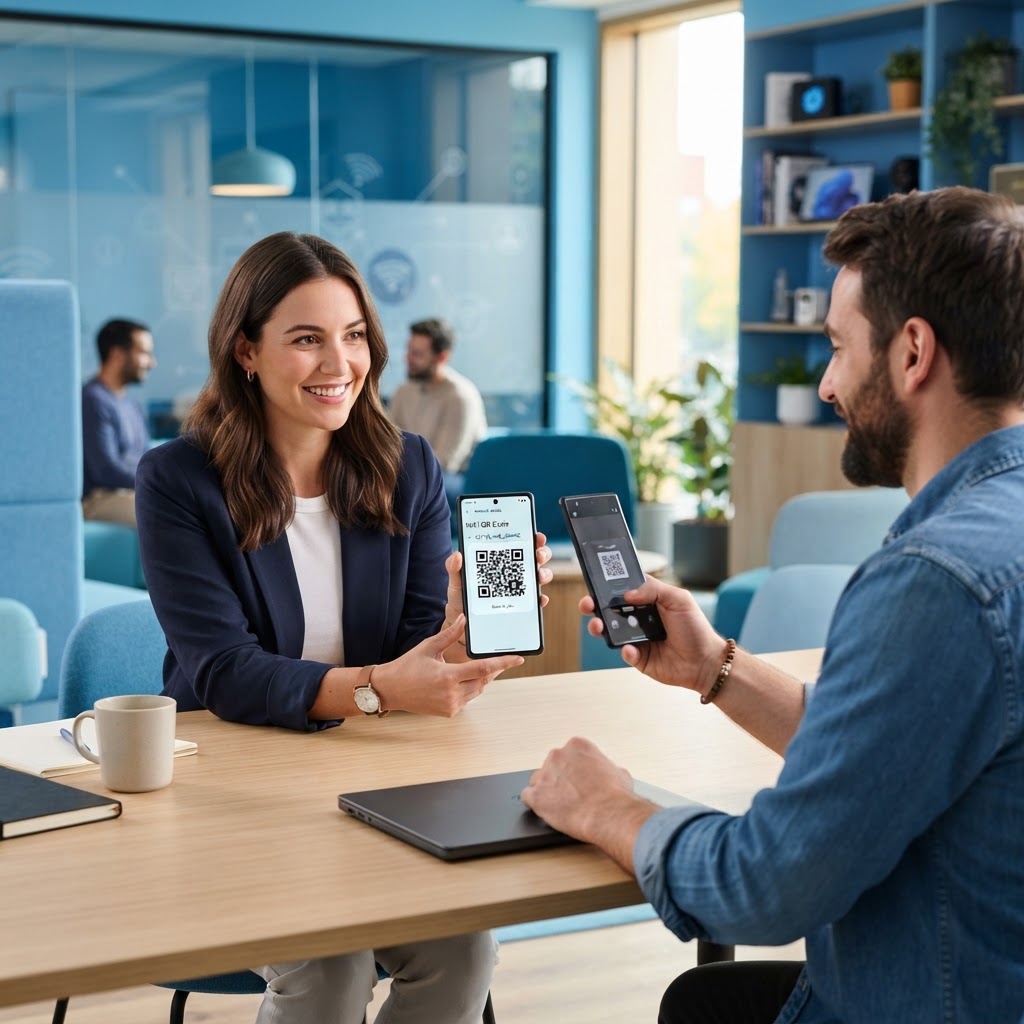
By implementing a QR code, you eliminate the friction of manual entry entirely. When a customer scans your code, their phone automatically pulls the SSID and password, connecting them to your network without them ever needing to see or type the credentials. This simple digital upgrade enhances the professional atmosphere of your venue while allowing your staff to focus on serving great food or managing reservations instead of being network administrators. Furthermore, it creates a tactile, modern touchpoint that signals your commitment to efficient, tech-forward service, which can be a key differentiator in a crowded competitive market.
What you need before you start
Before you begin the process of setting up your new digital access point, you should have a few details ready. Accuracy is the foundation of a successful QR code, as even a single character error in the password field will result in a connection failure for your guests. Taking ten minutes to gather this information ahead of time will prevent hours of troubleshooting later.
- Network Name (SSID): This is the exact, case-sensitive name of your WiFi network as it appears in the list of available connections on your device. Ensure you are not mistaking your router's default sticker name for one you might have manually renamed.
- WiFi Password: Ensure you have the current password handy, including any special characters or symbols you may have used for security. If you have recently changed your password, verify it on a secondary device first.
- Network Security Type: Most modern routers use WPA/WPA2/WPA3 encryption. You need to know which one your router uses; if you are unsure, check your router's internal settings page or the administrative interface—typically accessible by typing 192.168.1.1 or 192.168.0.1 into a web browser.
- A Mobile Device: While you can do this from a desktop, knowing how to create a wifi qr code on android is highly convenient when you are physically standing next to your router to verify the settings. Having your device in hand allows you to instantly test the QR code against your own network settings.
Additionally, consider the hidden layer of "Hidden SSID" settings. If your network is configured to hide its broadcast name for security reasons, the QR code generation process remains the same, but you must ensure that your clients are aware they are connecting to a private network. Always verify that the network is actually broadcasting at the time of testing so the handshake between the phone and the router can be completed successfully.
How to create a wifi qr code on android — step by step
Creating your custom code does not require expensive software or technical expertise. You can use Blue QR Code Generator to simplify the entire workflow in just a few clicks. The process is designed to be intuitive, allowing even those with limited technical experience to produce high-quality, scannable assets within minutes.
- Visit the generator: Navigate to the official WiFi QR Code Generator page using your mobile browser. Ensure your mobile data or current WiFi connection is stable to allow the script to load correctly.
- Enter your network name: Carefully type your WiFi network SSID into the designated field. Double-check for trailing spaces, as mobile keyboards often automatically insert a space after a word, which the router will interpret as part of the SSID name, leading to a failed connection.
- Input your password: Type your network password exactly as it is configured, remembering that these fields are case-sensitive. If your password contains symbols like @, #, or !, ensure they are accurately replicated; even a subtle typo will render the resulting QR code useless.
- Select security protocol: Choose the WPA/WPA2/WPA3 option from the dropdown menu to match your router's security settings. If you select "WPA/WPA2" but your network is actually "WPA3 Personal," the handshake will likely fail. Refer back to your router manual or your ISP's documentation if you are unsure.
- Generate the code: Tap the button to create your custom image; you will see it appear instantly on your screen. At this stage, verify that the code looks sharp and well-defined; a blurry preview indicates a loading issue or poor internet speed.
- Download your file: Save the QR code image to your device gallery so you can print it or display it on a tablet at your reception desk. High-resolution formats like PNG or SVG are preferable if you plan on resizing the image for large signage or menu inserts.
Once you have the file, you can treat it as any other image. It is wise to email this file to yourself or upload it to a cloud drive like Google Drive or Dropbox to ensure you have a backup accessible from any machine in your office or shop. This redundancy prevents you from having to repeat the generation process if your phone is lost or upgraded.
How to test and deploy it
Once you have generated your image, do not rush to print fifty copies immediately. Always perform a live test by having a colleague or friend scan the code with a different smartphone to confirm it triggers the auto-connect feature. The Blue QR Code Generator makes this verification step easy, ensuring your guests never hit a dead end. When testing, ensure the device you are using has its "Auto-Join" feature enabled for known networks, and try scanning from a few different angles and distances—including low-light conditions—to ensure reliability.
When it comes to deployment, placement is everything. Consider creating a small, laminated sign that sits near your point of sale, or integrate the code into your menu design. In a hotel or office lobby, placing the QR code at eye level near the entrance ensures that guests see it the moment they step through your doors, reducing the need for them to ask for help. Think about the "customer journey": where do they stand while waiting? Where do they look when they first enter? These are the optimal spots for your signage.
Furthermore, consider the physical substrate. If you are placing the QR code in a high-traffic area, use a matte laminate rather than a glossy one. Glossy surfaces can create glare from overhead lighting, which makes the QR code nearly impossible for smartphone cameras to resolve. For maximum longevity, mount your signs on rigid foam board or use acrylic stands that can be easily wiped down. If you want to get creative, incorporate the QR code into a larger piece of branded collateral, such as a coaster or a window decal, but always maintain a "quiet zone"—a white border around the code—to ensure consistent scanning performance.
Common mistakes that ruin results
Even with the right tools, it is easy to make small mistakes that prevent your code from working properly. Avoid these common pitfalls to ensure your guests have a seamless experience every time.
- Incorrect SSID typing: Even an extra space at the end of your network name will cause the device to reject the login attempt. Always verify the SSID character by character against your router's admin panel.
- Ignoring character case: Most passwords are case-sensitive, so verify that your caps lock was not accidentally active when entering your data. Many businesses make the mistake of assuming their password is "all lowercase," only to find their router settings require a capital letter.
- Poor print quality: If you are printing the code on a home printer with low ink, the QR code may become unreadable by standard smartphone cameras. Ensure your ink levels are sufficient and use high-quality paper to prevent ink bleed, which can blur the sharp edges of the code modules.
- Low contrast designs: Avoid using light colors on a light background; for the best success, always stick to a high-contrast black and white color scheme. While it might look "stylish" to use a cream background with gray pixels, many smartphone cameras will struggle to differentiate between these tones in varying light conditions.
- Obstruction or distortion: Never stretch or squash the QR code to make it fit a specific frame. Maintaining the aspect ratio is critical. If you force an image to be rectangular when it should be square, the decoding algorithm on the phone will fail to identify the patterns correctly.
By addressing these variables before going public, you minimize the "failed scan" rate, which is the primary driver of customer frustration. If you notice a high rate of failure, consider revisiting the generation site to ensure you didn't accidentally select a legacy security protocol like WEP when your router is actually using WPA2.
Real examples of usage
For a busy hotel manager, a branded table tent card at the check-in desk featuring your custom QR code can significantly reduce morning check-out traffic. Instead of answering the same question ten times an hour, your staff can simply point to the display. This creates a self-service culture that empowers the guest while freeing up your front desk staff for higher-level tasks, such as handling billing discrepancies or concierge requests.
Similarly, an office manager can print the QR code and frame it in the conference room. This allows visiting consultants or prospective clients to gain instant access to your secure network without requiring IT staff to manually input credentials into their devices. It also avoids the security risk of having to dictate a master password aloud in a room full of people. By keeping the network credentials hidden and accessible only via the code, you maintain a tighter control over who is accessing your digital infrastructure.
Beyond offices and hotels, medical clinics are using these codes to help patients access telehealth portals while waiting in the lobby. By using the features provided by Blue QR Code Generator, you can customize the aesthetic of these codes to match your brand identity while keeping security as the top priority. Think about creating a theme for your digital signs: perhaps use your company logo in the center of the code if the generator allows, or match the frame color to your corporate palette. This turns a functional piece of information into a cohesive part of your interior design. When you are ready to streamline your connectivity, you can use our free WiFi QR Code Generator to improve your guest experience today. Investing in this simple, reliable technology is a small step that yields substantial dividends in operational efficiency and professional image.