Why Mastering How to Get More Google Reviews With QR Code Matters
Imagine you just finished a perfect service call or sold a high-end product. Your customer is beaming, but they walk out the door and immediately forget to leave a review because they are busy. By the time they get home, the moment is gone. This is where a physical touchpoint bridges the gap between a happy moment and a permanent five-star review. In today's hyper-competitive digital landscape, Google reviews act as the primary currency of trust. Studies consistently show that consumers prioritize businesses with a 4.0-star rating or higher and recent feedback, meaning that a static profile is essentially invisible to prospective leads.
When you present a QR code, you are not just asking for a favor; you are providing a shortcut. A single scan can bypass the need for a customer to search for your business name, navigate through menus, or remember your exact location. It turns a ten-minute digital errand into a ten-second action. This simple shift in strategy is often the difference between a stagnant profile and one that dominates local search results. Businesses that utilize professional tools like the Blue QR Code Generator consistently see higher conversion rates on their review requests because the barrier to entry is virtually eliminated. Furthermore, QR codes leverage the "point of delight"—the exact second a customer realizes they are satisfied with your work—to capture sentiment while it is at its absolute peak, ensuring your digital reputation reflects the actual quality of your real-world operations.
What You Need Before You Start
Before you generate your code, ensure you have the following prerequisites ready to ensure a smooth setup process. Being prepared avoids the frustration of mid-task troubleshooting and ensures your campaign is robust from day one.
- A Verified Google Business Profile: You must have ownership access to your listing to get your specific review link. If you are not listed as an owner or manager, you cannot generate the necessary deep-link to the submission form.
- Your Direct Review URL: You can find this in your Google Business dashboard under the 'Get more reviews' section. This is not your profile's homepage URL, but a specialized deep-link that forces the review modal to open automatically for the user.
- A High-Quality QR Code Generator: Utilize our free Google Review QR Code Generator to ensure your links are clean and permanent. Avoid "dynamic" services that might inject third-party ads or charge subscription fees for basic functionality.
- Visual Asset Readiness: Have a plan for where you will place the code, such as business cards, tabletop stands, or receipts. High-resolution files (PNG or SVG) are essential to prevent pixelation during the printing process, which would render the code unreadable.
- A Staff Training Protocol: Ensure your team knows how to invite a customer to scan the code. If your staff is uncomfortable asking for reviews, even the best QR code will remain unscanned. Practice a brief, 5-second script with your team to integrate the request into the customer journey naturally.
How to Get More Google Reviews With QR Code — Step by Step
Follow these steps to set up your system and start collecting feedback efficiently today. This process is designed to be completed in under ten minutes by following a logical, technical progression.
- Access Your Business Profile: Log into your Google Business account and select the business you want to promote. Ensure you are navigating through the Google Maps interface or the Google Business Profile Manager, not just a standard Google search page.
- Copy Your Review Link: Find the 'Get more reviews' button, which will provide a unique URL that leads directly to the review submission window. Copy this link exactly as it appears; do not attempt to shorten it using third-party link shorteners, as this can sometimes cause security redirects that prevent the review modal from triggering.
- Open the Generator: Visit our site to use Blue QR Code Generator's Google review QR codes tool for your business. This tool is optimized to produce high-contrast, clean codes that pass validation checks across all mobile operating systems.
- Paste Your Link: Paste the copied URL into the input field on our page to begin the conversion. Verify that the URL begins with "https://g.page/..." or "https://search.google.com/..." to ensure it is the correct direct-submission link.
- Customize Your Code: Add a logo, choose colors that match your brand, or frame the code to make it look professional. A branded code increases trust, as customers are more likely to scan a code that feels like a legitimate part of your store’s branding rather than a generic, ominous black-and-white block.
- Download and Print: Download the high-resolution file and include it on your marketing materials to help you generate yours in seconds. Use vector formats like SVG if you are printing on large banners or posters, as they will maintain crisp edges at any magnification level.
How to Test and Deploy It
Before mass-printing your codes, perform a rigorous testing phase to ensure your customers have a seamless experience. First, perform a "cold test." Scan the code using at least three different devices: an iPhone, an Android phone, and a tablet. Each device should launch the browser and immediately prompt the user with the Google review star-rating form. If the link sends them to your main business search page instead of the review form, you are using the wrong URL; go back to your Google Business dashboard and re-copy the 'Review URL'.
Regarding deployment, the strategy of "frictionless placement" is key. A QR code should be positioned where the customer has time to linger. If you run a restaurant, placing it on the bill folder is far more effective than a sign on the door, because the customer is stationary and actively looking at the bill. In a retail setting, placing it on a small sign at eye level right next to the POS system (Point of Sale) creates a natural stop before they exit. If you offer a service, include the code on the final invoice or a "Thank You" card attached to the completed work. The goal is to make the act of reviewing feel like the final step of the service, not an interruption. Ensure your lighting is adequate—avoid placing codes on surfaces with excessive glare, such as high-gloss lamination or behind reflective glass, as these can interfere with camera autofocus.
Common Mistakes That Ruin Results
- Over-Complicating the Design: Using too many colors or patterns inside the QR code can make it unreadable for some smartphone cameras. Stick to high-contrast colors (e.g., dark blue/black on white) and avoid complex gradients that confuse the scanner's focus.
- Ignoring Size Requirements: Printing the code too small makes it impossible for customers to scan from a distance or with older phone cameras. As a rule of thumb, ensure the QR code is at least 1.5 inches by 1.5 inches on any printed material.
- Forgetting a Call to Action (CTA): A QR code by itself is mysterious. Customers may not instinctively know what it does. Always include text like 'Scan here to review us on Google' or 'Help us improve by leaving a review' next to the code to provide context.
- Broken Links: Always check your links once a month, especially if you have changed your website domain or business name. Google occasionally updates their URL structures, so periodically scanning your printed materials is a necessary maintenance task.
- Poor Placement: Putting the code on a glossy surface with heavy glare or in a dark corner will lead to frustrated customers and zero scans. Test your placement at different times of the day to see how natural light affects the scanner's performance.
- Ignoring Negative Feedback: If you only place QR codes in front of happy customers, you may find your review volume increases but your overall rating stays stagnant. Use these codes as a signal to provide service excellence at every turn, ensuring you are prepared to handle feedback in real-time.
Real Examples of Implementation
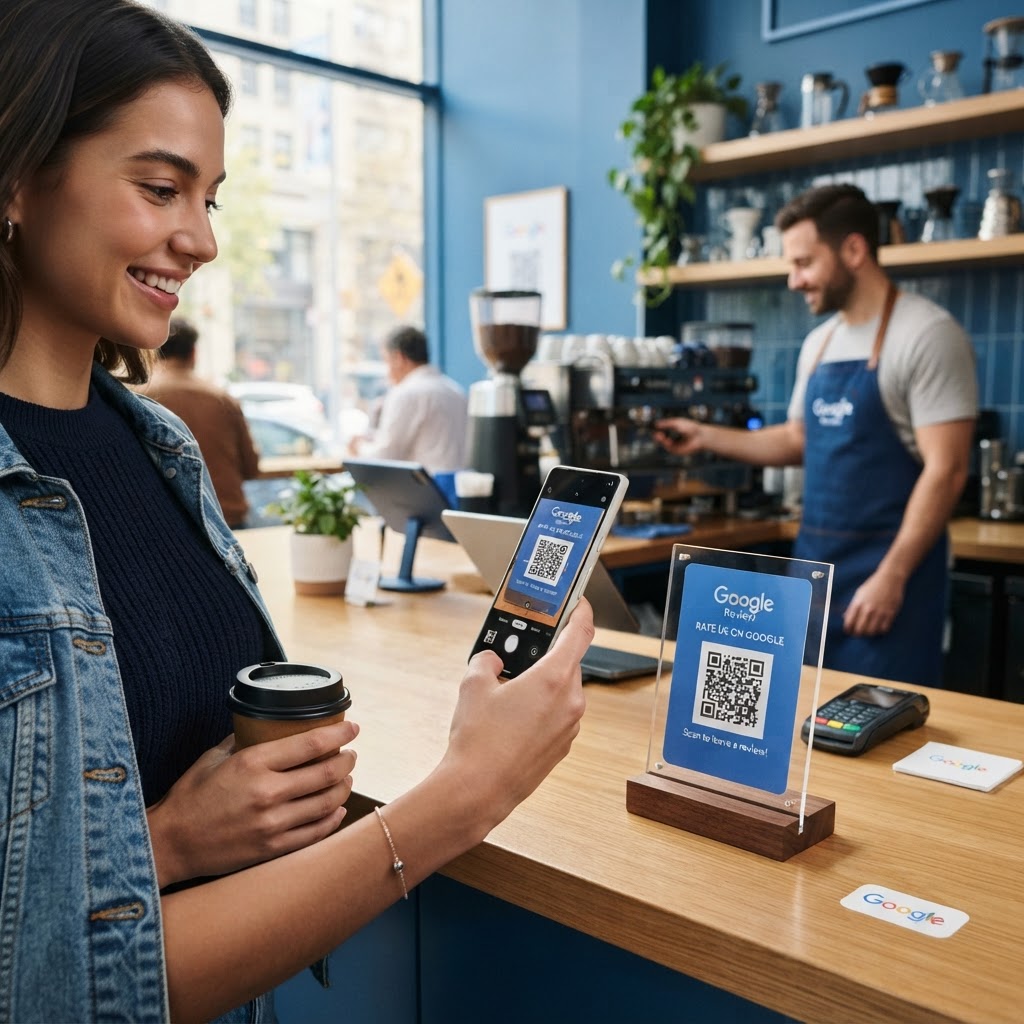
Consider a local boutique shop that places a QR code inside the shopping bag near the thank-you note. Because the customer is already satisfied with their purchase, the friction is at an all-time low. Another example is a professional services firm that includes the QR code in their automated email signature after a project completion. By using our free Google Review QR Code Generator, they create a professional-looking badge that is linked to their brand, adding trust. A third example involves a busy cafe that puts a small tent card on every table. This allows diners to share feedback while they finish their final cup of coffee, turning a relaxing moment into an active engagement with the business's online presence. When you decide to generate yours in seconds, think about the natural 'happy moments' your customers experience and place your code exactly where they are already looking.
Consider also the "Follow-up Strategy" used by professional service providers like mechanics or HVAC contractors. They place a QR code on a small sticker that is affixed to the machinery they just serviced (e.g., the side of the furnace or the door of a car). This serves two purposes: it provides a quick reference for the customer to find their contact information if they need further service, and it acts as a permanent, high-visibility prompt for a review. This approach works because it is functional, helpful, and reinforces the branding of the service provider. Similarly, real estate agents have begun printing QR codes on the back of their business cards. When a client is handing over a key or signing a contract—a moment of significant emotional transition—the agent can simply turn the card over and invite the client to share their experience. By integrating these small, intentional steps into your daily workflow, you transform your Google profile from a passive asset into a vibrant, living representation of your commitment to customer satisfaction. Remember, the quality of your reviews is directly proportional to how easy you make it for your customers to share their voices.