Why making a QR code for a product matters
In the modern retail landscape, physical space on your packaging is incredibly limited. Whether you are selling artisan coffee or complex electronic components, you cannot fit every detail about your company’s mission, manufacturing process, or instructional video onto a small box or bottle label. This physical constraint forces brands to make difficult choices regarding what information to include and what to leave behind, often leading to cluttered, unreadable packaging that fails to inform the consumer effectively.
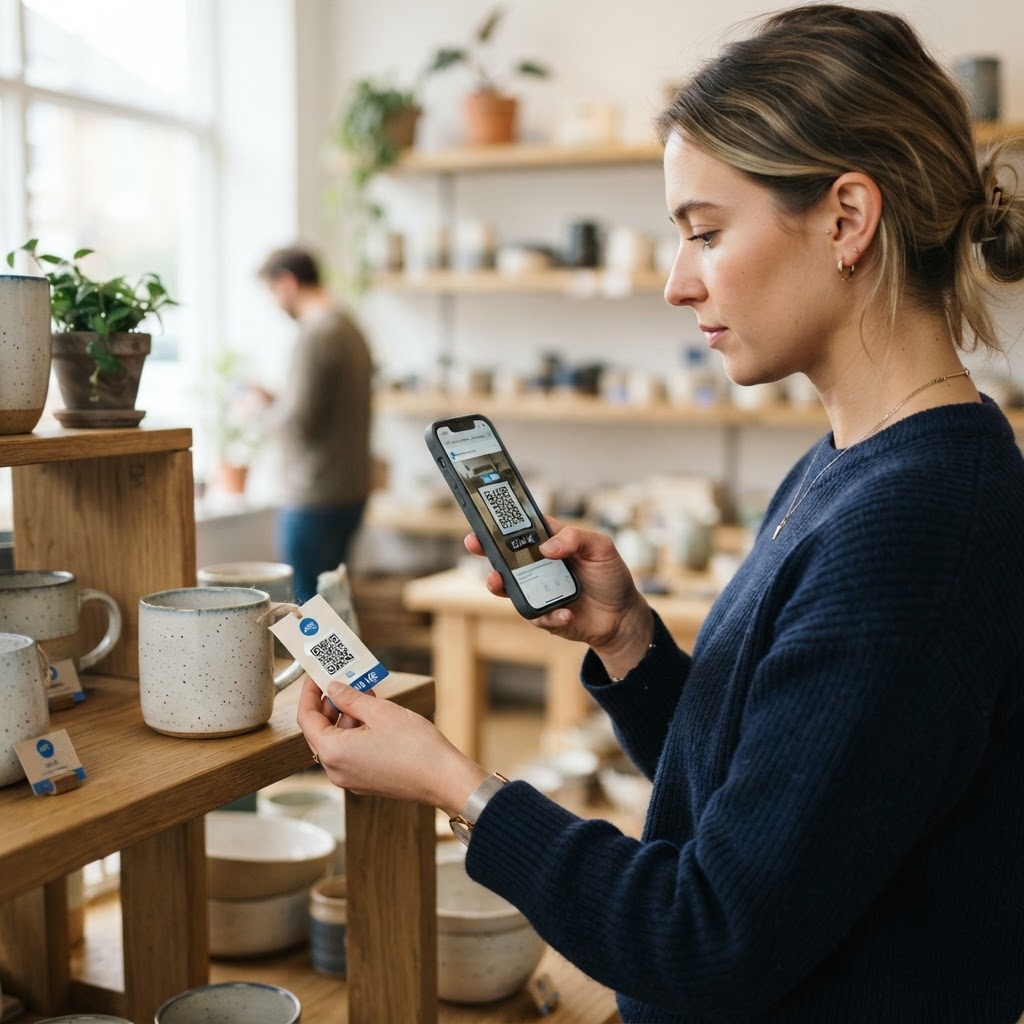
By implementing a QR code, you solve the "information density" problem immediately. Imagine a customer holding your product in a store; they scan the code and are instantly transported to a video tutorial, a detailed ingredient origin story, or a certificate of authenticity. This instant access builds trust, reduces customer service inquiries by providing self-service troubleshooting, and creates a premium, high-tech feel for your brand. When you learn how to make a qr code for a product effectively, you turn a passive purchase into an active brand relationship. Beyond simple information, QR codes serve as a bridge between the physical and digital worlds, allowing you to track scan data, understand customer behavior, and capture leads directly from the retail shelf. This capability transforms a static product label into a dynamic marketing asset that can be updated in real-time, providing far greater ROI than traditional print-only strategies.
What you need before you start
Before you begin, ensure you have your destination URL ready and verified. This is the link where your customer will land, such as a product specs page, a how-to guide, or an exclusive digital gallery. It is highly recommended to use a dedicated landing page specifically for the QR code scan, rather than just pointing the code to your homepage, which can be overwhelming and difficult to navigate on mobile devices.
You will also need a high-quality product image or a brand logo if you plan to customize your QR code. Your logo should be a high-resolution PNG or vector file with a transparent background to ensure it integrates seamlessly with the QR pattern. Furthermore, consider the technical requirements of your destination. You must ensure your destination URL is mobile-responsive; if a customer scans a code on a product and lands on a page that is broken, lacks a viewport meta tag, or is difficult to read on a phone, you lose the sale and the customer's trust instantly. Test your link on various screen sizes including older budget smartphones to ensure the UI remains functional. You can use our free URL QR Code Generator to organize these links efficiently and manage your digital assets in one centralized location.
How to make a qr code for a product — step by step
- Prepare your URL: Copy the exact web address where you want your customers to go. Make sure this link is permanent, as you do not want to change it after the product packaging has been printed. If you anticipate needing to change the destination, use a redirect or a dynamic QR service to avoid needing a reprint.
- Access the tool: Navigate to the Blue QR Code Generator platform to start your project. You can access the interface here to generate yours in seconds without needing any technical experience.
- Input your link: Paste your copied URL into the primary input box. Double-check for any accidental spaces at the beginning or end of the link, as these can cause the code to break or trigger 404 errors.
- Customize the design: Use the built-in design options to match your brand colors. You can adjust the patterns, colors, and even upload a small brand logo to the center of the code to improve recognition. When choosing colors, maintain a dark foreground and a light background for maximum contrast.
- Select image quality: Choose a high-resolution format like PNG or SVG for your final file. PNG is excellent for digital mockups, while SVG is essential for print projects because it allows for infinite scaling without losing sharpness, preventing pixelation on large labels.
- Download and save: Once you are satisfied with the design, click the download button to save the file to your computer. Create a clear naming convention for your files, such as "Product_Name_QR_V1.svg," so you don't accidentally send the wrong version to your printer.
- Verify the checksum: After generating, use a dedicated scanning app to confirm that the QR code points precisely to your intended URL. Perform this verification at 100% scale and at the actual size intended for the product label to ensure no data loss occurs during the rendering process.
How to test and deploy it
Never send a file to the printer until you have physically scanned the QR code with at least three different smartphones, preferably with different operating systems like iOS and Android. Different devices use different camera sensors and focal lengths; testing ensures that your landing page loads perfectly across the board. If your phone takes more than two seconds to recognize the code, increase the size or contrast.
Placement is equally critical. Place the code in an area on your packaging that is flat and easy to reach. Avoid placing it on sharp folds or wrinkled shrink-wrap, as distortions in the paper surface can render the QR code unreadable to standard smartphone scanners. If you are printing it on a curved bottle or a textured surface, make sure the contrast between the code colors and the background is high. Black on white is the gold standard for scanability, but you can use Blue QR Code Generator's URL QR codes tool to find color combinations that remain functional while staying on-brand. When designing the packaging layout, allow for a "quiet zone"—a margin of clear space surrounding the QR code. This zone is mandatory for scanner sensors to detect the edges of the QR block. If you crowd the code with text, images, or graphical borders, the scanner will struggle to define the perimeter, leading to failure. Always print a physical proof of the packaging before running a full production batch.
Common mistakes that ruin results
- Creating a dead link: Always double-check your destination URL. A 404 error page on a product scan is a major failure point that frustrates potential customers and makes your brand look unprofessional. Use a "link checker" tool if you are dealing with hundreds of URLs.
- Printing too small: QR codes must be at least 2cm by 2cm to be reliably scanned by most mobile phones at a typical arm's length. If you shrink the code too much to save space, the density of the modules becomes too small for mobile camera lenses to focus on, making it unreadable.
- Low contrast designs: Using light colors for the QR pattern against a light background will prevent the scanner from identifying the code. The algorithm relies on the contrast between dark squares and light space. Always prioritize readability over overly experimental design choices that sacrifice this contrast.
- Adding too many elements: Busy backgrounds, glossy coatings that create glare, or placing text directly over the code can confuse the scanner. Keep the surrounding white space clear to ensure high scan rates even in sub-optimal lighting conditions like retail store aisles.
- Ignoring user agent redirection: Ensure your landing page is optimized for both desktop and mobile users, even if the primary goal is mobile. Occasionally, a user might scan with a tablet or share the link with a desktop user; the page should remain functional in all environments.
Real examples of product QR codes
Consider a luxury skincare brand that includes a QR code on the back of every bottle. When a customer scans it, they are taken to a personalized "How to Apply" video that matches the specific product they just purchased. This adds immense value and prevents misuse of the product, ensuring that the consumer gets the most out of their expensive purchase. By providing a guided tutorial, the brand reduces returns and increases customer satisfaction scores significantly.
Another excellent example is in the food industry. A small organic farm might add a QR code to their jam labels. When scanned, it shows the exact field where the berries were harvested and a short profile of the farmer. This type of radical transparency builds a powerful connection that keeps customers coming back to buy again because they feel like they are supporting a real person rather than a faceless conglomerate. In the manufacturing sector, QR codes are being used to provide instant access to digital safety data sheets (SDS) or assembly instructions, which are too bulky for printed manuals. This saves the company money on paper and printing costs while keeping the information current and accurate.
Even in the tech accessory market, a brand can use QR codes on cables or chargers to lead users to a warranty registration page. Once registered, the user gets a digital receipt and a series of helpful tips for device maintenance. This creates a lifecycle loop: the consumer buys the product, scans to register, receives ongoing value, and stays loyal to the brand for their next purchase. Whether you are using this to verify authenticity or share content, learning how to make a qr code for a product is a high-ROI strategy for any business looking to modernize their customer touchpoints. Before you finalize your design, remember to use our free URL QR Code Generator for the best results and a seamless scanning experience.