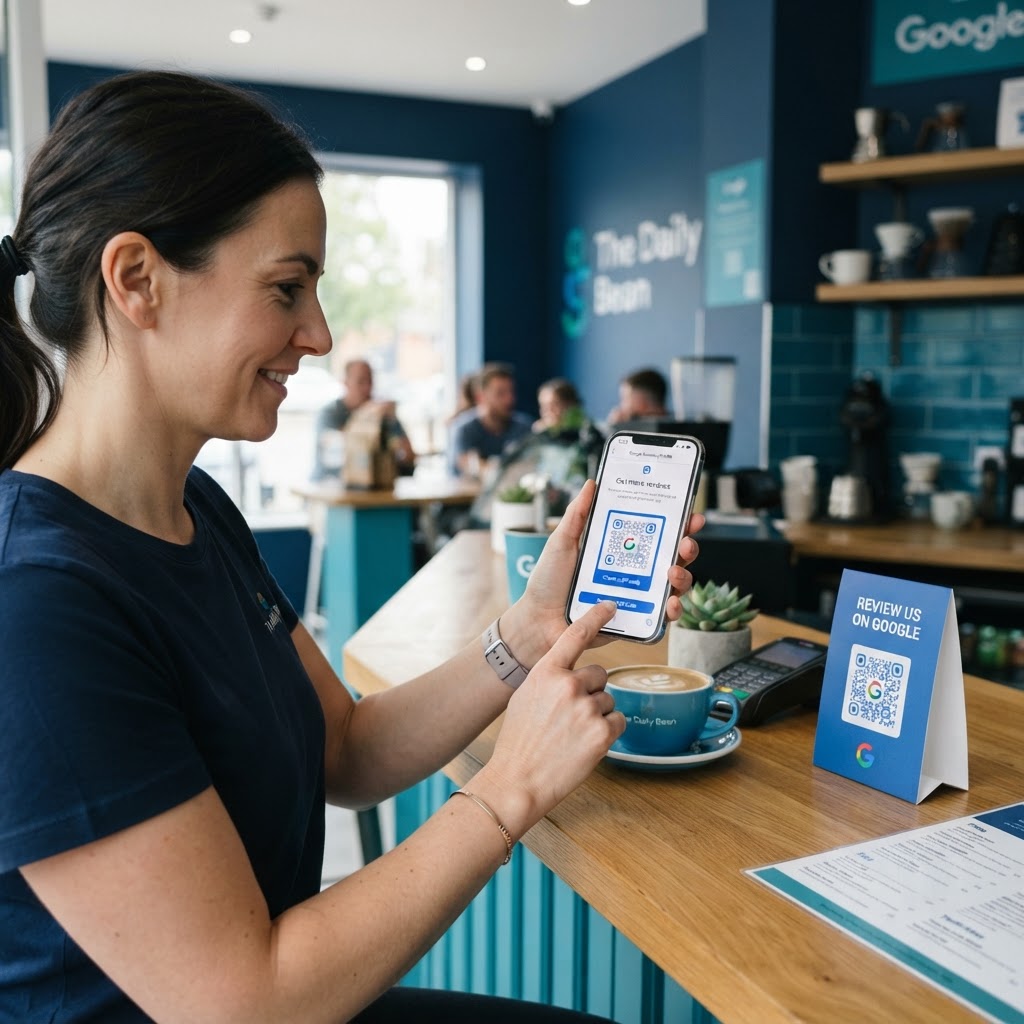
Why capturing Google reviews matters for your bottom line
Imagine a customer walks out of your store, beaming with satisfaction. They intend to leave a five-star review, but by the time they reach their car, they are distracted by an email or a phone call, and your potential social proof is lost forever. This is where a physical QR code placed at your point of sale becomes a game-changer. Digital reputation management is no longer an optional marketing activity; it is the heartbeat of local commerce, directly influencing the decision-making process for thousands of potential customers in your area.
By shortening the distance between a happy customer and the review submission page, you significantly increase your conversion rate. When you understand how to make a qr code for google review on iphone, you turn a passive experience into an active growth strategy. Research consistently shows that businesses with over 50 reviews receive nearly 30% more clicks than those with fewer than five. Every scan represents a potential boost in your local SEO rankings, helping you outshine competitors who rely solely on word-of-mouth. Google’s algorithm prioritizes businesses that demonstrate consistent engagement, and a steady stream of new reviews acts as a signal of trust, credibility, and operational relevance. When a user searches for your services, Google displays your rating prominently. A higher number of reviews not only improves your search visibility but also increases your click-through rate (CTR) on the map pack results, ensuring that your business is the one that gets the initial interaction.
Beyond SEO, consider the psychological impact on potential clients. A review is a form of social proof that validates a stranger's choice to spend money with you. By using a QR code to facilitate this, you aren't just "asking" for a favor; you are lowering the friction for the customer. Most people are willing to support a small business they enjoyed, but they are deterred by the 30-second search process required to find your profile. By providing an instant, seamless bridge to the review form, you turn an intention into a measurable business asset.
What you need before you start
Preparation is key to ensuring your QR code leads to the correct destination without errors. Before beginning, make sure you have your business Google Place ID or your business profile URL ready. Having the right assets in place ensures the user experience is fluid, immediate, and professional, minimizing the risk of a "404 Not Found" error or a landing page that confuses the user.
- A Verified Google Business Profile: Ensure you have ownership or manager access to your listing so you can retrieve the correct review link. Without verified access, you may not have the necessary permissions to manage your public-facing review request links.
- Your Review URL: You can find this by logging into your Google Business Profile and clicking the 'Ask for reviews' button to copy your unique shareable link. Do not just copy the URL of your business listing, as that leads to your map profile but not the review prompt box.
- Blue QR Code Generator: Have our free Google Review QR Code Generator open in your Safari browser on your iPhone. Safari is optimized for iOS and will handle the image generation and file storage most effectively on your mobile device.
- A High-Resolution Logo: While optional, adding your brand logo to the QR code increases trust and professionalism, which helps when printing on receipts or signage. A logo serves as a visual anchor, letting the customer know the scan is authorized by the brand they are currently visiting.
- Storage Space: Ensure your iPhone has enough storage to save the image. While the files are small, having a dedicated folder in your "Files" or "Photos" app labeled "Marketing Assets" will help you stay organized for future print runs.
How to make a qr code for google review on iphone — step by step
Follow these specific steps to get your professional-grade QR code ready for your customers in under three minutes. This process is designed to be mobile-first, ensuring you can manage your marketing assets even while you are on the move at your business location.
- Retrieve your review link: Open the Google Maps app or search your business on Safari, find your profile, and copy the direct link that leads customers to the 'Write a Review' pop-up box. To do this, open your Business Profile dashboard, select "Share your business profile," and copy the link. If you are doing this from the map view, ensure the URL ends with a prompt parameter that forces the review box open; if you are unsure, our generator handles the formatting for you.
- Access the generator: Navigate to the Blue QR Code Generator website using your preferred mobile browser. You do not need to download a separate app; the mobile-responsive web interface provides full functionality directly within Safari or Chrome on iOS.
- Paste your link: Select the URL option in the generator tool and paste your copied review link into the designated field. Double-check for extra spaces at the beginning or end of the link, as these can occasionally break the redirect.
- Customize your design: Use the built-in design features to change the colors or add your business logo, ensuring the code matches your brand identity perfectly. You can select colors that contrast well, such as deep blue or forest green, to maintain a high-end, professional look. Ensure the logo is centered and does not obstruct the corner squares, which are essential for scanning software recognition.
- Generate the code: Tap the 'Create' button to let the system generate your unique QR code, which you can preview instantly on your screen. This step initiates the encoding process that turns your URL into the pixelated pattern your customers will eventually scan.
- Download to your Photos: Tap the download button to save the file as a PNG or JPG directly into your iPhone’s Photos app for easy access during printing. We recommend saving it as a high-resolution PNG to ensure crisp lines when printing on large-scale signage.
- Backup your file: Once saved to your Photos, consider using the "Share" icon on your iPhone to save the image to your Files app or a cloud service like iCloud or Google Drive. This prevents loss if you accidentally clear your photo library.
How to test and deploy it
Once you have your image saved, don't rush to print 500 flyers just yet. First, open your iPhone's default Camera app and point it at the QR code on your screen to verify that it redirects you exactly to your Google review page. The test should be seamless: the camera scans, a prompt appears, and when you tap it, the review star selection menu should be the very first thing that loads. If the link works, test it again with a different device, such as a friend's Android phone, to ensure cross-platform compatibility and to confirm that the landing page load time is acceptable under 4G/5G conditions.
For deployment, focus on high-traffic areas where customers linger. If you run a retail shop, place the code on the counter right next to the payment terminal. This is a point of purchase, the moment of peak customer satisfaction. If you own a restaurant, place it on the bill folder or a small table tent. Many owners also find success printing these on stickers applied to outgoing product packaging. By using Blue QR Code Generator's Google review QR codes tool, you can create multiple variations for different locations or service types, allowing you to track which physical spot gets the most scans. For example, if you are a contractor, print a version of the QR code on your business cards, and another on your invoice forms; comparing the scan rates can tell you which customer touchpoint generates the most engagement.
Deployment is also about context. Never just print the code; frame it. Using a simple plastic stand or an acrylic sign holder elevates the QR code from a "messy flyer" to a legitimate part of your store’s branding. Furthermore, consider the lighting in your store. If the QR code is placed in a dimly lit corner, the camera might struggle to resolve the pixels. Ensure that the area where you deploy the code is well-lit and that the surface is flat, as reflections on glass or crinkled paper can distort the QR code and make it unreadable for customers.
Common mistakes that ruin results
Even with the best technology, simple setup errors can prevent your customers from leaving feedback. Avoid these common traps to keep your conversion rate high. One major error is "code fatigue." If you have too many QR codes (e.g., one for Wi-Fi, one for a menu, one for a newsletter, and one for a review), the customer will get confused. Prioritize the Google Review QR code by giving it the most prominent position on your display signage.
- Using an unoptimized link: Never link to your main homepage; always use the specific link that triggers the 'Write a Review' window so the customer doesn't have to search your site. Linking to the homepage adds three extra steps, and every step you add results in a 20-30% drop-off in completions.
- Printing at too small a size: A QR code smaller than 1 inch by 1 inch can be difficult for some older smartphones to read, causing frustration. Always aim for a minimum of 1.5 inches for high-traffic areas.
- Low-contrast designs: Avoid using light-colored patterns on light backgrounds; ensure there is a clear contrast, such as black on white, for the best scanning performance. High contrast allows the iPhone's processor to isolate the geometric patterns of the code instantly.
- Ignoring the 'Call to Action': A naked QR code is confusing; always include a short note like 'Scan to Review Us on Google' so customers know exactly what happens after they scan. People are naturally hesitant to scan a random code unless they know what value or action is associated with it.
- Forgetting to check the code periodically: Technology changes, and sometimes URL structures change. Check your code once a month to ensure the redirect is still functional.
Real-world success examples
Local coffee shops have seen a 40% increase in monthly reviews simply by placing a framed QR code at their self-serve cream station. By providing a clear prompt near where customers add sugar or napkins, they capture the customer's attention during a natural 'waiting' moment. This is a perfect example of how the Blue QR Code Generator helps integrate digital growth into everyday physical operations. When customers are waiting for their latte or finishing their drink, their hands are often already on their phones; this is the optimal window to request feedback.
A local boutique shop recently placed these QR codes on their shopping bag tags. Because customers often check their bags once they get home, they are reminded to share their experience after trying on their new items. The business reported a higher percentage of detailed, high-quality reviews compared to generic 'five-star' ratings, as customers had more time to reflect on their purchase. If you use our free Google Review QR Code Generator, you can replicate this success in any niche, from home services to luxury retail.
Another excellent example comes from the service industry. A plumbing company began printing the QR code on their invoices and placing a small sticker on the finished work (such as on the side of a water heater). By linking the review request to the "after-service" moment, they captured customers right when the problem was solved and the relief was highest. These high-intent moments lead to longer, more descriptive reviews which, in turn, provide better SEO juice for your Google Business Profile. The bottom line is that the more personal and timely your request, the higher your likelihood of receiving the feedback that will drive your business forward for years to come.