Why scanning QR codes matters for modern business
Modern marketing relies on instant connectivity, and QR codes are the most efficient gateway for your audience to reach your digital assets. Whether you are a restaurant owner displaying a menu or an event organizer sharing tickets, being able to scan these codes quickly ensures a frictionless user journey.
When a customer or attendee knows how to scan a QR code on Android, they can bypass manual URL typing entirely. This increases engagement rates because people are far more likely to interact with content that is only one tap away. If your materials are not scannable, you are losing potential customers who simply do not want to search for your brand online.
What you need before you start
Before you begin, ensure your Android device meets a few basic requirements for success. Most modern smartphones have built-in capabilities, but checking these items ensures you stay frustration-free:
- Reliable Internet Connection: Most codes lead to a webpage, so ensure your Wi-Fi or mobile data is active.
- Functioning Camera: Ensure your rear-facing camera lens is clean and free from smudges for quick autofocus.
- Updated Software: Running a recent version of Android (9.0 or higher) ensures you have native scanning support.
- Target Content: You need a valid QR code to test, which you can easily generate yours in seconds if you are preparing your own materials.
How to scan a QR code on Android — step by step
Learning how to scan a QR code on Android is a straightforward process that works across almost all modern devices. Follow these steps to access your digital content instantly:
- Open your camera app: Unlock your Android device and launch your default camera application.
- Point the camera: Aim your phone steadily at the QR code so that it is clearly centered within your screen's frame.
- Wait for the focus: Allow your phone a second to detect the code; you should see a small box or a link preview appear automatically.
- Tap the notification: Once the code is recognized, a link or notification will pop up on your screen. Tap this notification to proceed.
- Review the destination: The link will open in your default mobile browser, directing you to the intended digital content.
- Troubleshoot if needed: If the link does not appear, ensure you have Google Lens or Bixby Vision enabled, or move closer to the code to ensure better lighting.
How to test and deploy your QR codes
Before mass-printing your materials, you should always verify that your code works across different handsets. Use the Blue QR Code Generator to create your assets, then download them for a quick field test. Always print a sample at the actual size you intend to use to confirm that the resolution remains high enough for a standard smartphone camera to pick it up.
100% Free — No signup required
Create your How To Scan A Qr Code On Android in seconds
Create Free QR Code →If you find that the scan success rate is low, try increasing the contrast or enlarging the physical size of the print. Our free QR Code Generator allows for easy customization, ensuring your codes remain clear and professional for any environment, from business cards to large event banners.
Common mistakes that ruin results
- Insufficient Contrast: Never use light-colored codes on a light background; high-contrast black-on-white is the industry gold standard.
- Overcrowding the Code: Placing your code too close to text or other graphical elements makes it difficult for the scanner to isolate the pattern.
- Low Image Resolution: Blurry or pixelated images are impossible to decode, so always save your files in high-resolution vector formats.
- Ignoring the 'Quiet Zone': QR codes require a small margin of white space (the quiet zone) around their borders to function properly.
Real examples of scannable content
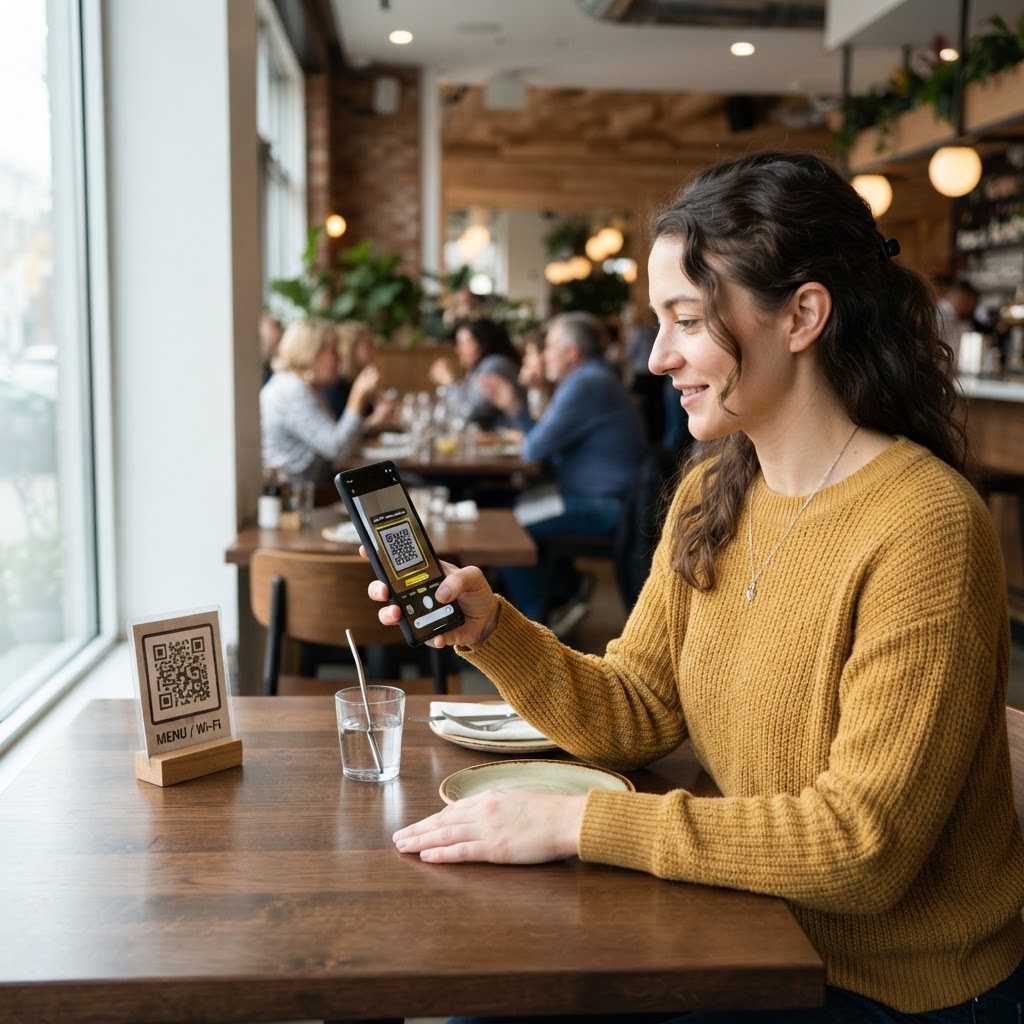
Small business owners often use these tools to simplify daily operations. A restaurant might place a QR code on each table, allowing customers to scan and pull up a digital menu, which eliminates the need for printing physical menus daily. Another common example is the use of vCard QR codes on professional networking business cards.
When you use Blue QR Code Generator's QR codes tool, you can create a link that automatically adds your contact information directly to the phone's address book. This eliminates typos and ensures that potential clients save your details accurately. Whether for marketing or productivity, integrating these into your workflow is easier than ever with the right tools.
Ready to get started? Use our free QR Code Generator to build custom solutions today.
No watermark · No expiry · Works on all phones
Your QR code is ready in under 30 seconds.
Generate Free QR Code →