Why Scanning a QR Code on iPhone Matters
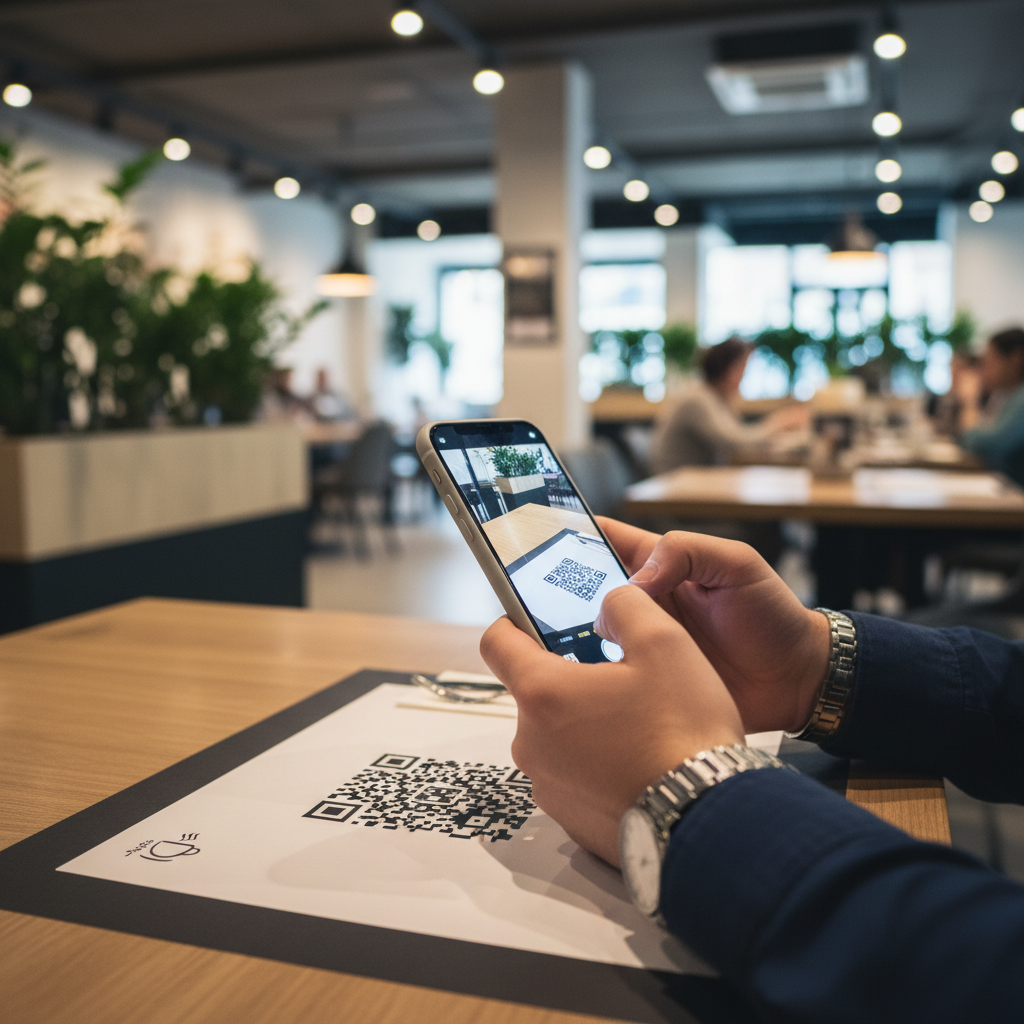
Imagine you're at a restaurant, and you see a QR code on your table. Instead of waiting for a menu, you can scan it with your iPhone and instantly access the digital menu. This seamless transition from physical to digital is becoming increasingly vital for businesses, making it essential for both customers and marketers to know how to scan a QR code on iPhone easily.
What You Need Before You Start
- An iPhone: Ensure your device is an iPhone with iOS 11 or later.
- Camera App: You’ll be using your built-in camera to scan the QR code.
- Internet Connection: Make sure you have a stable internet connection if the QR code links to online content.
How to Scan a QR Code on iPhone — Step by Step
- Open the Camera App: Swipe up from the bottom or tap the camera icon on your home screen to launch the camera.
- Point Your Camera: Hold your iPhone steady and point your camera at the QR code. Do not take a picture; just aim your camera at the code.
- Wait for the Notification: Within seconds, you should see a notification pop-up at the top of your screen if the QR code is detected.
- Tap the Notification: Click on the notification that appears to open the link in your browser or the appropriate app.
- Follow the Link: Once tapped, follow the instructions on the webpage or app that opens, whether it’s accessing a menu, making a payment, or visiting a site.
- Use Blue QR Code Generator: If you want to create your own QR codes for marketing or business purposes, visit our free QR Code Generator to generate your codes in seconds.
How to Test and Deploy It
After scanning a QR code, you should check if the link works perfectly. Open it on different devices and ensure it redirects correctly. If you're a business owner, deploy QR codes on printed materials for your customers and regularly verify that all codes point to active and relevant content. If you're looking to create QR codes for such materials, check out our QR Code Generator for an easy way to do so.
Common Mistakes That Ruin Results
- Incorrect Lighting: Poor lighting can hinder your camera's ability to detect the QR code.
- Damaged Codes: Scanning damaged or smudged QR codes can lead to errors.
- Outdated iOS: Make sure your iPhone is updated to the latest version for optimal scanning.
- Busy Background: Background distraction prevents clear scanning; make sure to aim precisely at the code.
Real Examples
Many businesses utilize QR codes effectively. For instance, a local bakery might print a QR code on its packaging that links to an online menu or ordering portal, enhancing customer convenience. Another example is an event organizer including QR codes on flyers, directing attendees to event details or registration pages, making it easy for potential guests to access important information quickly.
Using the Blue QR Code Generator, businesses can create various QR codes, ensuring that they link customers directly and effectively to digital content that enhances their experience.
Step-by-Step Guide: How to Create a how to scan a qr code on iphone on BlueQRCode
Follow these five simple steps on BlueQRCode to create a QR code titled "how to scan a qr code on iphone" that is optimized for iPhone users. Each step includes tips to make sure the final code scans quickly and reliably with the native iPhone Camera app.
1. Choose a QR type and enter the content
Open BlueQRCode and pick the QR type that matches your intent — for example, a URL if you want to link to a web page that explains how to scan a QR code on iPhone, or Text if you want the instructions embedded directly in the code. In the content field, paste the full URL or write the exact instructions. Using a clear, short URL or concise text makes scanning and user experience smoother on iPhone devices.
2. Customize design with scannability in mind
Select colors and shapes but prioritize contrast. For an iPhone-friendly QR code, use a dark foreground (black or navy) and a light background (white or pale). Avoid low-contrast color pairs like red on green. Keep the finder patterns (the three squares in the corners) distinct and don’t remove the quiet zone (the white border around the code) — iPhone cameras rely on these elements to detect the code quickly.
3. Set error correction and size
Choose a higher error correction level if your code might be printed on physical materials that could get scuffed or folded. For codes intended to be scanned by iPhones from a short distance, ensure the generated image is large enough: at least 2 x 2 inches for print and a minimum of 300 px wide for digital uses. BlueQRCode lets you pick output sizes — select a resolution that preserves module clarity so the iPhone camera can focus and decode rapidly.
4. Generate and test on an iPhone
Click generate to produce your "how to scan a qr code on iphone" code, then download the PNG or SVG. Before finalizing, test the code using an actual iPhone: open the Camera app (or Control Center scanner), point at the QR, and confirm the correct action appears (open URL, show text, etc.). Testing on multiple iPhone models or iOS versions helps catch any scanning issues early.
5. Download, deploy, and monitor
Download your QR in the preferred format from BlueQRCode. If you plan to print it, choose a high-resolution PNG or the SVG for scaling without loss of quality. Once deployed, periodically test live codes with an iPhone to ensure readability. If you used a URL, consider using a short redirect or analytics-enabled link to monitor scans and optimize placement based on real-world iPhone scanning behavior.
Best Practices for how to scan a qr code on iphone
- Use the native Camera app first: iPhones have built-in QR scanning in the Camera app and Control Center scanner — faster and more secure than many third-party apps.
- Keep good lighting and steady hands: ensure the QR code is well-lit and hold the iPhone steady 6–12 inches away so the camera can autofocus and decode quickly.
- Maintain high contrast and a clear quiet zone: dark codes on light backgrounds with a white margin improve detection accuracy on iPhone cameras.
- Test on multiple iPhone models and iOS versions: different cameras and software behavior can affect scanning; validate on older and newer devices where possible.
- Verify destination and privacy: when the Camera suggests a link or action, check the URL preview before tapping to avoid phishing or accidental navigation.
Common Mistakes to Avoid
- Making QR codes too small: tiny codes may be unreadable from a normal scanning distance with an iPhone. Keep printed codes at least 2 x 2 inches for consumer use.
- Poor color choices and no quiet zone: placing a QR directly on a busy background or using low-contrast colors can prevent the iPhone Camera from recognizing the code.
- Over-designing the code: excessive logos or stylized modules can break the pattern the iPhone relies on. If you add a logo, use higher error correction and test thoroughly on iPhone devices.
- Failing to test in real-world scenarios: only viewing the QR on a desktop screen doesn’t ensure iPhone usability. Test scanning under different lighting and from common distances your audience will use.
Related guides
Real-World Use Cases
Here are practical examples of how "how to scan a qr code on iphone" can be used across industries to improve user experience and engagement with iPhone users:
Retail: Product pages and contactless checkout
Retailers add QR codes to price tags and signage that link to detailed product pages, user manuals, or mobile checkout. iPhone customers can quickly scan a code with their Camera app to compare specs, read reviews, or complete a contactless purchase — reducing friction at the point of decision.
Restaurants and Hospitality: Digital menus and ordering
Restaurants often place QR codes on tables or receipts to open menus or order forms. For iPhone users, this enables a fast, hygienic way to view menus and pay without downloading an app. Make sure the QR is positioned flat on the table and large enough for easy scanning.
Events and Ticketing: Fast entry and information
Event organizers use QR codes on digital tickets and posters to speed up check-in and deliver schedules or map details. iPhone attendees can scan codes at the gate for quick validation or to receive live updates and seat assignments.
Education and Healthcare: Quick access to resources
Teachers and healthcare providers embed QR codes in printed materials and posters to link to forms, consent pages, or instructional videos. iPhone users benefit from immediate access to important digital resources without typing long URLs — ideal for busy clinics or classrooms.
Create Your Free how to scan a qr code on iphone
No sign-up. No watermark. Never expires.
Generate Free QR Code →