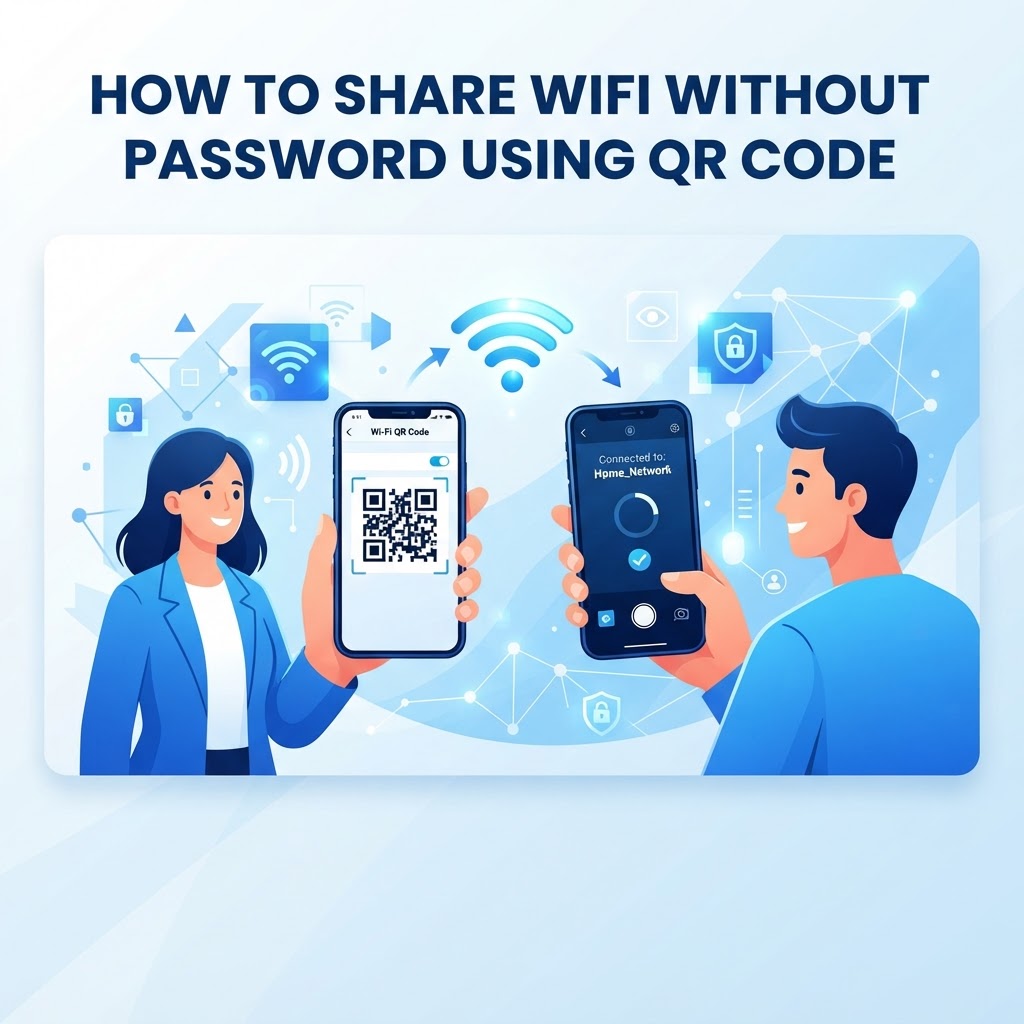
Why Sharing WiFi Without a Password Is a Game-Changer for Homes and Businesses
Anyone who has hosted guests, managed a café, or run a small business knows the pain of the WiFi password handoff. You write it on a chalkboard, print it on a card, or awkwardly spell out C-a-p-i-t-a-l-X-3-a-t-sign-7 over the noise of a busy room.
Guests mistype it, staff repeat it a dozen times a day, and every time you change the password for security reasons, the whole process starts over.
WiFi QR codes solve this entirely. Instead of sharing a password, you share a scannable code that lets guests connect without typing, errors, or asking anyone for help.
This matters beyond convenience. From a security standpoint, a QR code limits how widely your actual password is exposed because you can display the code without displaying the credentials as readable text.
Key Points
- Guests can connect without typing or memorizing a password.
- Businesses can reduce repeated WiFi-related questions and interruptions.
- iOS 11 and later and Android 10 and later support WiFi QR codes natively.
- Older Android devices can use Google Lens or most QR scanner apps.
How WiFi QR Codes Actually Work: The Technical Background Made Simple
A WiFi QR code is a structured string of text encoded into a scannable image that your phone's camera and operating system know how to interpret.
A WiFi QR code encodes a specific data format called the WIFI: scheme. The string inside the code looks something like this:
WIFI:T:WPA;S:YourNetworkName;P:YourPassword;H:false;;
What Each Field Means
- T: Defines the security type, such as WPA, WPA2, WEP, or nopass for open networks.
- S: Identifies the SSID, meaning the name of your WiFi network exactly as it appears on devices.
- P: Holds the WiFi password.
- H: Indicates whether the network is hidden.
When a phone camera scans this code, the operating system identifies it as a WiFi configuration request and prompts the user to join that network. The user never sees the raw string and simply taps a prompt such as “Join network YourNetworkName?”
Precision matters when generating the code. If the SSID contains a capital letter that you enter as lowercase, the code will point to a network that does not exist.
A reliable QR code generator handles these details for you, validating inputs and formatting the string correctly before encoding it. The QR code image does not expire or require internet access, but you must generate a new code if you change your WiFi password.
Step-by-Step: How to Create a WiFi QR Code in Under Two Minutes
Creating a WiFi QR code requires no technical knowledge, app installation, or account in most cases. The process is straightforward, but accuracy is essential for creating a code that works reliably.
- Step 1: Find your exact network details, including the WiFi network name, password, and security type. These details may be printed on your router, or you can confirm them in your router admin panel, usually at 192.168.1.1 or 192.168.0.1.
- Step 2: Open a WiFi QR code generator. Visit a purpose-built generator like the one at Generate your QR code free.
- Step 3: Enter your network name exactly, including capitalization, spaces, and special characters.
- Step 4: Enter your password exactly as set, including any special characters.
- Step 5: Select your security type. Choose WPA/WPA2 for most modern routers, or select None or Open if your network has no password.
- Step 6: Generate and test the code before printing or displaying it. Confirm that it connects to the correct network, then download it in PNG or SVG format.
Testing is the step most people skip, and it is the most important one. Verify that the connection works on at least two different devices before placing the code anywhere permanent.
Where to Display Your WiFi QR Code for Maximum Impact
Generating the code is only half the job. Where and how you display it determines whether guests actually use it and whether it improves their experience.
Recommended Placement Locations
- Cafés and restaurants: Place the code on table tents, menus, or framed cards at each table.
- Hotels and short-term rentals: Frame the code and place it on desks or nightstands. You can also include it in a digital welcome guide or booking confirmation email.
- Offices and co-working spaces: Post the code at reception, in meeting rooms, and in common areas.
- Homes: Keep a printed card near the router, or display it in the kitchen or living room.
Printing and Visibility
A QR code printed smaller than 2 centimeters by 2 centimeters can become difficult for cameras to read, especially in lower light. For table displays, aim for at least 5 by 5 centimeters, while wall-mounted signs should be larger when viewed from a distance.
Use high-contrast printing, such as a black code on a white background. Avoid textured surfaces, highly reflective materials, or backgrounds that compete visually with the code.
Real-World Business Applications and Results
WiFi QR codes provide operational and marketing value for businesses of varying sizes. Different industries use them to reduce interruptions and improve the visitor experience.
Create your How To Share Wifi Without Password Using Qr Code in seconds
Create Free QR Code →- Independent coffee shops: Table QR codes can reduce repeated WiFi questions and create self-service connectivity.
- Healthcare waiting rooms: Patients can connect without requiring staff to share credentials in open spaces.
- Event venues and conference centers: Organizers can create temporary codes for dedicated guest networks and include them in programs or registration displays.
- Retail stores: QR codes can help customers connect while browsing a brand's app or digital catalog.
- Property managers: Each rental unit can have its own framed QR code, which can be replaced when credentials change.
Customization, Branding, and Keeping Your QR Code Secure
A functional WiFi QR code serves its purpose, but a well-branded one can reinforce your business identity and build trust with users.
Most professional QR code generators, including Generate your QR code free, offer customization options such as colors, logos, dot shapes, corner elements, and text labels like “Scan to Connect to Free WiFi.”
Best Practices
- Maintain contrast: Test customized and printed codes before using them widely.
- Use a guest network: Share a separate SSID that provides internet access without exposing your primary network's connected devices.
- Rotate credentials: Change your guest network password monthly or quarterly depending on traffic volume.
- Use secure displays: Frame or permanently mount public codes to reduce the chance of replacement by fraudulent copies.
Frequently Asked Questions
Does the person scanning the QR code ever see the actual WiFi password?
In normal use on both iOS and Android, the user sees only a prompt to join the named network. However, the password is technically encoded within the QR code image itself, and a QR code scanner app that displays raw decoded data could reveal it.
This is why creating a dedicated guest network with a separate password from your primary network is the recommended approach for any public or semi-public display.
Why does my WiFi QR code scan but fail to connect?
The most common causes are a mismatch in the SSID, an incorrect password entry, or a wrong security type selection. Verify every field against your router settings and regenerate the code.
Also confirm that the network is active and that the scanning device is within range. Some older Android devices require a dedicated QR scanner app because native WiFi QR support was added in Android 10.
Do WiFi QR codes work on all smartphones?
WiFi QR codes work natively on iOS 11 and later through the built-in Camera app, and on Android 10 and later through the native camera or Google Lens.
Older devices can still use third-party QR scanner apps. Most popular free scanners support the WiFi QR format.
Can I use one QR code for multiple locations or do I need a separate code for each?
If all locations share the same WiFi network name and password, a single QR code works across all of them. If each location has a different network, SSID, or password, you need a separate code for each.
This is common for multi-location businesses where each site has its own router and credentials.
What happens to the QR code if I change my WiFi password?
The existing QR code stops working for new connections because it encodes the old password. Devices that are already connected and have saved the network will remain connected until they disconnect.
Generate a new QR code with the updated password, download it, and replace all displayed copies. The generation process takes under two minutes.
Your QR code is ready in under 30 seconds.
Generate Free QR Code →Conclusion
Learning how to share wifi without password using qr code makes connecting devices faster and easier while reducing the need to expose readable credentials. Generate, test, and securely display a code for a smoother experience at home or in your business.