1. Why the Shift to QR Code Appointment Reminders Matters in 2026
As we navigate through 2026, appointment-based businesses—from medical clinics to personal salons—are increasingly turning to automation and self-service. Manual phone-call reminders are fading because they are time-consuming, expensive, and often intrusive for clients.
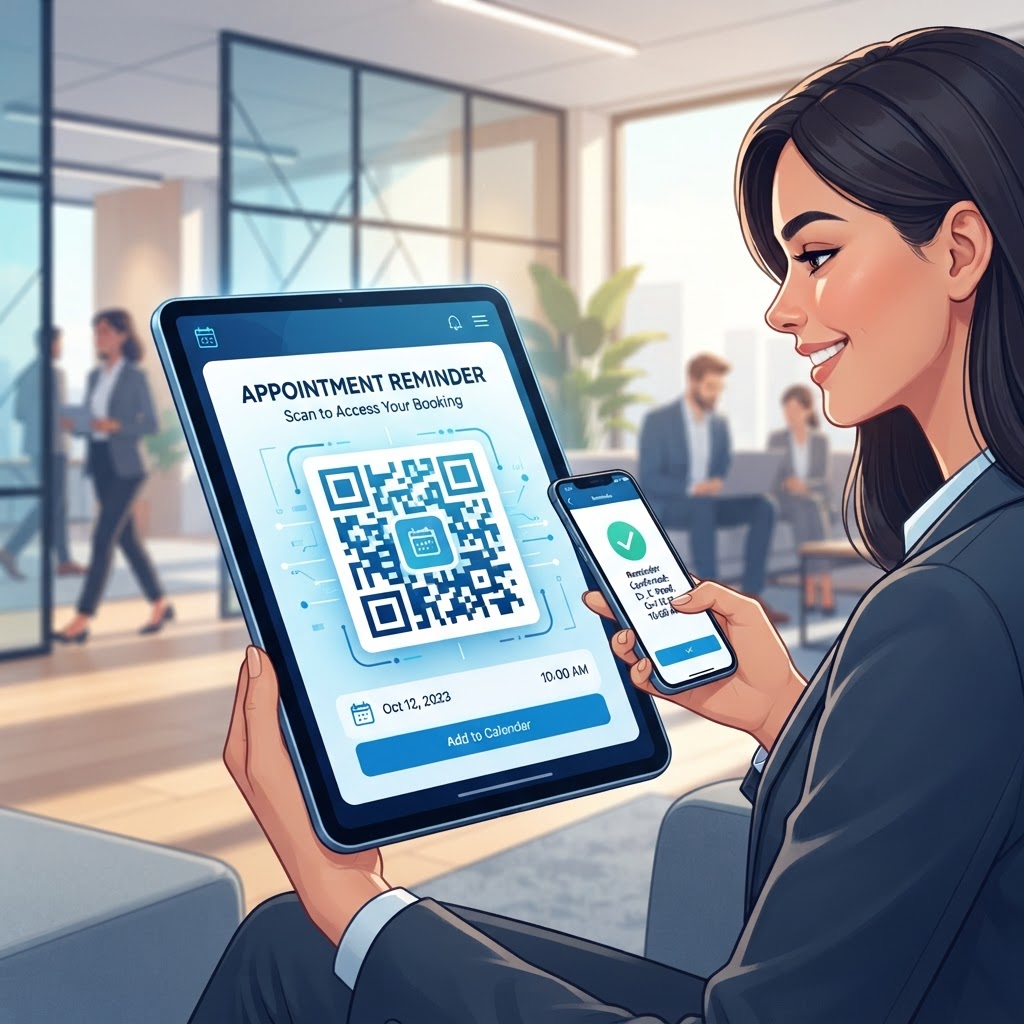
Using a qr code for appointment reminder systems shifts communication from push notifications that may be ignored to a scannable, opt-in experience. Customers can scan a code after booking to sync an appointment to their digital calendar, set personal alerts, and receive updates on their device.
In an era of digital overload, manual scheduling is prone to human error and forgetfulness, which can lead to missed appointments. QR codes can reduce paper use and administrative overhead while helping clients manage their calendar entries and improving attendance rates.
Key Points
- QR codes let clients add appointments to their digital calendars and set personal alerts.
- Scannable reminders can reduce manual scheduling errors and administrative work.
- Clients scan the code themselves, giving them control over managing their calendar entry.
2. Understanding the Technical Mechanics of Appointment QR Codes
A qr code for appointment reminder systems is a visual container for structured data, commonly an iCalendar file or a deep link to a booking management URL. When you generate a code via a platform like blueqrcode.com, it encodes an instruction that tells a smartphone what action to take when scanned.
The operating system decodes the pattern into a URL or data string that can open a calendar application or web-based scheduling interface. Standardized URI schemes, such as 'mailto:' or 'webcal:', can allow devices to interpret the information and open a calendar add-event dialogue or browser-based dashboard.
The QR code acts as a bridge between a physical space and a digital query. A URL may lead to a landing page with a unique identifier associated with a booking, allowing the system to recognize the client and retrieve relevant data.
Unlike links that must be typed manually, QR codes reduce the chance of user input errors. This can provide a fluid mobile experience for businesses and clients.
3. A Step-by-Step Guide to Creating Codes on blueqrcode.com
Use the tools at blueqrcode.com to create a QR code that directs clients to the appointment resource they need.
- Step 1: Identify the goal of your code, such as directing users to a booking portal, a calendar event file, or an appointment management dashboard.
- Step 2: Find the destination URL, navigate to the tool, select the 'URL' category, and paste your scheduling link. Include any necessary parameters for tracking client scans or appointment slots.
- Step 3: Customize the code to match your brand, then generate a preview.
- Step 4: Test the code on at least two smartphone models to confirm that scanning and redirection work as expected.
- Step 5: Download the code in a high-resolution format, such as PNG or SVG, and pair it with a clear call to action, such as 'Scan to Save Appointment' or 'Add to Calendar.'
4. Best Practices for Professional QR Code Deployment
Deployment strategy can determine whether your qr code for appointment reminder becomes a useful part of your business workflow or goes ignored. Make the code easy to see and scan, and consider the setting where clients will encounter it.
- Ensure codes on printed materials, such as business cards or appointment slips, are at least 2cm by 2cm, and scale them appropriately for larger signage.
- Place the code at eye level or in a high-traffic area, and keep it clear of promotional materials or clutter.
- Use a high-contrast color scheme, such as black on white or dark blue on light grey, for scanning reliability.
- Use a matte finish for printed codes in areas with glare or direct sunlight to reduce reflections.
- Include a shortened URL as a fallback for users who prefer typing or have older devices.
100% Free — No signup required
Create your Qr Code For Appointment Reminder in seconds
Create Free QR Code →5. Common Mistakes to Avoid When Using Appointment Codes
Businesses can undermine a qr code for appointment reminder by overlooking the user journey. Check that the destination works on mobile devices and makes it easy for clients to complete the intended action.
- Using an expiring URL: A link that expires too quickly can leave clients unable to access their appointment information.
- Using a non-mobile-optimized page: A desktop-only page may be difficult to use on a phone and can lead clients to abandon the process.
- Adding too many steps: A complex login process can make it harder for clients to save an appointment; direct them to the relevant calendar event or booking confirmation screen.
- Providing no scan context: A QR code without an explanation may be ignored, so add a clear CTA that tells clients why they should scan it.
- Overcomplicating the design: Too many logos or complex shapes can reduce readability, so prioritize scanning functionality over customization.
- Skipping regular audits: Check codes every few months to confirm that links remain active and platforms such as blueqrcode.com function as expected.
6. Concrete Use Cases: Implementing Codes by Industry
QR codes can support appointment reminders in a range of business settings. The format and placement can vary according to the customer’s appointment journey.
- Medical and healthcare: Clinics can print QR codes on 'next visit' cards so patients can add follow-up appointments to their smartphones and receive calendar notifications.
- Professional services: Law firms and financial consultants can include codes in digital signature emails, allowing desktop users to scan and sync a meeting to their phones.
- Beauty and wellness: Hair salons, spas, and personal trainers can place codes on mirror decals or checkout terminals so clients can book their next session or save an appointment.
- Automotive repair: Shops can put codes on service invoices or windshield reminder tags to help customers remember recurring maintenance appointments.
7. Summary and Next Steps for Your Business
Integrating a qr code for appointment reminder into your operations can help clients manage their calendars and support attendance. It can also reduce scheduling friction and administrative work.
Review your appointment workflow and choose where a QR code could be most useful, such as your reception desk, physical cards, or confirmation emails. Visit blueqrcode.com to generate test codes, pilot them with a single service or department, and refine the scanning experience before expanding.
No watermark · No expiry · Works on all phones
Your QR code is ready in under 30 seconds.
Generate Free QR Code →