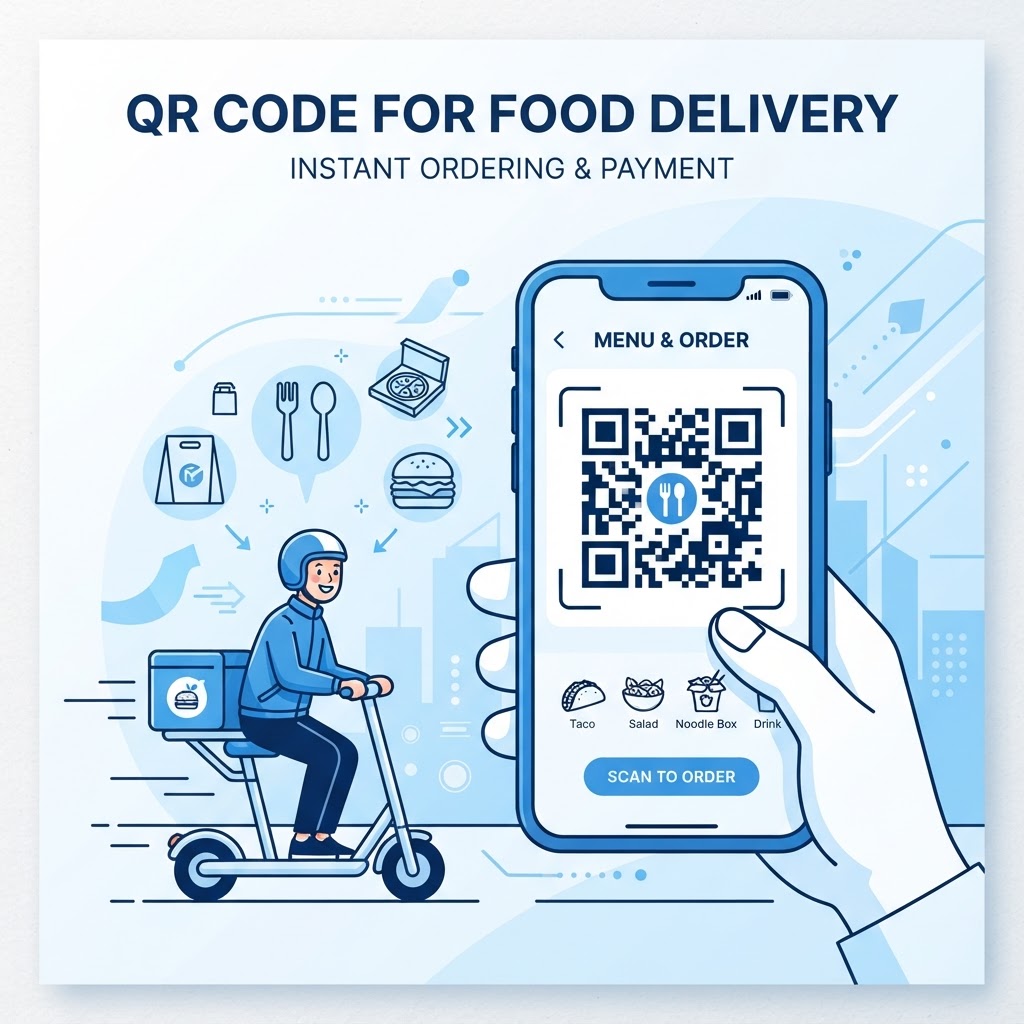
Why a QR code for food delivery matters
Imagine a potential customer holds your flyer, but they are too busy to type your website address into their smartphone. Providing a frictionless path to your menu is the difference between a lost lead and a repeat sale.
When you implement a QR code for food delivery, you turn a passive print advertisement into an active, trackable sales channel. This strategy works exceptionally well for local restaurants and ghost kitchens looking to streamline their direct-to-consumer order flow. Just as businesses often use QR codes for car dealership success, food delivery services can leverage this same technology to bridge the gap between physical flyers and digital menus.
What you need before you start
Before you jump into the technical setup, ensure you have your destination link ready. This could be your direct ordering page, a third-party delivery portal, or a specific app download link.
You will also need a reliable tool to handle the conversion. We recommend you use our free URL QR Code Generator to ensure your code is scan-ready and high-quality for any print material.
How to create a QR code for food delivery — step by step
- Copy your link: Navigate to your food delivery website and copy the specific URL you want customers to land on.
- Access the tool: Head over to the Blue QR Code Generator to begin the creation process.
- Paste your URL: Paste your copied delivery page link into the designated field in the generator.
- Customize the design: Adjust the look of your code to match your restaurant brand identity for a more professional appearance.
- Generate the code: Click the generation button to transform your URL into a scanable image.
- Download your file: Save the final QR code in a high-resolution format like PNG or SVG, which ensures it remains crisp on printed flyers or window decals.
How to test and deploy it
Before you print thousands of flyers, always perform a test scan with multiple smartphones. This confirms that the link works perfectly on both iOS and Android devices without any browser issues.
Place your code in high-visibility areas like front windows, table tents, or direct mailer cards. When you use Blue QR Code Generator's URL QR codes tool, you ensure that every scan provides a seamless landing experience for your hungry customers.
Common mistakes that ruin results
- Poor contrast: Placing a light-colored QR code on a light background makes it impossible for cameras to focus.
- Lack of clear CTA: Failing to add text like "Scan to Order Food" next to the code often leads to lower engagement rates.
- Wrong link destination: Linking to a general homepage instead of a specific order menu creates unnecessary steps for the user.
- Tiny dimensions: Making the code too small on your print design causes scanning errors, so ensure it is at least 1x1 inch for best results.
Real examples
A local pizza chain used a QR code on their pizza boxes to lead customers directly to a re-order page, which increased repeat sales by 15% in just one month. By placing a QR code for food delivery on their delivery vehicles, a catering business was able to capture walk-up orders from bystanders who saw their branding.
Ready to get started? You can generate yours here in seconds and start driving more orders to your kitchen today.
Step-by-Step Guide: How to Create a qr code for food delivery on BlueQRCode
-
Prepare your delivery URL.
Decide which link you want to turn into a qr code for food delivery: a direct ordering page, a menu URL, a landing page with daily specials, or a third‑party app link. If you run promotions or want to measure performance, append UTM parameters (e.g., ?utm_source=qr&utm_medium=packaging&utm_campaign=summer_offer) so you can track scans in analytics.
-
Open BlueQRCode and choose the URL QR type.
Go to BlueQRCode and select the URL option from the list of QR types. BlueQRCode supports many formats, but for food delivery you’ll usually pick URL so scanners go straight to your ordering or menu page.
-
Paste your link and customize the design.
Paste the delivery or menu link into the URL field. Use the available editing tools to customize color, eye shape, and add your restaurant logo if desired. Keep contrast high and avoid complex backgrounds—readable codes convert better. BlueQRCode generates clean, printable codes without watermarks.
-
Choose file type and download.
Select the export format that fits your use case: PNG for quick prints and digital use, SVG for scalable printing on packaging or signage, or PDF for multi‑page print layouts. Download your qr code and save a backup copy so you can reprint whenever needed—BlueQRCode QR codes never expire.
-
Test and deploy.
Before rolling out to customers, test the code on multiple devices and platforms (iOS, Android) and through different camera apps. Verify the link loads quickly and the page is mobile optimized. Then place the qr code on menus, table tents, packaging, delivery bags, receipts, food trays, or marketing posters near pickup areas.
Best Practices for qr code for food delivery
- Make it mobile-first: Ensure the destination page is mobile responsive, fast to load, and easy to order from a phone — most scanners use mobile devices.
- Provide a clear call to action: Add a short instruction above or below the QR code like “Scan to order” or “Scan for contactless pickup.” Customers are more likely to scan when they know what happens next.
- Optimize size and placement: Keep printed QR codes at least 2 x 2 inches for handheld use; increase size for outdoor signage and windows. Place codes where customers can comfortably reach or scan them (tabletop, counter, packaging top).
- Brand subtly: Add your logo in the center or use brand colors, but maintain strong contrast and clear quiet zone (margin) around the code so scanners can read it reliably.
- Track performance: Use unique URLs or UTM parameters for different placements (e.g., menu, bag, table) to measure which channels drive the most orders and refine your strategy accordingly.
Common Mistakes to Avoid
- Linking to non‑mobile pages: Sending users to desktop‑only sites or PDF menus that aren’t mobile friendly will frustrate customers and reduce conversions. Always test the UX on phones.
- Using poor contrast or tiny codes: Light colors on light backgrounds, busy patterns, or very small printed QR codes often fail to scan. Keep the code dark on a light background and maintain a readable size.
- Not testing real‑world conditions: Failing to test under different lighting, print materials, or through protective windows can lead to unreadable codes. Test the final printed size and material before mass printing.
- Forgetting to update links or messaging: If a promotion ends or your ordering platform changes, outdated QR codes can lead to dead pages. Keep your URLs current and use link redirects or trackable links to swap content without reprinting when possible.
Real-World Use Cases
-
Table ordering in casual dining:
Place a qr code for food delivery on each table or at the bar that links directly to your contactless ordering system. Guests scan, browse the menu, add items, and pay — reducing wait times and staffing pressure during peak hours.
-
Takeout and delivery packaging:
Print a qr code for food delivery on bags, boxes, and stickers that links to reorder pages or loyalty signups. Repeat customers can reorder in seconds, and you can promote targeted discounts on receipts or packing slips.
-
Food trucks and pop‑ups:
Display a prominent QR code on the truck’s side or menu board that connects to a mobile ordering page or contactless payment. This speeds up service lines, enables cardless ordering, and captures customer data for future marketing.
-
Promotions and partnerships:
Collaborate with hotels, offices, or event venues by supplying co‑branded qr codes for food delivery that link to special menus or bulk ordering options. Use unique URLs to track ROI from each partner channel.
Create Your Free qr code for food delivery
No sign-up. No watermark. Never expires.
Generate Free QR Code →