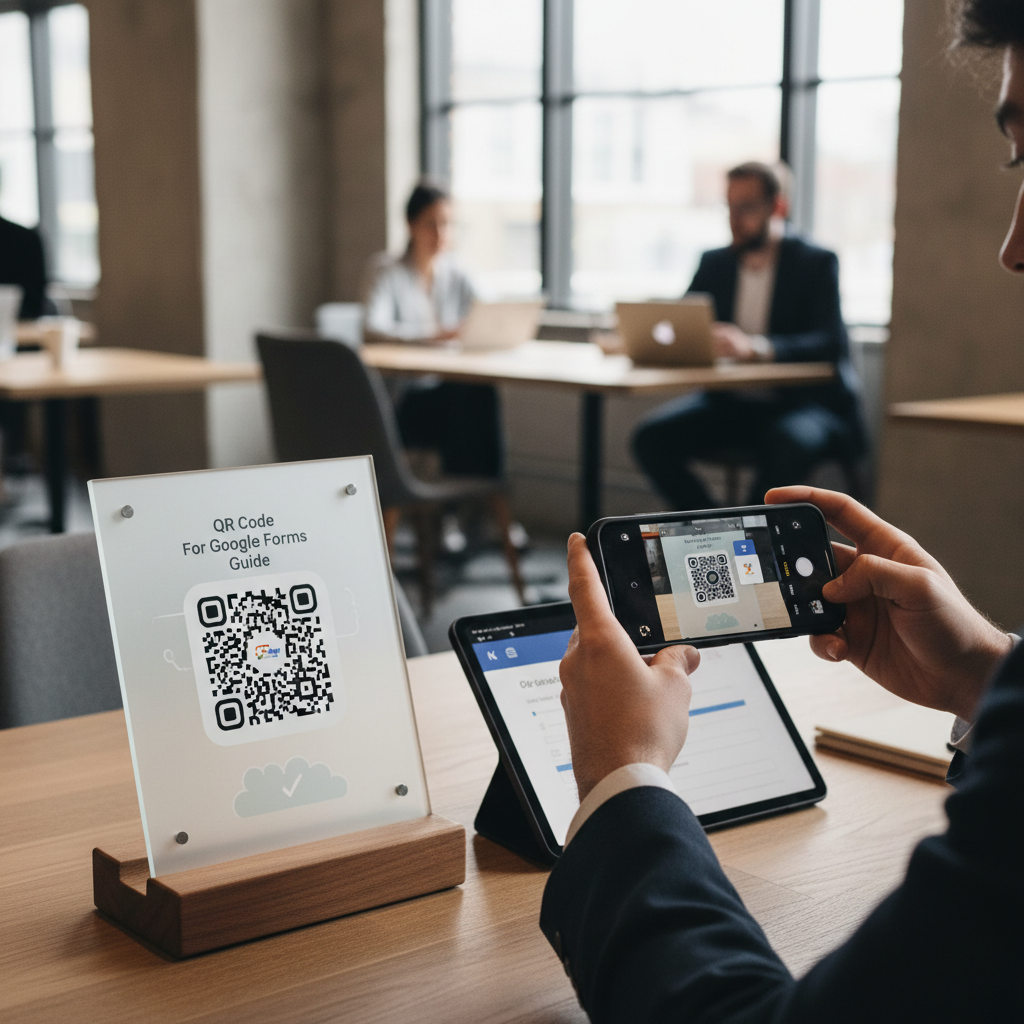
Why QR Code for Google Forms Matters
Imagine running an event where you need to gather feedback or collect registrations quickly. Handing out paper forms can be tedious, and it can lead to lost or incomplete responses. By using a QR code for Google Forms, you can direct your audience to the form instantly, ensuring better participation and improving data accuracy. To create this QR code, you can use our free URL QR Code Generator to generate yours here.
What You Need Before You Start
Before generating your QR code for Google Forms, ensure you have the following:
- A Google Form: Make sure your form is created and ready to share.
- Stable Internet Connection: You'll need it to access the QR code generator.
- Access to Blue QR Code Generator: A free tool that simplifies QR code creation.
How to Create a QR Code for Google Forms — Step by Step
- Open Your Google Form: Navigate to your Google Form and ensure it is ready for responses.
- Copy the Form Link: Click on the 'Send' button on your form and copy the link provided.
- Visit the URL QR Code Generator: Go to our URL QR Code Generator.
- Paste Your Form Link: In the generator, paste the Google Form link you copied earlier.
- Customize Your QR Code (Optional): You can choose to customize the design or keep it simple.
- Generate the QR Code: Click on the ‘Create QR Code’ button. Your FREE QR code will be generated in seconds.
How to Test and Deploy It
Before deploying, ensure that your QR code works as intended. Scan it using a smartphone to verify it links back to your Google Form. You can also print a test copy to confirm visibility and scanning ease. Consider placing the QR code in various locations where your target audience will see it, such as flyers, posters, or digital platforms. For further inspiration, check out our complete guide on creating a qr code for baby shower, which highlights practical uses of QR codes for events.
Common Mistakes That Ruin Results
- Linking to the Wrong Form: Ensure the URL linked to the QR code directs users to the correct Google Form.
- Poor Quality Images: If printed, make sure the QR code is of high resolution for easy scanning.
- Neglecting Mobile Optimization: Ensure your Google Form is mobile-friendly, as most scans will be on phones.
- Ignoring Tracking: Use UTM parameters if you want to track responses from QR code scans separately.
Real Examples
Many organizations have successfully used QR codes for their Google Forms. For instance, a local restaurant integrates a QR code on its tables to collect customer feedback instantly. Event organizers put QR codes on tickets leading straight to registration forms, improving their reach. Schools have used it for parental engagement, making it easy for parents to sign up for events via QR code.
All of these examples showcase how practical and easy it is to collect data seamlessly using a QR code for Google Forms.
Step-by-Step Guide: How to Create a qr code for google forms on BlueQRCode
Turning a Google Form into a scannable experience is fast and reliable with BlueQRCode. Follow these five simple steps to create a QR code that links directly to your Google Form and lets respondents open the form on their phone immediately.
Step 1 — Copy the Google Form link
Open your Google Form, click the "Send" button (paper airplane icon), choose the link tab, then copy the form URL. If you plan to share broadly, consider clicking the "Shorten URL" option inside Google Forms first to reduce link length. Also double-check form settings (Responses enabled, permission settings) so anyone with the link can respond if that is your intention.
Step 2 — Open BlueQRCode and choose the URL QR code type
Go to BlueQRCode.com. Select the URL or Link QR code option (BlueQRCode supports URL QR codes among its available types). Paste the Google Form link into the URL field. BlueQRCode requires no sign-up, doesn't add a watermark, and QR codes never expire, making it ideal for one-off campaigns or long-lived uses.
Step 3 — Customize your QR code (optional)
Customize the look and output for your qr code for google forms: set the size, error correction level, and color to match your brand or printed material. If you want a logo in the center or a custom frame, add it here. Keep in mind higher error correction makes the QR code more resilient to damage but can slightly change the pattern. Aim for good contrast (dark code on light background) to maximize scan reliability.
Step 4 — Generate and test the QR code
Click "Generate" to create your QR code. Before downloading or printing, test the code with multiple devices and scanning apps—iPhone Camera, Android Camera, and common third-party apps. Scanning should open the Google Form directly in the device's browser. Verify that the form loads properly, that it does not require a sign-in (unless intended), and that the user can submit answers easily on mobile.
Step 5 — Download, deploy, and monitor
Download the QR code in the format you need (PNG, SVG, or PDF for print). Place it on posters, flyers, email signatures, or digital screens. If you expect many responses or want to measure campaign performance, add URL parameters (UTM tags) to your Google Form link before generating the QR code—this lets you track referral sources in Google Analytics if you route responses through a landing page, or simply helps you segment responses by campaign. Because BlueQRCode QR codes never expire, you can reuse the same code across future campaigns without worry.
Best Practices for qr code for google forms
- Make the destination mobile-friendly: Ensure your Google Form is optimized for mobile—concise questions, large buttons, and a streamlined flow improve response rates when launched from a QR scan.
- Keep QR codes large enough for the context: For print materials, aim for at least 2 x 2 inches (5 x 5 cm) for handheld scanning; increase size for distant scanning (e.g., banners or signage).
- Provide a clear call-to-action near the code: Add short text explaining what the user will get after scanning (e.g., "Scan to complete our 1-minute feedback form"). This increases trust and conversion.
- Test on multiple devices and lighting conditions: Verify scanning works with iOS/Android cameras and common QR apps, and test under indoor/outdoor lighting to catch contrast or glare issues.
- Secure the form permissions to match your audience: If you need anonymous responses, disable "Restrict to users in your organization"; if you require identity, enable sign-in and note it in the CTA.
Common Mistakes to Avoid
- Linking to the edit or preview mode of the form: Make sure you're using the shareable "respondent" link, not the form editor URL. The editor URL will confuse users and may require sign-in.
- Using an inaccessible or private form: If the Google Form requires sign-in or is limited to certain domains, external respondents may be blocked. Adjust sharing settings according to your audience.
- Placing the QR code too small or with low contrast: Tiny codes or light-on-light colors can fail to scan. Use strong contrast and appropriate size for the viewing distance.
- Not testing real-world placement: Codes on curved surfaces, glossy finishes, or behind glass can be unreadable. Always print a sample and scan it in the actual environment before mass production.
Related guides
Real-World Use Cases
QR codes for Google Forms are versatile. Here are concrete examples across industries where they streamline data collection and create better user experiences.
- Events and Conferences: Place qr codes for google forms at registration desks or session rooms to collect feedback, session ratings, or sign-ups for follow-up materials. Attendees can scan and respond in under a minute, increasing completion rates compared with paper surveys.
- Education and Training: Teachers and trainers can add QR codes to slides or handouts linking to quick quizzes, attendance forms, or anonymous feedback. Students scan to submit answers instantly without typing long URLs.
- Retail and Hospitality: Put a QR code for google forms on receipts, tables, or checkout counters to gather customer satisfaction data, request permission for newsletters, or offer entry to a contest via form submission.
- Healthcare and Field Services: Clinics and mobile care units can use QR codes for intake forms, pre-appointment screenings, or patient satisfaction surveys. Scanning reduces contact and speeds up check-in while keeping data organized.
Create Your Free qr code for google forms
No sign-up. No watermark. Never expires.
Generate Free QR Code →