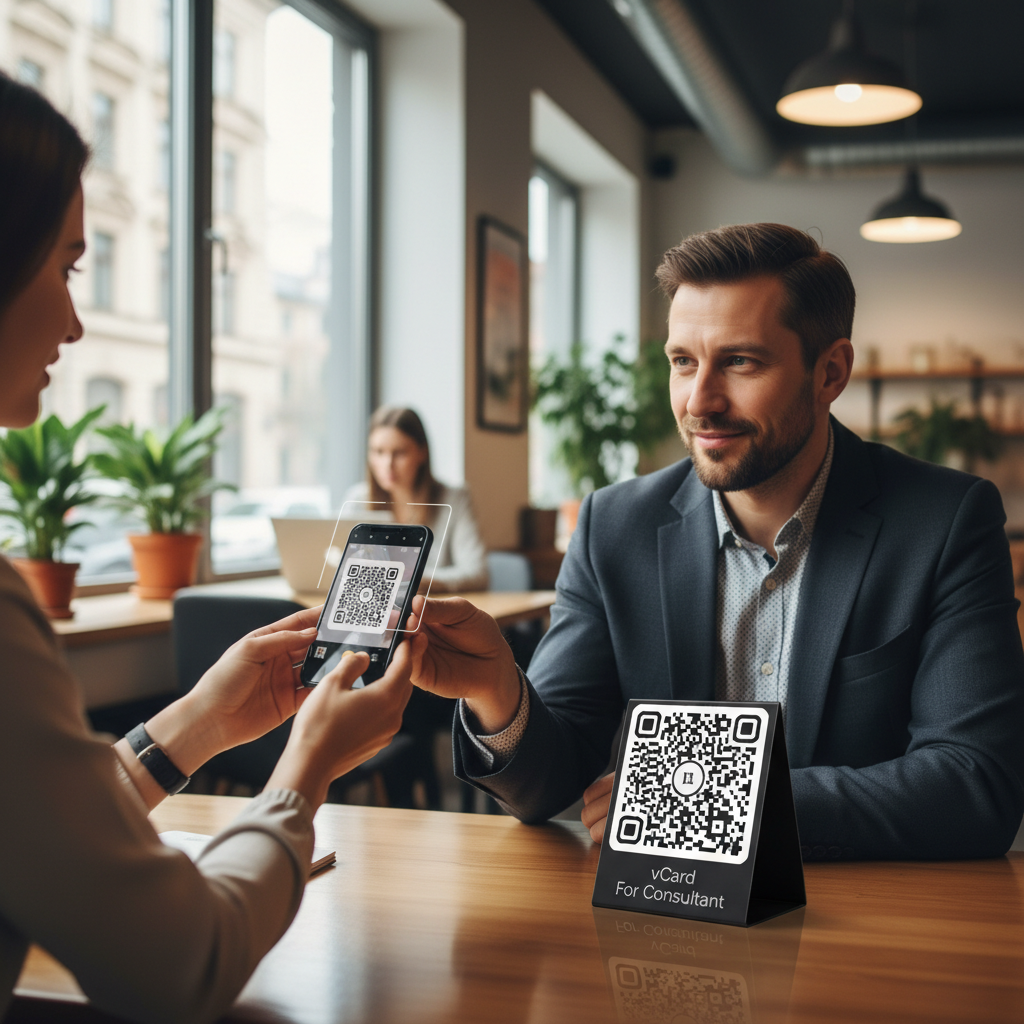
Why vCard QR Code for Consultants matters
Imagine attending a busy networking event where you're constantly handing out business cards. You’re trying to make a lasting impression, but the hassle of managing physical cards can sometimes overshadow your expertise. A vCard QR code eliminates the need for physical cards by enabling quick and easy sharing of your contact information. This not only saves time but also ensures that potential clients and partners can reach you without any errors. To get started, you can use our free vCard QR Code Generator for a seamless experience.
What you need before you start
- A smartphone or tablet: To test the QR code after creating it.
- Prior contact details: Make sure you have your name, phone number, email, and website ready to input.
- Access to Blue QR Code Generator: Navigate to our free vCard QR Code Generator to get started.
How to create a vCard QR Code — step by step
- Visit the Generator: Go to Blue QR Code Generator and select the vCard option.
- Enter Your Contact Information: Fill in your name, job title, company, phone number, email, and website details as you want them displayed.
- Customize Your QR Code: Choose color, frame, and other aesthetic features to align the QR code with your branding.
- Generate the QR Code: Click on the 'Generate' or 'Create' button to create your vCard QR code.
- Download Your QR Code: Save the QR code image in your preferred format (PNG, JPG) to your device.
- Add to Your Materials: Place your QR code on your business cards, email signatures, or presentations for easy access.
How to test and deploy it
Once you've created your vCard QR code, it's crucial to test it. Use your smartphone's camera or a QR code scanning app to scan your new code. Make sure that it directs you to your contact information without any errors. If everything works as intended, deploy it across your various professional platforms. Consider adding it to your online profiles or including it in emails to further increase its visibility.
Common mistakes that ruin results
- Neglecting Accuracy: Ensure all details entered are correct; otherwise, it can lead to misinformation.
- Forgetting to Test: Always scan your QR code before sharing it widely to ensure it functions correctly.
- Poor Visual Design: A non-customized QR code may not grab attention; make sure it reflects your personal brand.
- Limited Distribution: Don't just add it to one platform; distribute it across various media for maximum reach.
Real examples
1. **John Doe, Business Consultant:** John includes a vCard QR code on his email signature, allowing prospects to save his contact info directly without typing it in manually.
2. **AHI Consulting Firm:** AHI printed vCard QR codes on their marketing materials and found an increase in inquiries at events, significantly expanding their client base.
3. **Freelance Graphic Designer:** Maggie uses her vCard QR code on social media platforms, effortlessly directing new clients to her portfolio and contact details, enhancing her networking potential.
Step-by-Step Guide: How to Create a vcard qr code for consultant on BlueQRCode
-
Step 1 — Open BlueQRCode and choose the vCard option
Go to BlueQRCode.com and select the vCard QR code type from the list of QR formats. The vCard option is designed specifically to store and share contact information (name, title, phone, email, address, company, website and notes) so that scanners can import it directly into their phone’s contacts app — perfect for consultants who want to make follow-up easy.
-
Step 2 — Fill in your consultant contact details
Enter your full name, professional title (for example “Strategy Consultant” or “IT Security Consultant”), company name, primary phone (use the international format), email address, website or portfolio URL, office or mailing address, and any brief notes such as specialties or key certifications. If BlueQRCode supports optional fields like social profiles or a short bio, add your LinkedIn URL — consultants benefit most from a clear title and a single preferred phone number to avoid confusion.
-
Step 3 — Review formatting and international phone format
Before generating, double-check spelling and format. Use the E.164 international phone format (+countrycode number) so recipients in other countries can call without editing the number. Keep job title and company name concise; long lines can look messy in some contact apps. If you want a photo or logo included and the generator allows it, upload a small, professional headshot or company mark to help recipients visually recognize you.
-
Step 4 — Generate and test the vcard qr code
Click “Generate” to create the QR code. BlueQRCode produces a high-resolution image without watermarks and the code never expires. Scan the QR yourself with several devices and apps — iPhone Camera, Android Camera, and a popular third-party scanner — to confirm the vCard imports correctly, fields map as expected, and links (website, LinkedIn) open. Testing avoids embarrassing errors when handing a card or presenting to a client.
-
Step 5 — Download, print, and deploy where clients will see it
Download the QR in the highest resolution you need (PNG or SVG if available). Add the QR to business cards, proposals, slide decks, email signatures, conference badges, invoices, or office signage. Place a short call-to-action nearby (for example: “Scan to save my contact”) so recipients know what to expect. Keep a digital copy to paste into electronic proposals and signatures as well.
Best Practices for vcard qr code for consultant
-
Use a clear professional title: Include your consulting specialty (e.g., “Marketing Consultant” or “Cybersecurity Consultant”) so contacts immediately understand your expertise.
-
Prefer one primary phone and one email: Too many numbers or addresses create decision friction. If you use multiple lines, label them (Office / Mobile) to avoid confusion.
-
Format phones in international (E.164) format: Start with “+” and country code (e.g., +1 for US) so the number works for global clients without manual edits.
-
Add a single, authoritative link: Include your primary website or LinkedIn profile rather than multiple social links; choose the one that best showcases services and case studies.
-
Place a short CTA and test across devices: Add “Scan to save contact” or “Scan to connect on LinkedIn” near the QR and verify import behavior on iOS and Android before distributing widely.
Common Mistakes to Avoid
-
Missing or incorrect country code on phone numbers — this prevents overseas clients from dialing directly and creates friction when saving contacts.
-
Overcrowding the vCard with too many fields or very long descriptions — while vCards can hold lots of data, long paragraphs in the Notes field often don’t display well in contact apps and can look unprofessional.
-
Poor contrast or tiny print around printed QR codes — if you place the QR on business cards or brochures, ensure there’s sufficient white space and the code is large enough to be scanned reliably (at least 2–2.5 cm / about 0.8–1 inch for typical prints).
-
Not testing the downloaded QR code — skipping this step can lead to broken links, wrong phone numbers, or fields that don’t map correctly into a recipient’s address book.
Related guides
Real-World Use Cases
-
Business cards and networking events — Consultants handing out cards at conferences or local meetups can let prospects scan a vcard qr code for consultant to instantly save contact info, link to a portfolio, and schedule a discovery call. This accelerates follow-up and reduces lost leads from mis-typed phone numbers.
-
Proposals and closing documents — Add a vCard QR to the cover page of proposals or executive summaries so clients can quickly add the consultant’s contact after reviewing materials, making it easy to call about next steps without searching email threads.
-
Presentation slides and pitch decks — Display the QR on the final slide during a pitch to let attendees capture contact details and access your LinkedIn or case studies immediately after the presentation, increasing the chance of post-event outreach.
-
Office doors and reception areas — For consultants who meet clients at a shared office or coworking space, a vCard QR code for consultant posted in the reception or meeting room allows visiting clients to save contact and directions without exchanging paper business cards.
Create Your Free vcard qr code for consultant
No sign-up. No watermark. Never expires.
Generate Free QR Code →