Why a WhatsApp QR code for caterer operations matters
Imagine a potential bride or corporate event planner scanning your business card and instantly opening a pre-filled WhatsApp chat to ask about your availability for a Saturday date. Without this technology, they have to manually save your number, open their messaging app, and start a new conversation, which often leads to lost leads. If you want to streamline this for your own business, you can generate yours here to capture more bookings.
By removing friction, you move from an inquiry to a conversation in a single tap. Catering is a high-touch, personal business, and WhatsApp provides the perfect platform to share PDF menus, photos of past buffet setups, or dietary requirement forms immediately after that first contact.
What you need before you start
Before you dive into the tool, you only need three simple things to ensure a smooth setup process.
- Business Phone Number: Use the dedicated number where you want all your catering inquiries to land.
- Pre-written Message: Think of a simple starter text like "Hi, I'm interested in catering services for my upcoming event."
- Design Assets: Have your company logo or brand colors ready if you want to customize your code aesthetic.
How to create a WhatsApp QR code for caterer leads — step by step
Follow these steps to generate your professional link using the Blue QR Code Generator, which provides a reliable, high-quality output for your marketing materials.
- Open the Generator: Visit our free WhatsApp QR Code Generator to get started.
- Input Your Phone Number: Enter your catering business phone number, ensuring you include the correct country code without extra spaces or symbols.
- Draft Your Message: Write an inviting automated message that helps you identify the client's needs immediately, such as "Hello, I saw your catering menu and would like a quote for an event."
- Customize the Design: Use the Blue QR Code Generator options to adjust the frame, colors, or logo placement to match your catering company's branding.
- Generate the Code: Click the generate button to see your custom QR code appear on the screen.
- Download and Save: Save the file in a high-resolution format like PNG or SVG, which ensures the code stays readable even when printed on larger banners or smaller menu tags.
How to test and deploy it
Never print your QR code without verifying it first. Open your phone camera and scan the code on your screen; it should immediately open a new chat window in WhatsApp with your pre-written message already inside the text box.
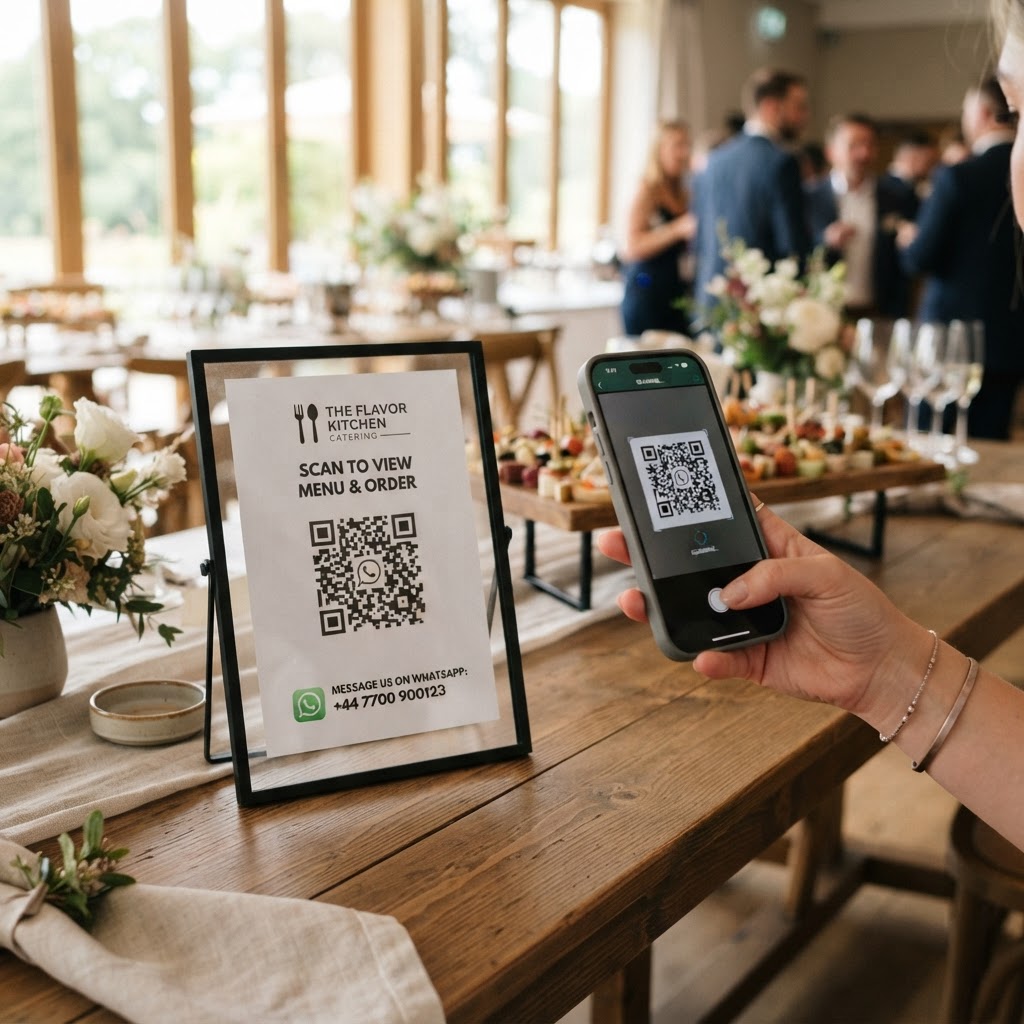
Once tested, incorporate the code into your physical marketing. Try placing it on your buffet table signs, at the bottom of your printed price lists, or directly on the takeaway boxes you provide for tasting samples. This ensures every piece of collateral becomes a potential sales funnel.
Common mistakes that ruin results
- Wrong Phone Number: A single digit error renders the whole QR code useless, so double-check the input field.
- Poor Contrast: Using light colors for the QR pattern against a light background makes it impossible for cameras to focus.
- Low Resolution: Printing a blurry, low-quality image on large signage will result in scan failures.
- No Clear Call to Action: Always add a small note near the code like "Scan to chat about your event menu," otherwise users may not know what it is for.
Real examples of success
A local wedding caterer recently started placing these codes on their booth at bridal expos, allowing couples to scan and instantly send an inquiry while standing right there. This allowed the caterer to reply with their full PDF brochure before the couple even walked out of the venue.
Another business used the Blue QR Code Generator to place QR codes on their office windows. Now, when they are out delivering food, potential walk-by clients can scan the window to check their next availability or request a menu. It acts as a 24/7 digital receptionist for the business. When you are ready to use our free WhatsApp QR Code Generator, you will see how easy it is to bridge the gap between physical and digital engagement.