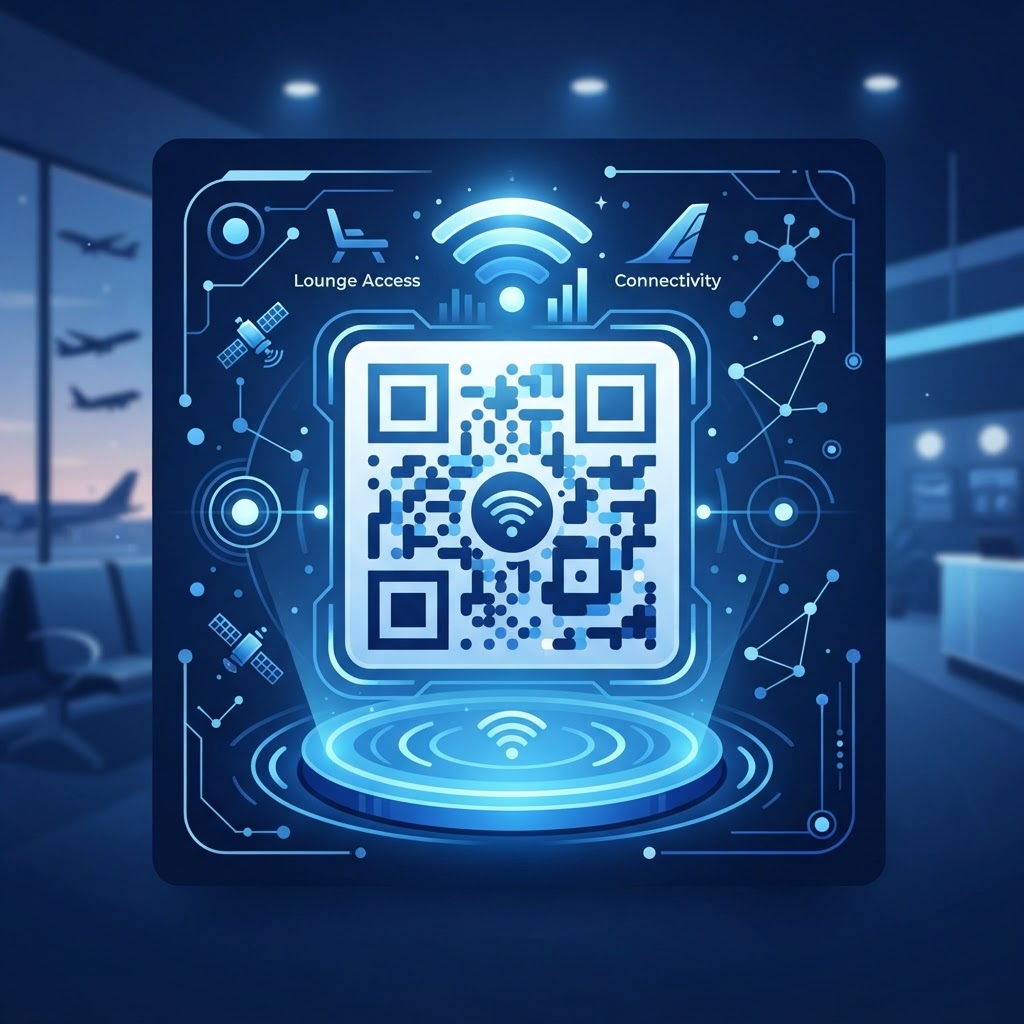
Why providing instant connectivity matters
In a busy airport terminal, every minute spent fumbling with network credentials is a minute of frustration for your guests. High-end travelers expect seamless, friction-free service from the moment they enter your lounge to relax or work.
By leveraging our free WiFi QR Code Generator, you replace manual entry errors with a simple scan. This not only saves your staff from constant password inquiries but also elevates the professional atmosphere of your facility.
What you need before you start
You don't need expensive software or a tech team to improve your guest onboarding. To get started, you simply need your precise WiFi network name (SSID), the current password, and an understanding of your network's security encryption type (typically WPA or WPA2).
Have your printer ready to produce clean, high-quality physical signage. When you use the Blue QR Code Generator, you ensure the output is professional enough for high-traffic environments.
How to create a wifi qr code for airport lounge guests
- Gather Network Credentials: Double-check your SSID and password for typos, as even a minor discrepancy will prevent guests from connecting.
- Access the Generator: Head over to our free WiFi QR Code Generator to begin the creation process.
- Input Your Details: Enter your exact network name into the SSID field and ensure you select the correct encryption method from the dropdown menu.
- Enter the Password: Carefully paste or type your WiFi password into the designated field to link the network correctly.
- Generate the Graphic: Click the generate button to produce the code, allowing you to generate yours in seconds for immediate use.
- Download and Print: Save your file as a high-resolution image to ensure it remains scannable even after being printed and framed on your front desk.
How to test and deploy it
Before placing the codes throughout your facility, perform a real-world test with at least three different smartphone models to ensure compatibility. If your lounge has multiple rooms, place the code in high-visibility areas like the reception desk, coffee stations, and near workstation charging ports.
Blue QR Code Generator provides sharp, high-contrast imagery that scans well even in low-light settings. Once tested, ensure your signage is protected by a clear acrylic cover to prevent damage from spills or constant handling.
Common mistakes that ruin results
- Incorrect SSID Spelling: Even a single capitalized letter difference between your router settings and your QR code will result in a connection failure.
- Low Image Resolution: Blurry or pixelated codes often fail to trigger a scanner, leading to guest frustration rather than ease.
- Wrong Security Protocol: Selecting 'None' when your network is actually WPA-protected will leave guests stuck at an authentication error.
- Poor Contrast: Printing a light-colored QR code on a light background makes it impossible for cameras to focus on the pattern.
Real examples of successful deployment
In a large executive lounge, managers placed a framed QR code on the back of each menu and on the wall of every private conference pod. This reduced front-desk calls by nearly 40% during peak travel hours.
Another boutique lounge operator chose to embed their logo in the center of the code, which they created using the Blue QR Code Generator. This branding touch made the tech feel like an extension of their interior design rather than a clinical IT solution.