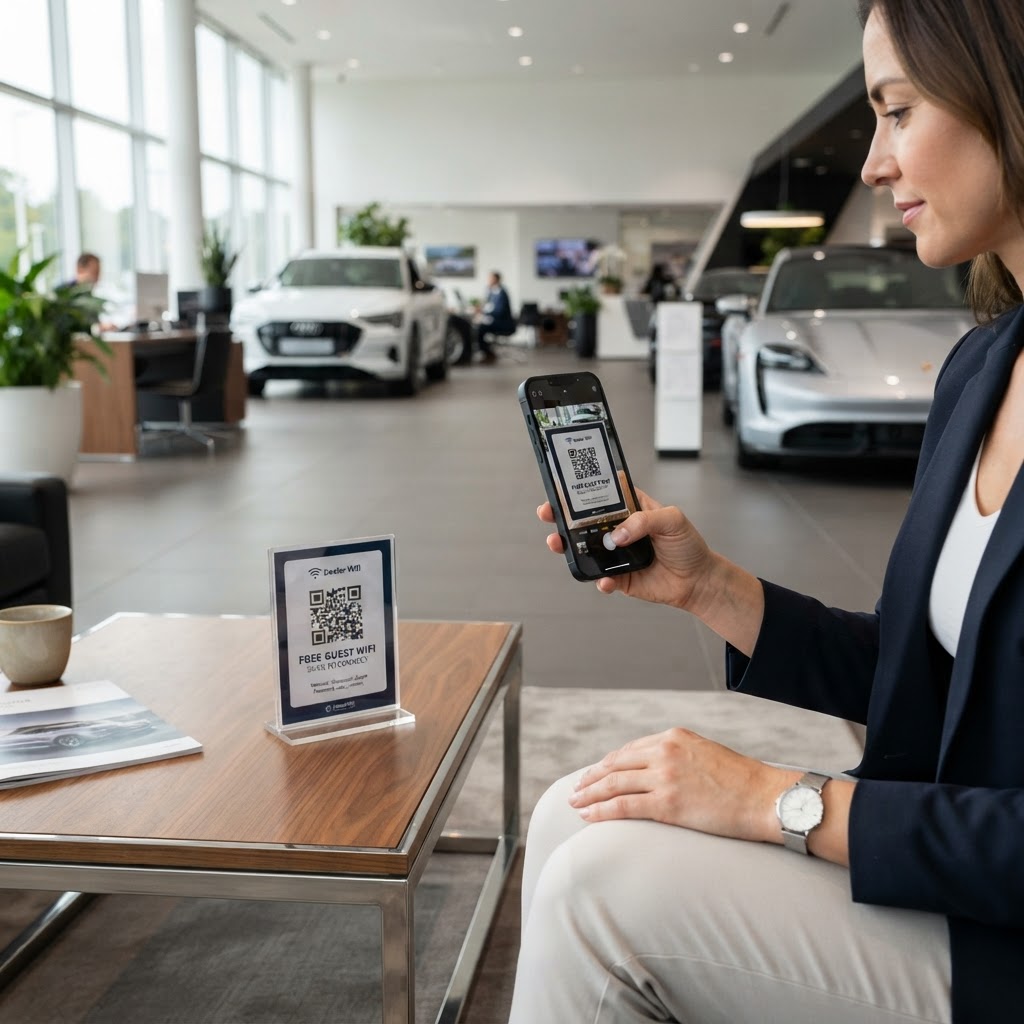
Why a wifi qr code for car showroom connectivity matters
High-end vehicle buyers often spend significant time in your facility, reviewing specifications, comparing models online, or checking trade-in values. Providing instant, secure internet access removes friction and keeps them engaged with your brand throughout their visit.
Using our free WiFi QR Code Generator, you can ensure that guests connect to your network in seconds without needing a staff member to manually type in long, cryptic passwords. This professional touch improves the overall customer experience during the buying journey.
What you need before you start
Before you begin the creation process, gather your network details to avoid interruptions. You will need your exact Network Name (SSID) and your current WiFi password.
Ensure you know your network's encryption type, such as WPA, WPA2, or WPA3, as this information is required to build the code correctly. Having these credentials ready helps you generate yours in seconds without toggling between tabs or checking your router settings repeatedly.
How to create your WiFi QR code — step by step
- Access the tool: Navigate to the Blue QR Code Generator to open the dedicated WiFi configuration panel.
- Enter your SSID: Type your exact network name (SSID) into the designated field, keeping capitalization in mind as it is case-sensitive.
- Input your password: Carefully enter your secure WiFi password to ensure guests can connect on their first attempt.
- Select encryption: Choose the correct security protocol from the dropdown menu, usually WPA/WPA2, to match your router's security settings.
- Generate the code: Click the generate button to produce your unique QR code, which instantly encodes the WiFi credentials into a scannable format.
- Customize the design: Use the available styling options to ensure the code matches your dealership's branding before you download it.
How to test and deploy it
Once you have created your code, save the file as a high-resolution PNG or SVG for professional printing. Print it on high-quality cardstock and place it in frames at the reception desk, in individual waiting cubicles, or inside vehicle brochures.
Always verify the connection yourself by scanning the printed code with a mobile device that has never joined the network before. This ensures your visitors will have a perfect experience when they use the tool provided by Blue QR Code Generator.
Common mistakes that ruin results
- Incorrect SSID: Forgetting that network names are case-sensitive will cause connection errors for every user.
- Low contrast printing: Printing a light-colored QR code on a light background makes it impossible for smartphone cameras to resolve the pattern.
- Blocking the code: Placing the code behind non-glare glass or laminates that create heavy reflections can prevent the sensor from reading the image.
- Outdated credentials: Failing to update the QR code when the business changes the office or guest WiFi password is a common administrative oversight.
Real examples of deployment
In a luxury vehicle showroom, place a small, elegant QR code plaque on the center console of featured display models to allow customers to check the vehicle's website on their phones. This provides an immediate, tech-forward interaction.
Another excellent location is the finance office or lounge area where paperwork takes time. By placing a clearly visible sign at the desk, you enable guests to enjoy high-speed internet while waiting for approvals, using Blue QR Code Generator's WiFi QR codes tool to keep them connected.
Ready to upgrade your showroom's connectivity? Click here to generate yours in seconds and provide a better guest experience.