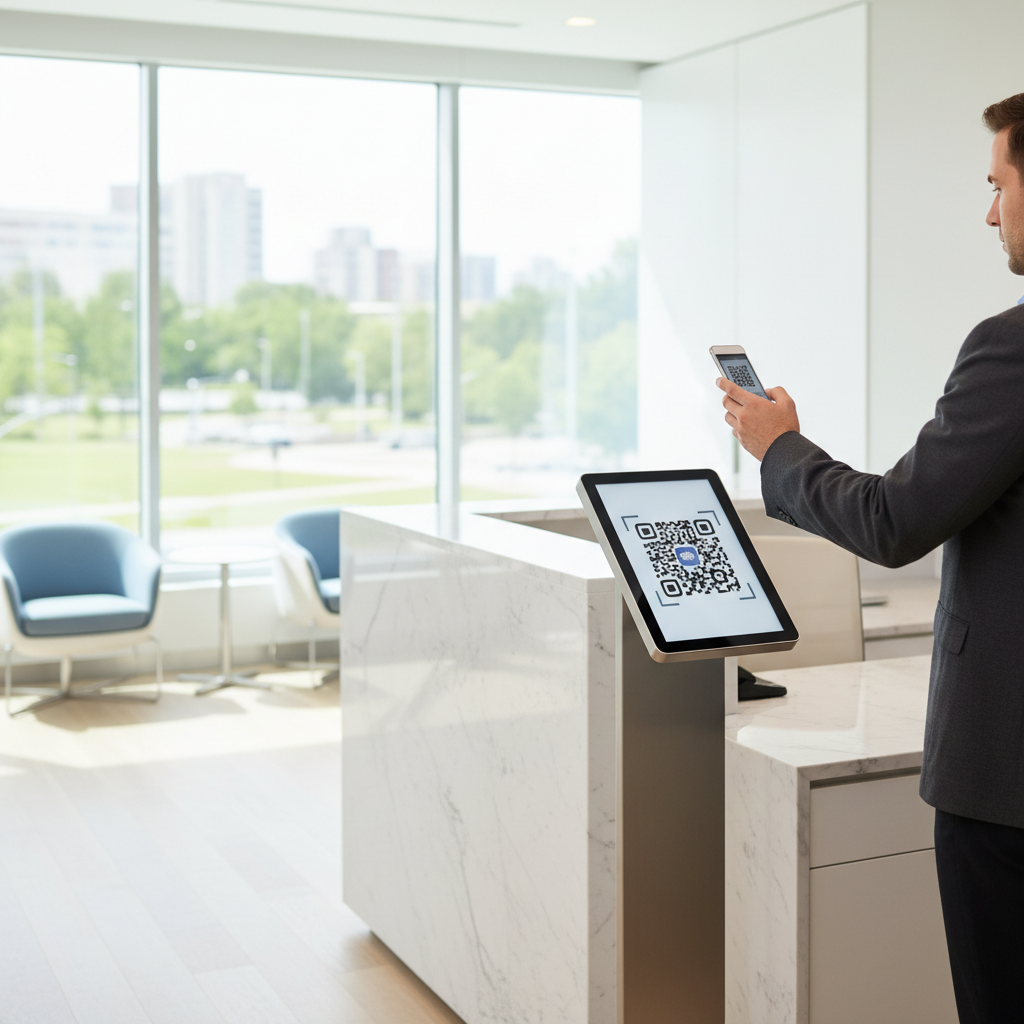
What Is a WiFi QR Code for Clinic and Why It Matters in 2026
A WiFi QR code for a clinic is a scannable square image that, when read by a smartphone camera, automatically connects the device to your clinic's guest wireless network — no typing, no asking staff for passwords, no fumbling with complicated credentials.
The patient simply points their phone at the code, taps the connection prompt, and they're online within seconds.
In a clinical environment, this matters more than many practice managers initially realize. Waiting rooms are stressful places and patients are often anxious, in pain, or managing the emotional weight of a diagnosis.
Giving them immediate, frictionless access to the internet allows them to distract themselves, message family members about their appointment, or look up information their doctor just shared with them.
From a staff perspective, the impact is equally significant. Receptionists and nurses are regularly interrupted by patients asking for the WiFi password — interruptions that break concentration and add up throughout a busy clinical day.
A well-placed WiFi QR code eliminates that entire category of interruption and lets staff focus on patient intake, scheduling, and clinical support rather than reading out a 16-character password repeatedly.
Key Points
- Frictionless guest access: Patients connect quickly without staff assistance.
- Fewer interruptions: Reception and clinical staff can stay focused on care.
- Improved security: Limits access to people physically present and encourages use of a guest network.
Key Benefits of WiFi QR Codes for Clinic Operations
The practical wins are significant and measurable across several operational categories.
- Reduces staff interruptions: Receptionists and clinical staff handle patient intake, billing, and appointment coordination. Each WiFi password request is a context switch that delays other work and causes small frustrations to accumulate. A QR code eliminates this entire class of interruption, freeing up staff capacity for higher-value patient interactions.
- Improves patient experience: Patients in waiting rooms have free, frictionless access to the internet — they can distract themselves, look up treatment information, or stay in touch with family. A well-placed QR code sends a signal that the clinic is modern, considerate, and tuned to patient needs.
- Strengthens network security: Instead of sharing a password on paper or verbally (where it eventually leaks to patient relatives, contractors, and former staff), a physical QR code ensures that access is limited to people physically present in the clinic space. Combined with WPA3 encryption and limited network scope, this is a security win.
- Simplifies guest access: Temporary visitors — contractors, delivery personnel, vendor reps — can self-serve WiFi access without asking staff. This reduces confusion and ensures you're not giving these visitors access to your main clinical network.
- Professional appearance: A clinic that provides seamless guest WiFi signals to patients that the practice invests in modern infrastructure and patient amenities. This reinforces trust and professionalism.
How to Create a WiFi QR Code for Your Clinic Using blueqrcode.com
Creating a WiFi QR code for your clinic is straightforward on blueqrcode.com — free, no account, no watermark, and the code never expires (static QR).
Try it now: Generate a free Wifi Qr Code For Clinic →
- Step 1: Go to blueqrcode.com and select "WiFi" from the QR code type options.
- Step 2: Enter your clinic's guest network name (SSID) and password. Do not use your main clinical network credentials — create a separate guest network first in your router or access point settings.
- Step 3: Confirm that WPA2 or WPA3 encryption is selected (your router will specify which).
- Step 4: Download the code in PNG format (for printing) or SVG (for digital use on signage or your website).
- Step 5: Print at 4cm × 4cm or larger for waiting room visibility. Place it near your front desk or in the waiting room where patients naturally look while settling in.
- Step 6: Test the code on both iOS (Camera app) and Android (Google Lens or native camera) before relying on it in production.
Best Practices for Clinic WiFi QR Code Placement and Design
Where and how you display the QR code matters as much as the code itself. Poor placement leads to low adoption even if the code works perfectly.
- Waiting room visibility: Place the code where patients naturally look while waiting — on the check-in desk, on a wall-mounted frame at eye level, or on a welcome sign. Avoid placing it in areas patients won't see (behind reception, in staff-only areas).
- Accompanying instruction: Always include 2-4 words of instruction: "Scan for WiFi", "Connect to guest WiFi", or "Tap to connect". A bare code without instruction will be ignored. Make the instruction clear and benefit-driven.
- Print size: Minimum 4cm × 4cm for indoor visibility from normal standing distance. For a waiting room, 5-8cm is ideal. The larger the code, the faster and more reliably phones will scan it.
- Contrast: Use a dark code on a white or light background. Printing in color is fine as long as the contrast ratio stays above 3:1 between the code modules and the background.
- Lamination: If you print and post the code in your waiting room, laminate it to protect against fingerprints, dirt, and UV fading. A smudged code scans slowly and frustrates patients.
- Test before deployment: Always test the final printed version on multiple phones (iOS and Android, old and new) before displaying it in your clinic. This prevents confusing situations where the code fails to scan for some devices.
Common WiFi QR Code Issues in Clinics and How to Avoid Them
We've observed several recurring problems when clinics implement WiFi QR codes. Here are the most common and how to prevent them:
- Wrong network: Scanning the QR code connects to a network the clinic intended for contractors or testing, not the patient guest network. Solution: Create a dedicated "Guest" network in your router settings, label it clearly, and generate the QR code only for that network. Do not use your main clinical network credentials.
- Password too complex: If you manually type the password into the QR code, and the password contains special characters or is very long, the code becomes harder to scan or may fail entirely. Solution: Use the WiFi QR code generator on blueqrcode.com to encode the credentials directly — no manual typing needed.
- Code placed out of sight: The code is printed and placed in the staff break room or a location patients don't naturally look. Solution: Put it where patients are: waiting room, check-in desk, or near the front entrance. Test sightlines before laminating and posting.
- No instruction label: Patients see the code but don't understand what it does. Solution: Add a 3-4 word label ("Scan for WiFi" or "Connect here") directly below or beside the code.
- Low-contrast printing: The code is printed in gray on white or other poor-contrast colors, making it slow or impossible to scan. Solution: Always print in dark (black or dark blue) on a light background (white, cream, or very light gray).
- Smudged or damaged: Dirt, fingerprints, or UV fading make the code unreadable after a few weeks in the waiting room. Solution: Laminate the printed code and check it periodically for damage. Replace if it becomes heavily smudged.
Frequently Asked Questions About WiFi QR Codes for Clinics
Is it safe to share a WiFi password in a QR code?
Yes, when you use a dedicated guest network (not your main clinical network). A guest network has no access to patient records, clinical systems, or sensitive data — it's just internet access.
This is standard practice at hospitals, medical offices, and other healthcare facilities.
Will the WiFi QR code expire?
No, static WiFi QR codes generated on blueqrcode.com never expire. The code encodes your network name and password and will work indefinitely as long as that network and password remain unchanged.
Can I use a dynamic WiFi QR code instead?
Dynamic WiFi QR codes (which track scans and allow you to update the credentials remotely) are overkill for most clinics. A static QR code is simpler, requires no account, and has no expiration or tracking complexity.
Use a static code unless you have a specific reason to track usage.
What if my router doesn't support WPA3 encryption?
WPA2 is the previous standard and is still secure and widely supported. If your router supports WPA2 but not WPA3, select WPA2 when generating the QR code on blueqrcode.com.
Most phones will connect without issue.
Can guests connect to the WiFi QR code outside the clinic?
No. A WiFi QR code only works when the device is in range of the wireless network broadcast. Once a device is connected from within the clinic, it will remember the network and may auto-reconnect on future visits, but the QR code itself is only useful within broadcast range.
No watermark · No expiry · Works on all phones
Your QR code is ready in under 30 seconds.
Generate Free QR Code →Conclusion
A WiFi QR code for clinic use improves the patient experience and reduces staff interruptions when implemented on a dedicated guest network.
Follow placement and testing best practices to ensure reliable, secure access for visitors.