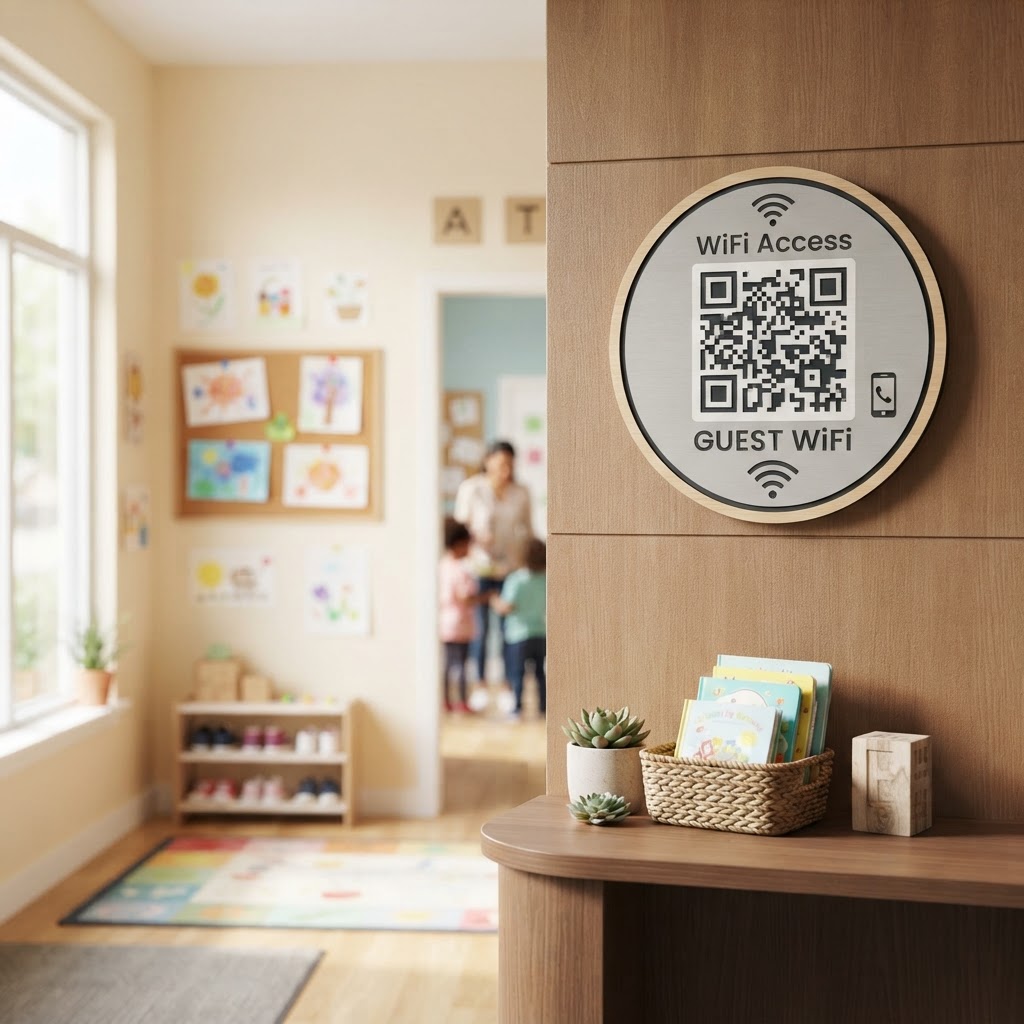
Why a wifi qr code for daycare center matters
In a high-traffic environment like a childcare facility, staff are often overwhelmed with routine tasks like signing children in or out. When parents ask for the network password, it creates a bottleneck that distracts educators from the children and adds frustration for busy families. By placing a QR code in the lobby, you allow visitors to gain access instantly without staff intervention. If you are ready to modernize your entry process, generate yours here to provide seamless connectivity.
This simple technical upgrade improves the professional feel of your center while maintaining security. It removes the risk of transcription errors caused by complex passwords and keeps your private management network separate from guest traffic.
What you need before you start
Before you begin the creation process, ensure you have your network details clearly noted. You will need your exact Network Name (SSID) as it appears on your device list and the specific password associated with that network.
It is helpful to also decide where you plan to display the code. Digital screens, laminated flyers at the reception desk, or even small acrylic stands near the entrance are all popular choices for daycare providers.
How to create your QR code — step by step
- Access the tool: Navigate to the our free WiFi QR Code Generator to begin the setup process.
- Enter the Network Name: Input your exact WiFi SSID into the first field, ensuring capitalization and spacing match your router settings perfectly.
- Input your password: Type in your network password carefully to prevent connection issues for parents later on.
- Select your security type: Choose the appropriate encryption method, typically WPA/WPA2, from the dropdown menu to match your router's security configuration.
- Customize the design: Use the Blue QR Code Generator interface to adjust colors or patterns if you want to align the code with your center’s branding colors.
- Generate the code: Click the generate button to finalize your design and prepare it for high-resolution download.
- Test the output: Scan the generated image with your own smartphone to verify that it prompts the device to join the correct network before you print it.
How to test and deploy it
Always test your code with multiple device types, including both iOS and Android, to ensure broad compatibility. If your lobby has poor reception in certain corners, consider placing the physical sign near the router to improve the initial handshake speed for users.
Blue QR Code Generator makes it easy to update your credentials if you ever change your network password. You can simply return to the site and generate a new code in seconds, keeping your access protocols current without any technical headaches.
Common mistakes that ruin results
- Wrong SSID capitalization: Network names are case-sensitive; failing to match the case will prevent connections entirely.
- Low contrast printing: Avoid printing light-colored codes on white paper, as most cameras struggle to focus on low-contrast patterns.
- Obscuring the quiet zone: Ensure you do not add text or graphics too close to the QR border, as this confuses the scanning software.
- Outdated network details: If you change your WiFi password for security reasons, remember to replace all physical copies of the QR code immediately.
Real examples
In a large childcare center, placing a QR code on the main check-in tablet allows parents to connect while they wait for their child's daily report. Another effective use case is placing a laminated card on the waiting room coffee table to keep guests engaged and connected during long pickup wait times.
For smaller home-based daycares, you can even include the QR code on your welcome brochure for new families. This welcoming touch shows that your facility is modern, organized, and values the convenience of your parents. To get started today, use Blue QR Code Generator's WiFi QR codes tool to simplify your facility's guest access.