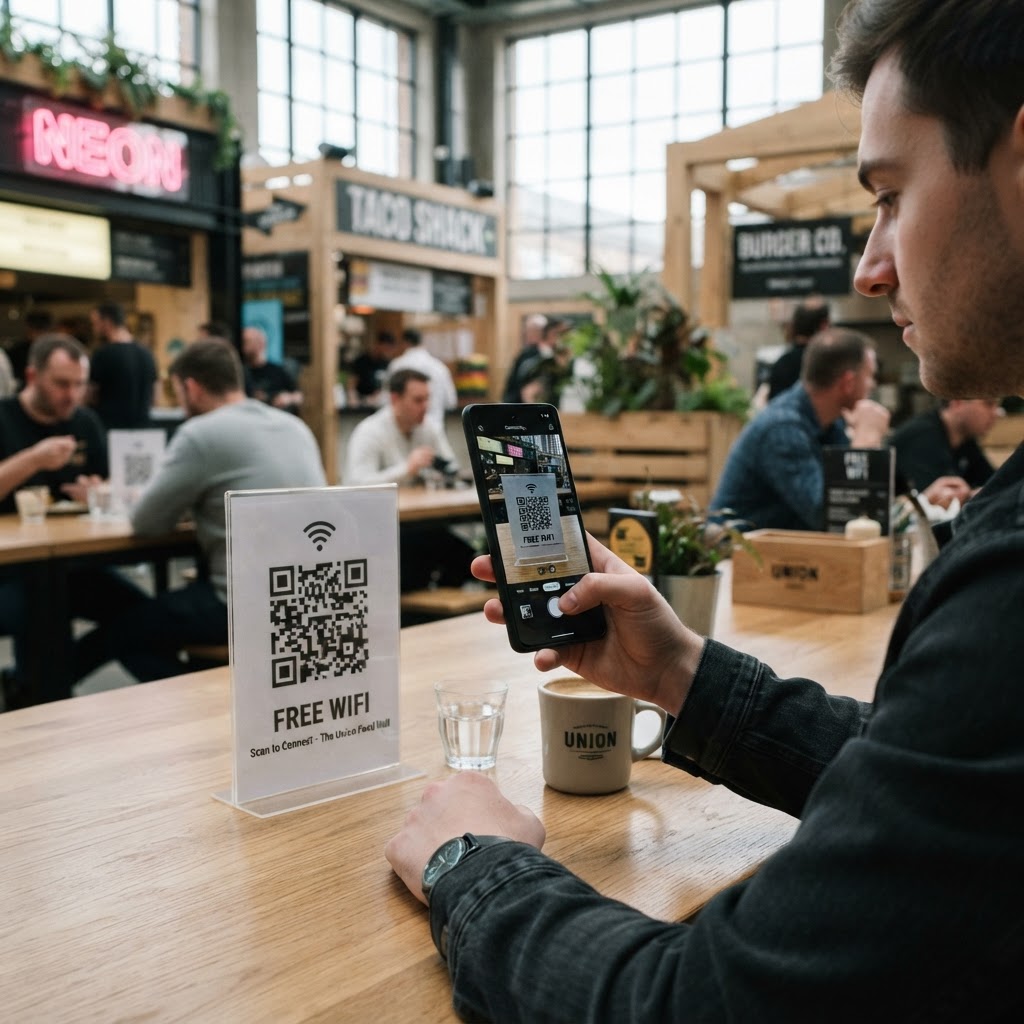
Why an effective WiFi QR code for food hall access matters
In a bustling food hall, the noise level is high, and your staff is usually busy handling orders or clearing tables. When a customer walks up to ask for a 20-character-long, case-sensitive WiFi password, it creates an unnecessary bottleneck at your service counter. Providing a quick scan-to-connect solution reduces customer frustration and keeps your operations running smoothly.
This simple technical upgrade can also increase dwell time. When patrons can easily access your internet, they are more likely to stay, finish that extra cup of coffee, or post a photo of their meal on social media. Utilizing the Blue QR Code Generator ensures you provide a professional and reliable connection method that keeps your guests happy.
What you need before you start
Before you begin, you need to ensure you have all your network details prepared so the code is accurate. Gather the following information before you open the tool:
- Network Name (SSID): This is the exact name of your WiFi broadcasted to devices.
- Password: Double-check the password for any hidden special characters or capitalization errors.
- Network Type: Identify if your router uses WPA, WPA2, or WPA3 encryption protocols.
- Printer or Signage: Decide where you will display the code, such as on a laminated table tent or a wall poster.
How to set up your connectivity — step by step
You can generate yours here in seconds by following these simple steps to configure your digital access point.
- Open the tool: Navigate to the official WiFi QR Code Generator to get started with the creation process.
- Enter the SSID: Type your network name exactly as it appears in your router settings.
- Input the password: Carefully enter your secure network key into the password field.
- Select encryption: Choose the standard security type (usually WPA2) that matches your local router setup.
- Generate the code: Click the button to create your unique image based on the information provided.
- Download and save: Export the high-resolution file so you can print it for your food hall tables.
How to test and deploy it
Deployment is just as important as creation because a broken code creates a negative user experience. Once you use Blue QR Code Generator to produce your image, test it with both an iPhone and an Android device. If the camera app prompts you to join the network automatically, your configuration is successful.
When printing your signage, ensure the code is large enough for a customer to scan from at least two feet away. Place these codes on communal dining tables or near the entrance where foot traffic is highest. When you use Blue QR Code Generator's WiFi QR codes tool, you gain the confidence that your signage looks professional and functions correctly under pressure.
Common mistakes that ruin results
- Incorrect SSID case: WiFi network names are case-sensitive, so verify your capitalization before generating.
- Low contrast printing: Avoid printing your codes on busy patterns or low-contrast paper, as this prevents smartphone cameras from reading them.
- Ignoring hidden characters: Ensure you haven't accidentally included a trailing space at the end of your password string.
- Outdated encryption types: Verify your router is not using legacy security that modern smartphones struggle to handshake with.
Real examples of success
Consider a large urban food hall with six distinct vendors. Instead of each vendor having their own password, the management placed a single, stylish QR code on every table. This unified approach reduced the number of service interruptions by over 40% in the first month.
Another example involves a pop-up dining market that rotates vendors weekly. By keeping a digital template of their WiFi credentials, they can quickly print new table tents every Monday. They always turn to our free WiFi QR Code Generator to make sure their guests stay connected without any technical friction.