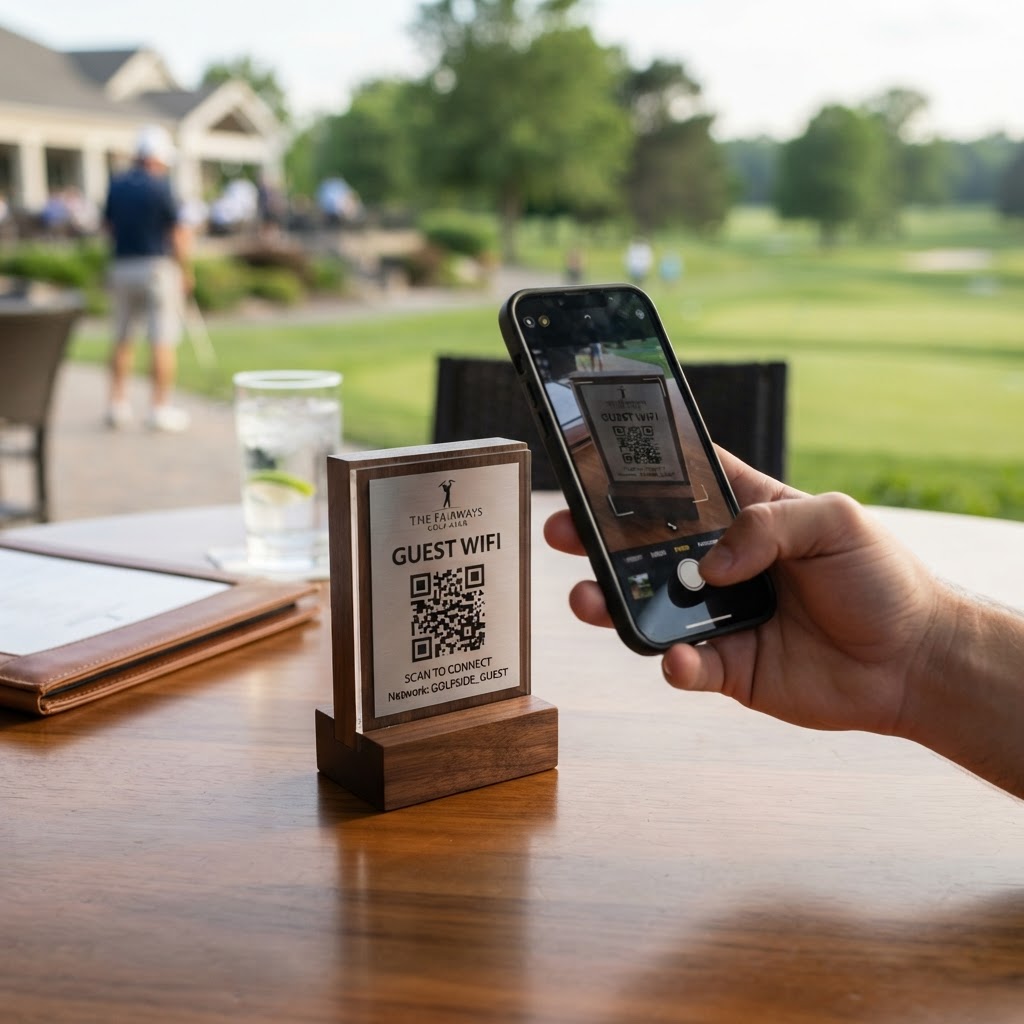
Why a wifi qr code for golf club connectivity matters
Imagine a golfer walking into your clubhouse, eager to check their digital scorecard or upload a video of their drive to social media. When your staff is busy managing tee times and rentals, fumbling with written passwords creates a bottleneck that distracts from the premium experience you aim to provide.
By implementing a dedicated network access solution, you remove the friction entirely. Modern clubs rely on seamless digital integration, and offering an instant, secure way to connect is a standard expectation for any upscale recreational facility.
What you need before you start
Before you begin, ensure you have your network credentials clearly defined. You will need the exact Service Set Identifier (SSID) as it appears on devices, and the network password to input into our system.
You should also verify your network encryption type, which is usually WPA/WPA2. If you are ready to start, head over to our free WiFi QR Code Generator to begin the setup process immediately.
How to set up your QR code — step by step
- Input your network credentials: Open the Blue QR Code Generator and enter your exact SSID name into the designated field.
- Choose your security type: Select the encryption standard that your router uses to ensure compatibility with all guest devices.
- Enter your password: Carefully type your WiFi key into the password field without any extra spaces or hidden characters.
- Generate the code: Click the button to render the image, then review the preview to ensure the details are accurate.
- Test the connection: Scan the generated QR code with a smartphone to ensure it instantly triggers the join network prompt.
- Download and save: Export your final design as a high-resolution file that you can print for your clubhouse notice boards.
How to test and deploy it
Once you have finished using the Blue QR Code Generator, print a test copy and place it in a well-lit area. We recommend scanning it with both iOS and Android devices to ensure your specific network settings interact correctly with modern mobile hardware.
For deployment, frame the code or attach it to a professional-looking acrylic stand at the reception desk. This adds a clean, branded touch to your facility. If you need more guidance, you can always visit our page to generate yours in seconds without any complicated technical setup.
Common mistakes that ruin results
- Typos in the SSID: Even a single capitalized letter difference will prevent a device from connecting successfully.
- Low contrast printing: Avoid printing your codes on patterned backgrounds that make the black-and-white squares difficult for cameras to interpret.
- Outdated encryption: Selecting an incorrect security protocol will force the user to manually input the password anyway, defeating the purpose of the code.
- Overly complex designs: Keeping the QR code simple and clear ensures it works even from a slight distance.
Real examples of professional use
One local club used the Blue QR Code Generator to place custom stickers on every dining table in their restaurant. This allowed members to browse the digital menu while staying connected to the high-speed network without asking servers for the password.
Another facility placed a large format code at the driving range entrance, drastically reducing help-desk calls during peak hours. You can easily use Blue QR Code Generator's WiFi QR codes tool to replicate these results today. Before you print, remember to generate yours in seconds to verify the layout works perfectly with your chosen signage.