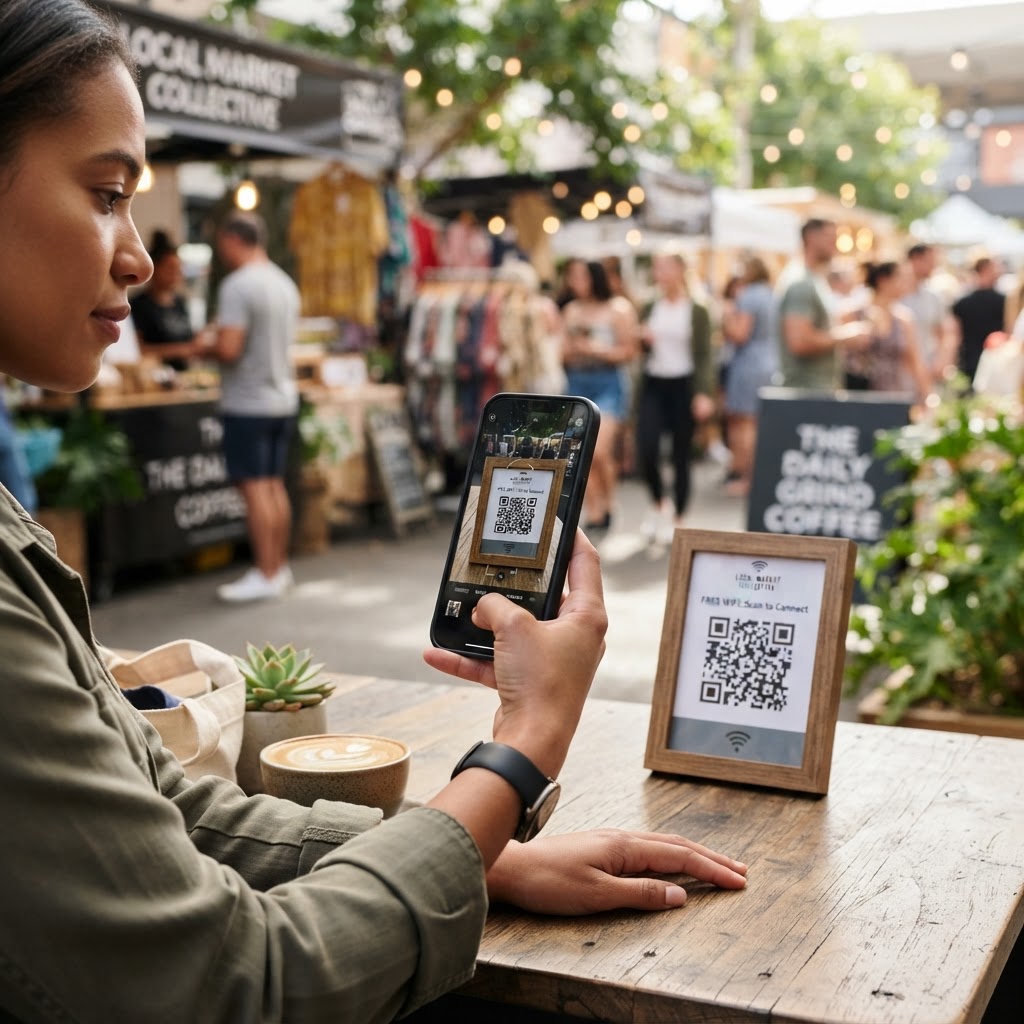
Why a WiFi QR code for market environments matters
In a bustling market environment, efficiency is your primary currency. When customers want to check prices, look up product information, or simply enjoy a moment of digital connectivity while they shop, they shouldn't have to wait for a clerk to find a sticky note with a WiFi password.
By deploying a clear, accessible scan-to-connect solution, you reduce congestion at your checkout counters and information desks. Using our free WiFi QR Code Generator, you create a frictionless experience that encourages visitors to stay longer and engage more deeply with your vendors.
What you need before you start
Before you jump into the generation process, ensure you have your network credentials handy. You will need your exact network name (SSID), your password, and an understanding of your network's security protocol (usually WPA2 or WPA3).
Make sure you have tested your network performance from the specific locations where you plan to display the code. It is also helpful to have your signage design ready, as this is where you will eventually place the finished graphic from the Blue QR Code Generator.
How to create a wifi qr code for market areas — step by step
- Gather network details: Locate your router settings or configuration page to identify the exact case-sensitive SSID and password for your guest network.
- Access the tool: Navigate to the WiFi QR Code Generator to begin the setup process.
- Enter your credentials: Carefully input your network name and password into the designated fields to ensure the code functions perfectly.
- Select security type: Choose the appropriate security protocol that matches your current router settings to avoid connection errors.
- Customize the design: Use the Blue QR Code Generator interface to refine the aesthetics of your code so it matches your market's branding.
- Download and save: Export your final image file in a high-resolution format like PNG or SVG, which ensures the code remains scannable even when printed on larger materials.
How to test and deploy it
Testing is non-negotiable before you print fifty copies. Use several different smartphone models—both iOS and Android—to scan your new code and ensure it automatically joins the network without prompting for manual intervention.
Once verified, place the codes in high-visibility areas like near seating zones, entrance kiosks, or vendor stall fronts. When you use Blue QR Code Generator, you get high-quality graphics that stay crisp even on laminated signage, ensuring your visitors can connect without struggle.
Common mistakes that ruin results
- Typos in the SSID: Even a single misplaced capital letter will prevent guests from connecting to the market WiFi.
- Ignoring contrast: Printing a light-colored QR code on a light background makes it impossible for cameras to focus.
- Small print size: If the code is smaller than 2 inches, customers standing a few feet away will struggle to capture it.
- Over-customization: Adding too many logos or complex colors to the center of the QR code can corrupt the data pattern.
Real examples of usage
In a large weekend food market, placing a WiFi QR code for market visitors on the main directory maps allows tourists to look up locations quickly. This keeps traffic flowing and prevents bottlenecking near information points.
Another excellent use case involves printing small table-tent signs for communal eating areas. When visitors scan the code, they get immediate, automated access, allowing them to browse social media or look up vendor websites while they enjoy their purchases.
Ready to get started? You can generate yours in seconds by providing just your basic network details.