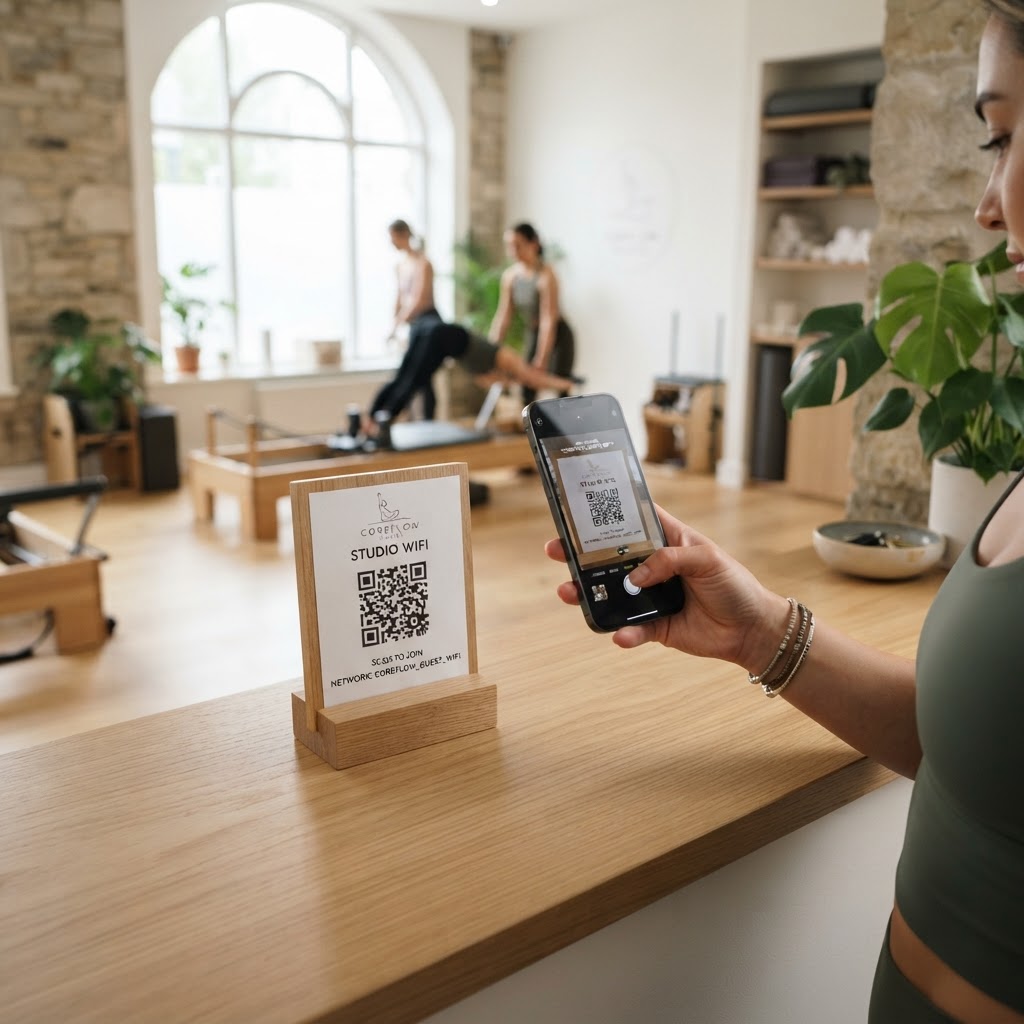
Why a WiFi QR Code for Your Studio Matters
In a high-energy environment like a Pilates studio, silence and flow are essential. When a new client arrives and asks for your WiFi password, it interrupts your instruction and pulls you away from the session you are managing.
By using our free WiFi QR Code Generator, you can post a clean, scannable image at your front desk or in the locker room. This simple change improves the professional image of your studio and saves valuable time for both you and your guests.
What You Need Before You Start
Before you begin, have your exact network details ready so the connection process is seamless for your clients.
- Network Name (SSID): This is the exact name of your WiFi broadcasted to devices.
- WiFi Password: Ensure you have the current password handy, as it is case-sensitive.
- Security Protocol: Most modern routers use WPA2 or WPA3, which you will need to select to generate your code correctly.
- Logo or Branding: If you want your QR code to match your studio vibe, have your logo file ready to upload.
How to Create a WiFi QR Code for Pilates Studio — Step by Step
Follow these steps to generate your code quickly and accurately using the Blue QR Code Generator.
- Access the Generator: Navigate to the WiFi QR Code Generator to begin your session.
- Enter Network Details: Input your exact SSID and password into the designated fields.
- Select Security Type: Choose WPA/WPA2/WPA3 from the dropdown menu to match your specific router settings.
- Customize the Appearance: Use the style settings in Blue QR Code Generator to adjust colors or patterns to match your studio’s aesthetic.
- Download Your Code: Click the generate button and save the file in a high-resolution format like PNG or SVG.
- Print and Display: Print your new code on high-quality cardstock and place it in a visible area near the entrance.
How to Test and Deploy It
Once you generate yours in seconds, take a moment to test it on multiple devices, including both Android and iOS phones. If a phone fails to connect, re-check your password field for trailing spaces or incorrect capitalization.
For deployment, place your finished code inside a small acrylic standee on your reception desk. This protects the print and encourages guests to connect before their workout starts.
Common Mistakes That Ruin Results
- Incorrect Security Selection: Selecting the wrong protocol (like WPA instead of WPA2) will cause the connection to fail every time.
- Over-Complicated Designs: If your QR code colors are too light or lack contrast, standard cameras won't be able to scan them easily.
- Low Image Quality: Printing a pixelated or blurry QR code prevents phones from reading the embedded data correctly.
- Ignoring Updates: If you change your WiFi password for security reasons, remember that you must generate and print a brand-new QR code.
Real Examples of Success
A boutique Pilates studio in downtown Chicago placed a QR code near their locker area, leading to a 40% reduction in front-desk inquiries regarding network access. Another studio integrated their logo into the center of the QR code, turning a functional utility into a branded piece of studio decor.
Before you print your final version, it is helpful to use Blue QR Code Generator's WiFi QR codes tool to test different frame styles that make your code stand out on a crowded information board.