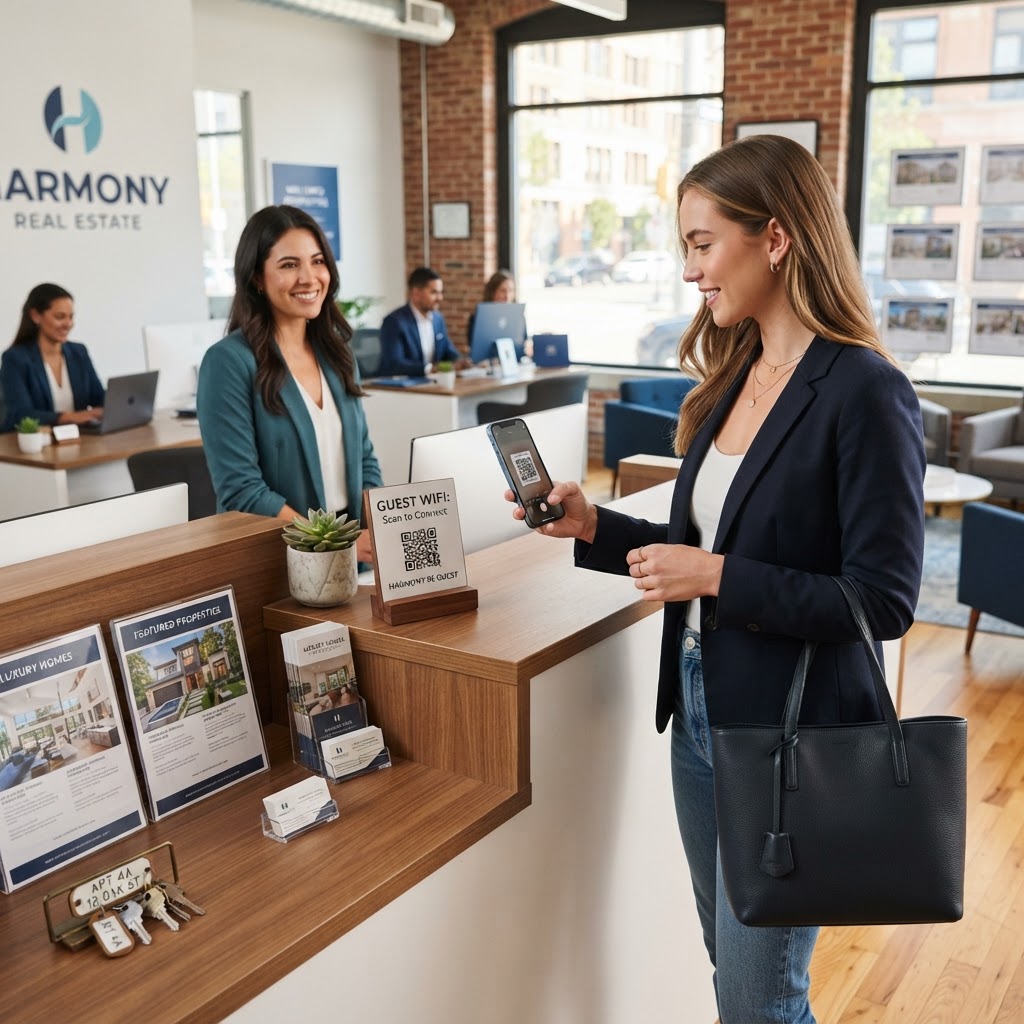
Why a WiFi QR code for real estate agency success matters
In a high-stakes environment like property sales, every minute of client focus is valuable. When a prospective buyer or investor walks into your office to review floor plans or finalize paperwork, the last thing you want is a clunky "what's the WiFi password?" conversation that breaks the professional flow.
By placing a clearly labeled scanning station at your front desk, you empower clients to join your network in seconds. This small, tech-forward touch shows that your agency values efficiency and respects the client's time, setting a professional tone from the moment they step through your doors.
What you need before you start
Before you jump into the setup process, ensure you have your network credentials handy. You will need the exact name of your network (SSID) and your current password, exactly as they appear in your router settings.
Make sure you also have access to a printer to create physical signage for your lobby. Using our free WiFi QR Code Generator, you can ensure your code is generated with the correct encryption settings to keep your office network secure while providing guest access.
How to create a WiFi QR code for real estate agency guests
- Gather your credentials: Confirm your WiFi network name (SSID) and your password exactly, as these are case-sensitive.
- Visit the tool: Head over to the Blue QR Code Generator to begin the creation process.
- Enter your details: Input your network name and password into the designated fields on our portal.
- Select encryption: Choose the appropriate security type, which is usually WPA/WPA2 for most modern business routers.
- Generate the code: Click the button to generate yours in seconds and preview how the QR code appears on your screen.
- Download and test: Save the high-resolution image to your computer and perform a test scan with your smartphone to verify it connects automatically.
How to test and deploy it
Once you have created your graphic, print it on high-quality cardstock and place it in a visible frame at your reception desk or in the client meeting room. The code must be large enough to be scanned from at least two feet away, so don't make it too small or cluttered with decorative elements.
We recommend that you use Blue QR Code Generator's WiFi QR codes tool to generate a clean version that isn't obstructed by text or complex backgrounds. Test the scan multiple times under different lighting conditions in your office to ensure clients with older smartphones can still capture the data correctly.
Common mistakes that ruin results
- Incorrect network casing: WiFi names and passwords are case-sensitive; even a single capital letter mistake will prevent the phone from connecting.
- Ignoring contrast: If you print a light-colored QR code on a light background, scanners will struggle to identify the pattern.
- Cluttered signage: Never place too much marketing text around the code; the scanner needs a clear buffer zone to read the pattern accurately.
- Using WEP security: If possible, upgrade your router to WPA2 or WPA3, as some newer devices no longer support outdated, insecure WEP protocols.
Real examples
For a boutique agency managing luxury listings, you might frame the code in an elegant, brushed-metal holder on the coffee table. This adds to the "white glove" service experience, allowing clients to look up neighborhood comps or property details instantly.
Another common scenario involves placing a QR code on a professional folder containing property disclosures. When the client sits down to review the documents, the code is right there on the table, encouraging them to get online and start reading the disclosures immediately. For those who need to scale their setup, you can always generate your WiFi QR code for free here and create multiple versions for different conference rooms.