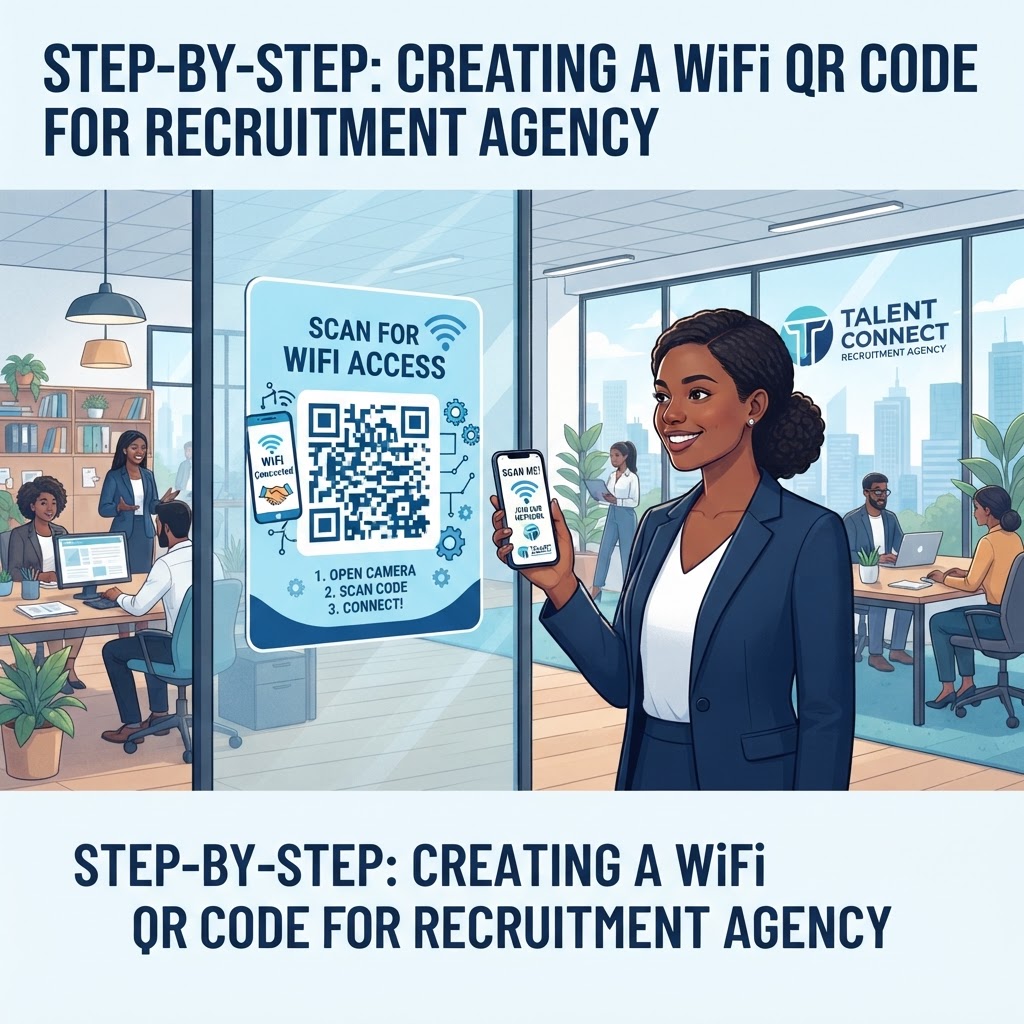
Why a WiFi QR Code for Recruitment Agency Matters
In the fast-paced world of recruitment, first impressions matter from the moment a candidate walks through your door. When a candidate enters your office for an initial screening, they are often checking emails, reviewing their resume, or looking for last-minute research on your clients. In a high-stakes environment where every detail counts, your office infrastructure must mirror the professional standards you promise to your clients.
If a job seeker struggles to connect to your guest network, the frustration begins before they even meet the recruiter. This friction can inadvertently create a negative bias, making the candidate feel as though the agency is disorganized or technologically lagging. A professional agency must handle connectivity as smoothly as their headhunting process. By providing a WiFi QR code for recruitment agency visitors, you eliminate the manual entry of long, complex alphanumeric passwords that are prone to typos and security risks. Often, IT departments set complex passwords for security, which are painful to transcribe on a mobile keyboard; a QR code bridges this gap effortlessly.
This simple touch point creates a frictionless experience that signals your organization is modern, organized, and respects the time of your talent pool. It allows your reception team to focus on greeting guests, managing candidate arrivals, and facilitating document intake rather than managing network access requests manually or troubleshooting connection issues. Furthermore, it adds a layer of operational security; you no longer need to write a password on a whiteboard in the lobby where unauthorized individuals might see it and store it for later use. By streamlining this access, you foster an environment where candidates can focus on their interview preparation rather than technical hurdles, directly contributing to a positive candidate experience that enhances your agency's reputation in the competitive talent market.
What You Need Before You Start
Before you jump into the setup process, ensure you have the necessary information ready to guarantee a smooth transition. Having these details handy will make the configuration process faster and more accurate, preventing the need to revisit IT configurations midway through your setup. Preparation is the key to creating a robust connection point that works on the first attempt for every visitor.
- Network Name (SSID): This is the exact name of your guest network as it appears in the device list. Be sure to check for hidden spaces at the end of the name.
- Password: Ensure you have the current, correct password for the guest network. If your network password changes periodically, consider using a static guest login or a captive portal if your router supports it.
- Encryption Type: Most modern routers use WPA/WPA2/WPA3 encryption protocols. You will need to select the specific one used by your office infrastructure in our generator to ensure the handshake between the device and the router is successful.
- Access to our tool: Keep your browser open to our free WiFi QR Code Generator for immediate access.
- Network Mapping: Confirm that your guest network is logically and physically isolated from your company’s internal servers to ensure your private data, candidate databases, and internal communications remain secure while providing convenient access to interviewees.
Before generating the final code, verify that the guest network allows for adequate bandwidth during peak times. If you host group interviews or assessment centers, ensure the router can handle multiple concurrent connections. Testing this in advance with a few test devices will prevent the "bottleneck effect" where many people trying to join at once crashes the guest access point.
How to Create Your WiFi QR Code — Step by Step
Follow these steps to generate a professional code that matches your agency’s branding and needs. Using the Blue QR Code Generator ensures a reliable output for your visitors, providing high-contrast results that are easily readable by all common smartphone sensors.
- Visit the generator: Navigate to the Blue QR Code Generator dashboard to begin the setup process.
- Input your network details: Enter your precise SSID and password into the designated fields provided on the screen. Ensure there are no accidental spaces or characters.
- Select encryption: Choose the appropriate security protocol (typically WPA2/WPA3) that your office router currently uses. If you are unsure, check your router settings; WPA2/WPA3 Mixed mode is the most compatible with modern smartphones.
- Customize the design: Adjust the colors or frame style to match your recruitment agency branding guidelines if preferred. However, ensure that the contrast between the QR code foreground and the background remains high—avoid using light gray or yellow on white.
- Verify input: Double-check the network name for any character errors, as case sensitivity is crucial for a successful connection. A single lowercase letter in place of an uppercase one will fail the authentication.
- Generate the image: Click the generate button to create your unique code that allows candidates to connect instantly.
- Download and Print: Save your file in a high-resolution format like PNG or SVG. SVG is preferred for large posters as it maintains quality at any scale, while PNG is perfect for desk signage. Place it in a high-visibility area in your lobby, such as on the check-in tablet or a stand-up sign.
How to Test and Deploy It
Once you have your code, you must ensure it functions perfectly across different device types. Testing is not a one-time event; it is a quality assurance check. Take an iPhone running the latest iOS and an Android phone running a recent version of the OS. Open the native camera app, point it at the printed code, and verify that the connection prompt appears immediately. Do not rely on third-party QR scanners, as most modern devices have this functionality built into their standard operating systems.
Placement is equally important. Place the printed QR code in frames on your reception desk, near the guest chairs, or in the interview rooms where guests spend their waiting time. Using Blue QR Code Generator's WiFi QR codes tool provides high-quality images that remain readable even if they are laminated or printed on glossy paper. If you choose to laminate, ensure you are using matte laminate to prevent light glare, which can bounce off the paper and obstruct the camera sensor.
Consider placing a small, professional sign next to the code that says "Guest WiFi: Scan to Connect." This minimizes confusion. Additionally, perform a "walk-through" test: walk into your lobby as if you are a candidate, see if the sign is immediately visible, and check the connection strength from that specific location. Regularly test the connection speed from your lobby to ensure that your guest network is performing optimally and not lagging during peak interview hours when multiple recruiters might be using the office's main bandwidth.
Common Mistakes That Ruin Results
Avoid these common pitfalls to ensure your guests have a seamless experience every single time they scan your network code. Addressing these early ensures your office tech remains reliable.
- Incorrect SSID Spelling: Even a minor typo in the network name will cause the device to fail to join the network. Always copy and paste the SSID from your router admin panel.
- Ignoring Case Sensitivity: Passwords are almost always case-sensitive; double-check the capitalization of your credentials before hitting save. A common error is capitalizing the first letter of a password when it should be lowercase.
- Poor Contrast Printing: Printing light-colored QR codes on light backgrounds makes scanning nearly impossible for some phone cameras. Use a black-on-white or dark-navy-on-white color scheme.
- Wrong Encryption Setting: Selecting the incorrect WPA version is a frequent error that results in a connection timeout on the user's phone. If you are unsure, try WPA/WPA2-PSK as the safest universal standard.
- Displaying in Bad Lighting: Placing your sign in a dim corner where the camera sensor cannot focus will lead to frustration for your visitors. If the area is dark, consider using a small LED-lit display frame.
- Overly Complex QR Images: Adding heavy logos or too much design detail in the center of the QR code can sometimes interfere with the error-correction modules. Keep the center clear or use only a small, simple icon.
Real Examples for Recruitment Offices
Imagine a busy headhunting agency in a downtown office building. By placing a small, elegant frame at the front desk, the office manager saves roughly 15 minutes of reception staff time per day—accumulating to over an hour of extra productivity every week—by not having to manually type passwords for every visitor. This allows the receptionist to focus on professional candidate check-ins.
Another example is an agency that holds large open-day recruiting events. By printing a large poster with the QR code at the entrance, they enable 50+ candidates to connect simultaneously without overloading the front desk staff. This is the most efficient way to use our free WiFi QR Code Generator to scale your administrative operations. By automating this simple task, you allow your team to focus on the high-value activity of talent acquisition rather than network management. Furthermore, agencies can create specific codes for different conference rooms, allowing candidates to scan and connect directly in the space where they are being interviewed, which adds a high-tech, seamless flair to the interview environment. Small businesses, in particular, benefit from this as it removes the technical barriers that often make a small firm feel less professional than a large corporate entity. Implementing these solutions is about more than just convenience; it is about building a scalable framework that supports your growth while maintaining a refined, client-focused office atmosphere that stands out in the competitive recruitment industry.