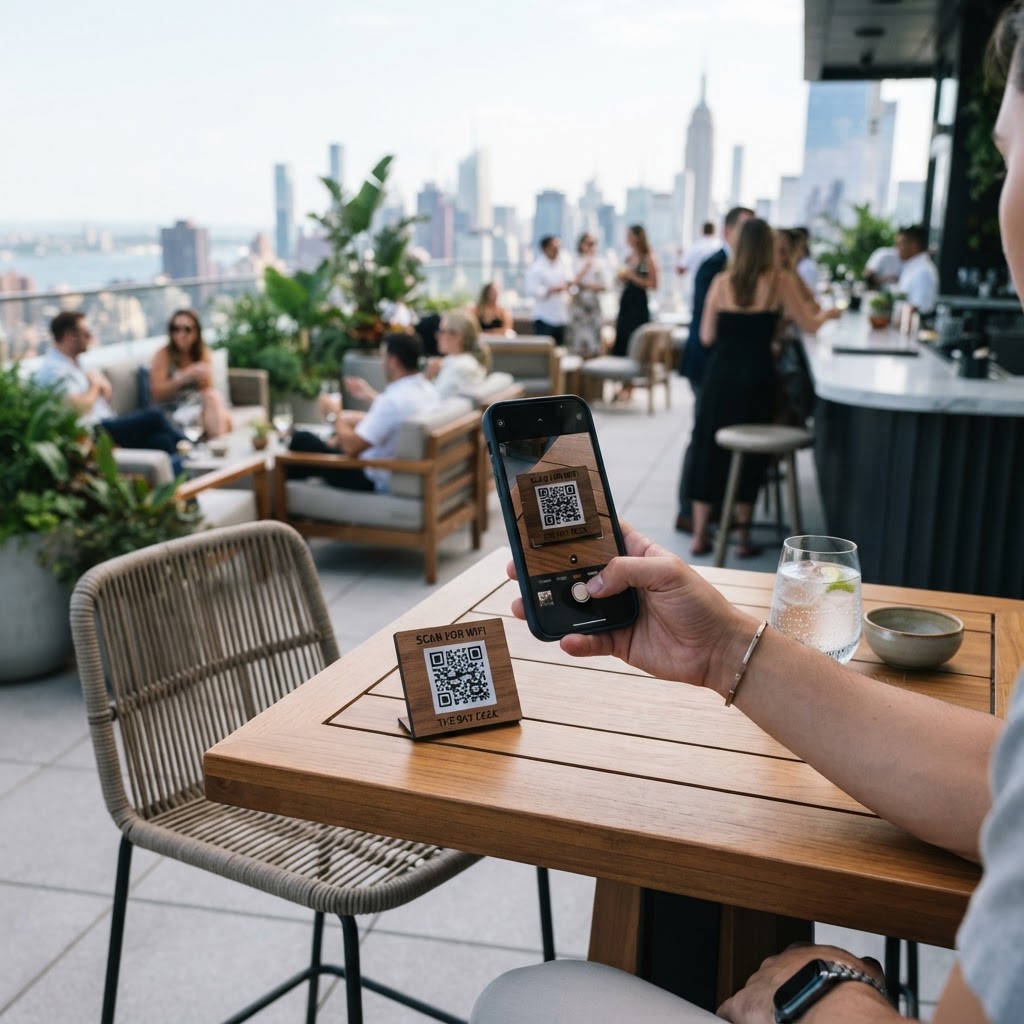
When your venue is packed, the last thing your staff needs is to repeatedly recite a complex, long-form WiFi password. By using our free WiFi QR Code Generator, you can digitize your network access and elevate the professional atmosphere of your establishment.
Why a WiFi QR Code for Rooftop Bar Matters
High-end venues rely on seamless service, and connectivity is a core part of that experience. If a guest has to flag down a busy waiter just to ask for the guest network password, it breaks the flow of their social experience and creates unnecessary friction.
By placing a digital bridge at the point of entry or on menu cards, you empower customers to connect themselves. This small touch reduces staff workload and encourages guests to stay longer, post photos of your cocktails on social media, and ultimately engage more with your brand.
What you need before you start
Before you begin the process, ensure you have your network details handy to avoid errors. You will need your exact Network Name (SSID) as it appears in the device list and the specific password used for guest access.
- Network SSID: Must be typed exactly, including capitalization and spaces.
- Password: Your guest WiFi password.
- Encryption Type: Usually WPA/WPA2, which is standard for most routers.
- Design Assets: A high-resolution logo if you want to customize your code.
How to create yours — step by step
Creating a functional code is simple when you use Blue QR Code Generator. Follow these steps to get your venue set up in minutes.
- Open the tool: Head over to our free WiFi QR Code Generator to begin.
- Enter your SSID: Carefully type the exact name of your rooftop bar WiFi network.
- Input the credentials: Type your network password accurately to ensure the auto-connect feature works on the first try.
- Select encryption: Choose the security protocol that matches your router settings, typically WPA or WPA2.
- Generate the code: Click the button to render the image, and use Blue QR Code Generator to adjust the colors to match your brand palette.
- Download your file: Save the final image as a high-quality PNG or SVG for printing on your signage or menus.
How to test and deploy it
Before you print fifty table tents, you must test the generated code on both iOS and Android devices. Simply open your phone's camera, point it at the screen, and ensure the "Join Network" prompt appears immediately.
Once tested, print your QR codes on high-quality cardstock or acrylic stands. Place them strategically near the elevator, on the bar top, or in the footer of your printed drink menus so customers can generate yours in seconds by scanning.
Common mistakes that ruin results
- Case sensitivity errors: WiFi passwords and SSIDs are case-sensitive; even one wrong letter will prevent connection.
- Low-contrast printing: Avoid printing a light-colored QR code on a light background, as cameras will struggle to focus on the pattern.
- Too much clutter: Do not crowd the QR code with too much text or decorative elements that might interfere with the scanning algorithm.
- Ignoring the hidden network: If your network is set to hidden, standard QR codes often fail, so ensure your broadcast settings are correct.
Real examples of success
One downtown rooftop lounge replaced their paper-based password cards with stylish coasters featuring a unique QR code. This saved them hours of labor and reduced the number of guest complaints regarding connectivity.
Another manager decided to use Blue QR Code Generator's WiFi QR codes tool to add a scan-to-connect sticker on the side of their outdoor heaters. This subtle integration meant guests could stay comfortable and online without staff intervention.