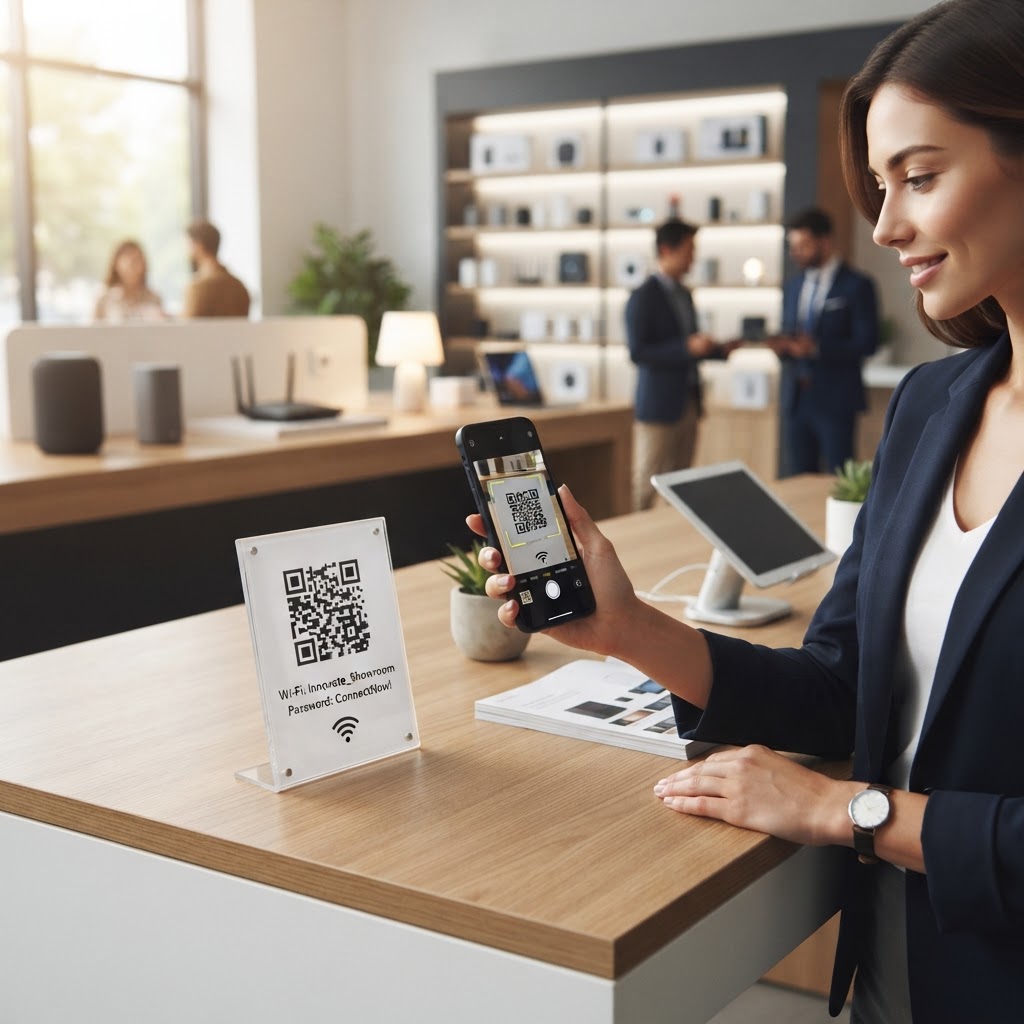
Why a wifi qr code for showroom connectivity matters
In a high-end retail or professional showroom, the atmosphere is everything. When a customer asks for the WiFi password, staff members often have to leave their station or fumble with handwritten notes, breaking the flow of a sales conversation.
By using a digital access point, you remove this friction entirely. It builds a professional image, demonstrating that you value your clients' time while keeping your network secure from unauthorized visitors who might otherwise try to guess your credentials.
What you need before you start
Before you jump into the process, you only need three basic pieces of information to ensure the setup is accurate. First, you must know your exact network name (SSID), which is case-sensitive and must be entered exactly as it appears.
Second, gather your current network password. Finally, identify your security type, which is usually WPA/WPA2 or WPA3, to ensure your devices handshake properly with the router when they scan the code.
How to set up your signage — step by step
You can use Blue QR Code Generator's WiFi QR codes tool to simplify this entire task in minutes.
- Enter your Network Name: Input your router's SSID precisely, paying close attention to spaces and capitalization.
- Select Security Protocol: Choose the encryption type that matches your router settings, typically found in your modem's administrative panel.
- Input your Password: Paste or type your network password into the secure field provided by the generator.
- Customize the QR Design: Choose colors or add a logo to match your showroom's branding for a polished, professional look.
- Generate the Code: Click the button to create your unique graphic and preview how it looks on screen.
- Download and Print: Save your file as a high-quality PNG or SVG to ensure it looks crisp when printed on display materials.
How to test and deploy it
Testing is vital to ensure your clients aren't left frustrated. Simply open your phone's camera, scan your new code, and verify that it connects automatically to your guest network without prompting for a password.
Once verified, place the code in high-traffic areas like the reception desk, near product display labels, or on the main showroom entrance. We recommend using our free WiFi QR Code Generator to update your codes if you ever change your network credentials.
Common mistakes that ruin results
- Typos in the SSID: Entering the network name with even one incorrect character will cause a connection failure for every guest.
- Poor Print Quality: Using a low-resolution image results in blurry codes that scanners cannot read, especially in low-light settings.
- Obscuring the Code: Placing the QR code behind reflective glass or in an awkward, hard-to-reach corner forces customers to struggle.
- Ignoring Security: Failing to use a dedicated guest network allows visitors to see other devices on your showroom's internal business network.
The Blue QR Code Generator helps you avoid these common pitfalls by providing clear instructions and clean, high-contrast outputs. It is a reliable way to generate yours in seconds to improve operational efficiency.
Real examples
In an automotive showroom, you might place a small acrylic stand with a QR code on every vehicle dashboard, allowing visitors to pull up car specs while they inspect the interior. This is far better than handing out paper brochures that often end up in the trash.
For furniture showrooms, consider printing the QR code on a discreet sign at the front desk or on the back of each price tag. This empowers the customer to check the dimensions or stock availability on your website immediately, leading to more informed and confident purchase decisions.