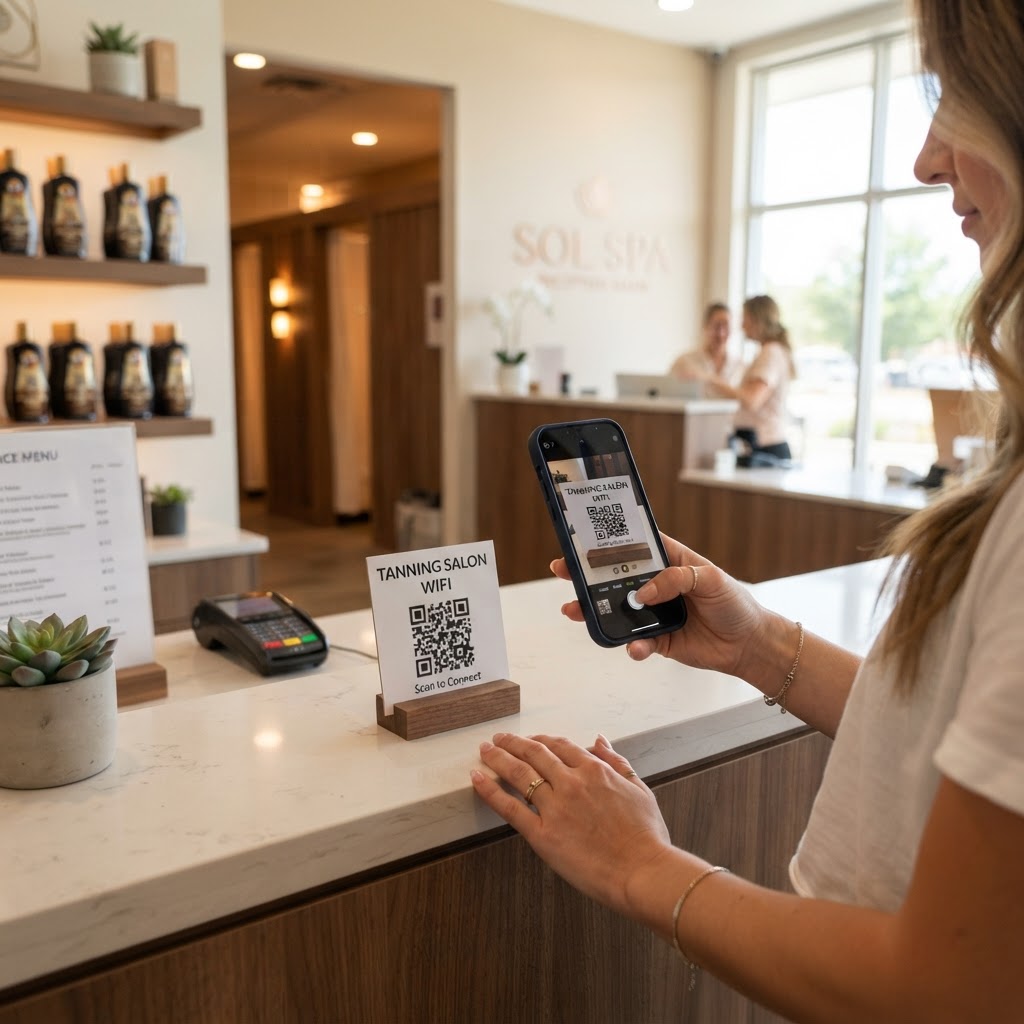
Why a WiFi QR code for your tanning salon matters
Imagine a client arriving for their appointment, phone in hand, looking for a way to catch up on emails or stream music while they prep. When your staff has to stop what they are doing to manually input a 20-character password, the workflow is interrupted and your front desk becomes a bottleneck.
By placing a professional sign at your reception area, you empower clients to join the network securely without needing any assistance. This simple, tech-forward touch elevates the luxury feel of your salon and keeps your employees focused on high-value tasks like scheduling and inventory management. You can use our free WiFi QR Code Generator to handle this process effortlessly.
What you need before you start
Before you begin, ensure you have your exact network credentials on hand. You will need your precise Network Name (SSID) and your current password, exactly as they appear in your router settings.
Be mindful that passwords are case-sensitive. Additionally, you should verify your network encryption type—usually WPA2 or WPA3—as this is often required for the barcode to function correctly. When you are ready, you can generate yours in seconds using our platform.
How to create a WiFi QR code for tanning salon — step by step
- Access the tool: Navigate to the Blue QR Code Generator WiFi utility to start your custom code.
- Input your network name: Enter your exact SSID into the provided field to ensure devices connect to the correct network.
- Provide the password: Carefully type in your password, double-checking for any capitalization or special character errors.
- Select encryption type: Choose the appropriate security protocol, typically WPA/WPA2, to ensure compatibility with modern smartphones.
- Generate the code: Click the button to create your custom image that guests will use to connect to your salon WiFi.
- Download and save: Download the file to your computer so you can print it or add it to your digital signage.
How to test and deploy it
Before printing hundreds of copies for your salon wall, always test the code with multiple devices. Grab both an Android phone and an iPhone to ensure they can scan the code and join the network without friction.
Place the printed QR code in a frame or on a sleek stand at the reception desk. Using Blue QR Code Generator's WiFi QR codes tool, you can be sure the connection is reliable and the scan is quick for your busy clients.
Common mistakes that ruin results
- Low resolution prints: Printing small or blurry codes makes them impossible for cameras to focus on.
- Incorrect SSID matching: If your network name is 'Salon_Guest_5G' but you typed 'Salon_Guest', the connection will fail every time.
- Obscured placement: Placing the code behind thick glass or in an area with poor lighting makes scanning difficult for patrons.
- Ignoring contrast: Using light-colored ink on a white background prevents the QR code scanner from detecting the pattern.
Real examples
In a high-end tanning salon, you might place a small, elegant card near the waiting area chairs. This allows clients to connect immediately, creating a seamless transition from their arrival to their service time.
Another effective strategy is to display the QR code on your check-in tablet screen or digital menu board. If you need to update your password, just head back to our site to generate a new code instantly, keeping your salon’s security tight and updated.