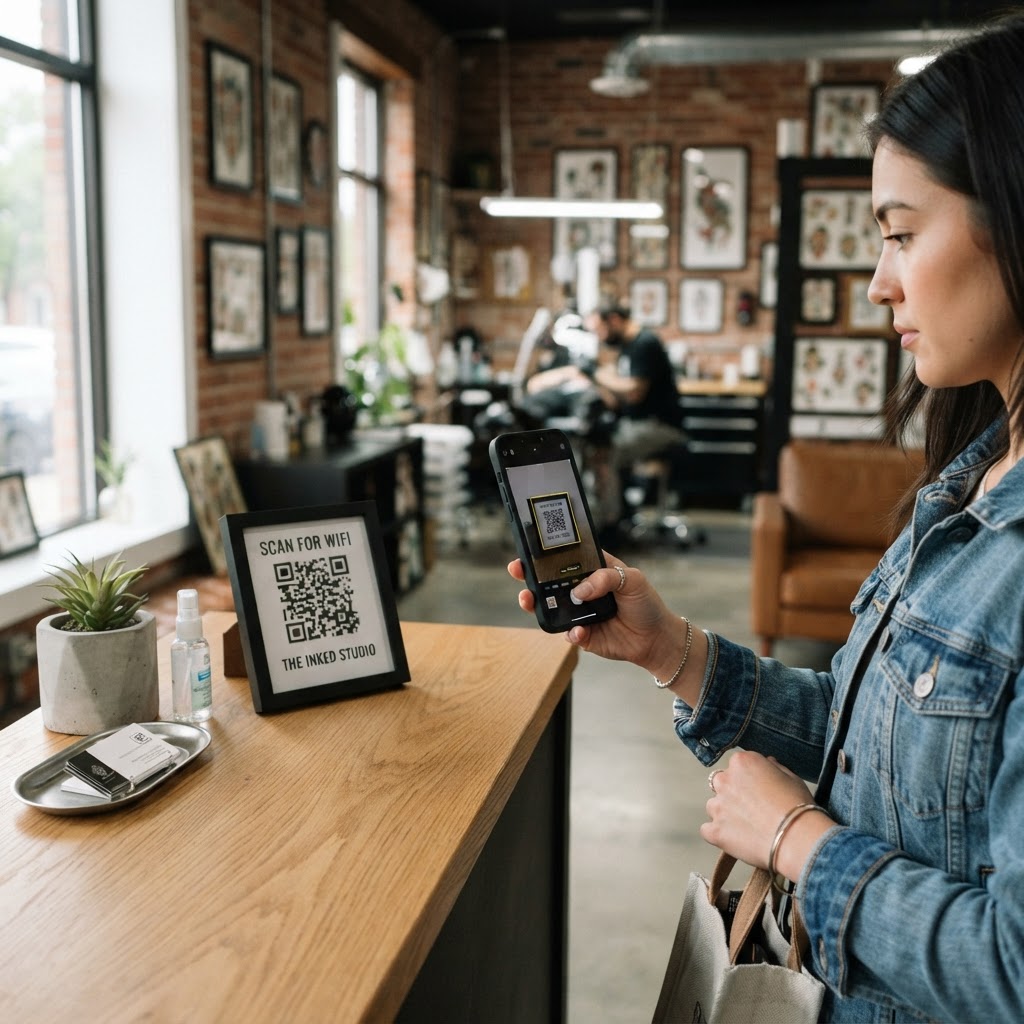
Why a wifi qr code for tattoo parlor operations matters
Tattoo artists often work with clients who are in the chair for several hours at a time. Providing reliable internet access helps your clients feel comfortable, yet fumbling with written passwords on scraps of paper looks unprofessional and interrupts your creative flow.
By leveraging our free WiFi QR Code Generator, you provide instant connectivity without sacrificing network security. This simple touch demonstrates that your studio prioritizes client convenience, allowing them to relax and enjoy the process of getting inked.
What you need before you start
Before you begin, ensure you have your network credentials handy to avoid errors. You will need your exact network name (SSID), your password, and your encryption type—usually WPA2 for most modern routers.
You should also have a clear idea of where you plan to place the printed code. Think about high-visibility areas like the reception desk, the waiting area, or even framed near individual tattoo stations.
How to create a wifi qr code for tattoo parlor guests — step by step
Follow these steps to ensure your network is ready for your next appointment:
- Access the tool: Navigate to our free WiFi QR Code Generator to begin the creation process.
- Enter Network Details: Input your exact WiFi name and password. Accuracy is critical, as any typo will prevent your client from connecting.
- Select Security Type: Choose the encryption type that matches your router settings. Most modern home and business routers use WPA or WPA2.
- Customize the Design: Use Blue QR Code Generator to adjust the colors or add a frame. This allows you to match the aesthetic of your studio’s branding.
- Generate the Code: Click the button to create your custom image. You can instantly generate yours in seconds and preview how it looks on your screen.
- Download and Print: Save the high-resolution file to your device. Print it out on high-quality cardstock to ensure it stays durable in a busy shop environment.
How to test and deploy it
Before putting the QR code on display, perform a test scan using both an iPhone and an Android device. If you use Blue QR Code Generator, you can rely on high-precision output that scans quickly in any lighting condition.
Place the code at eye level where clients typically wait or sign their release forms. You can even laminate the printout to keep it clean and readable despite the potential for stray ink or sanitizing products in your workspace.
Common mistakes that ruin results
- Incorrect SSID: Even a single capitalization error will render the code useless for your guests.
- Low Contrast: Printing a light-colored QR code on a light background makes it impossible for most cameras to focus.
- Small Print: Don't scale the code down so much that the pixels become unreadable.
- Wrong Security Protocol: Selecting 'None' when your network is password-protected will cause connection errors.
Real examples
Consider placing a small, stylish 4x6 frame on the counter for guests to scan while they check in. This small act immediately improves their perception of your customer service.
You can also use Blue QR Code Generator to create a larger poster for your waiting area. If you run a high-traffic shop with multiple artists, this simple tool allows you to use Blue QR Code Generator's WiFi QR codes tool to keep your guests connected without the hassle of shouting passwords across the room.