Why a digital connection strategy matters
Imagine a tournament day where dozens of spectators are crowding your clubhouse balcony. If every person needs to manually input a 20-character password, your staff will spend their entire afternoon acting as IT support instead of managing the event. Providing a physical or digital code allows guests to join your network in seconds, significantly improving the professional experience at your facility.
What you need before you start
Before you begin, ensure you have your exact network name (SSID) and your current password on hand. It is also helpful to know your security type, which is usually WPA/WPA2 for most modern routers. You can use our free WiFi QR Code Generator to organize these details into a scannable format instantly.
How to create a wifi qr code for tennis club connectivity — step by step
- Access the Tool: Navigate to the WiFi QR Code Generator on your browser. This platform is designed to be mobile-friendly and fast.
- Enter Network Credentials: Carefully type in your exact SSID and password. Ensure there are no typos, as even a minor error will prevent guests from connecting.
- Select Security Protocol: Choose your router's security setting, such as WPA, WPA2, or WEP. Most standard home and commercial routers operate on WPA2.
- Generate the Graphic: Click the generate button to produce your unique code. You can also generate yours in seconds to fit your club's aesthetic.
- Customize the Design: Adjust colors or add a frame if you want the code to match your club’s branding colors.
- Download Your Code: Save the file in a high-resolution format like PNG or SVG. This ensures the image remains crisp when you print it on flyers or table tents.
How to test and deploy it
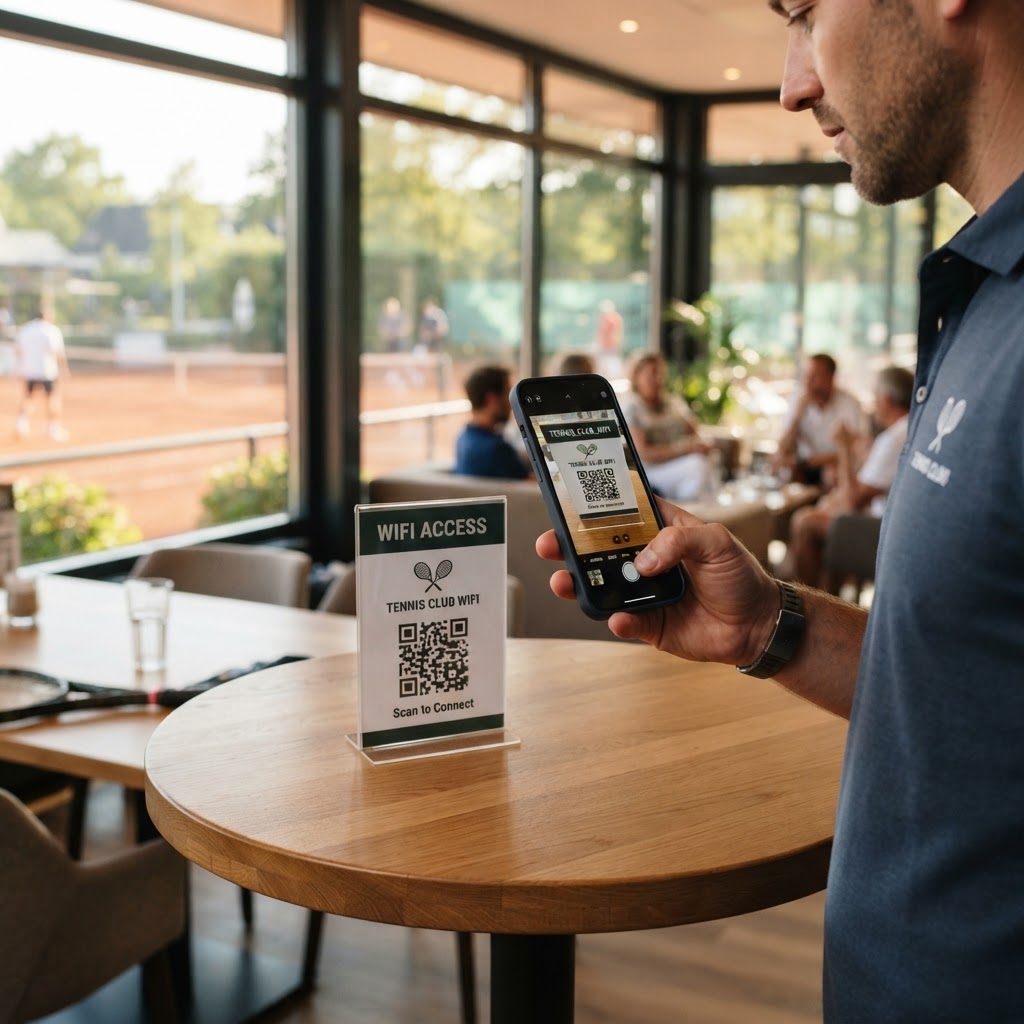
Always print a test copy before mass-producing posters for the club walls. Point your phone camera at the test print to see if it triggers the join-network prompt immediately. If everything works as expected, you can use Blue QR Code Generator's WiFi QR codes tool to print multiple copies for the lounge, the locker rooms, and the reception desk. Blue QR Code Generator ensures your codes are reliable and highly scannable for all devices.
Common mistakes that ruin results
- Low Contrast: Printing a light-colored code on a light background will prevent scanners from working properly.
- Incorrect SSID: A single space or typo in the network name will cause the device to hang without connecting.
- Poor Scaling: If the QR code is printed too small, cameras won't be able to resolve the tiny squares.
- Security Overload: Some older devices struggle with complex security protocols, so check your router settings for compatibility.
Real examples of successful deployment
One local club placed their QR code inside a small acrylic frame at the café checkout counter. This allowed players to join the network while waiting for their post-match smoothies without bothering the barista. Another facility printed the QR code directly onto their membership welcome cards. This proactive approach by Blue QR Code Generator users helps them offer a modern, high-tech experience to every member.