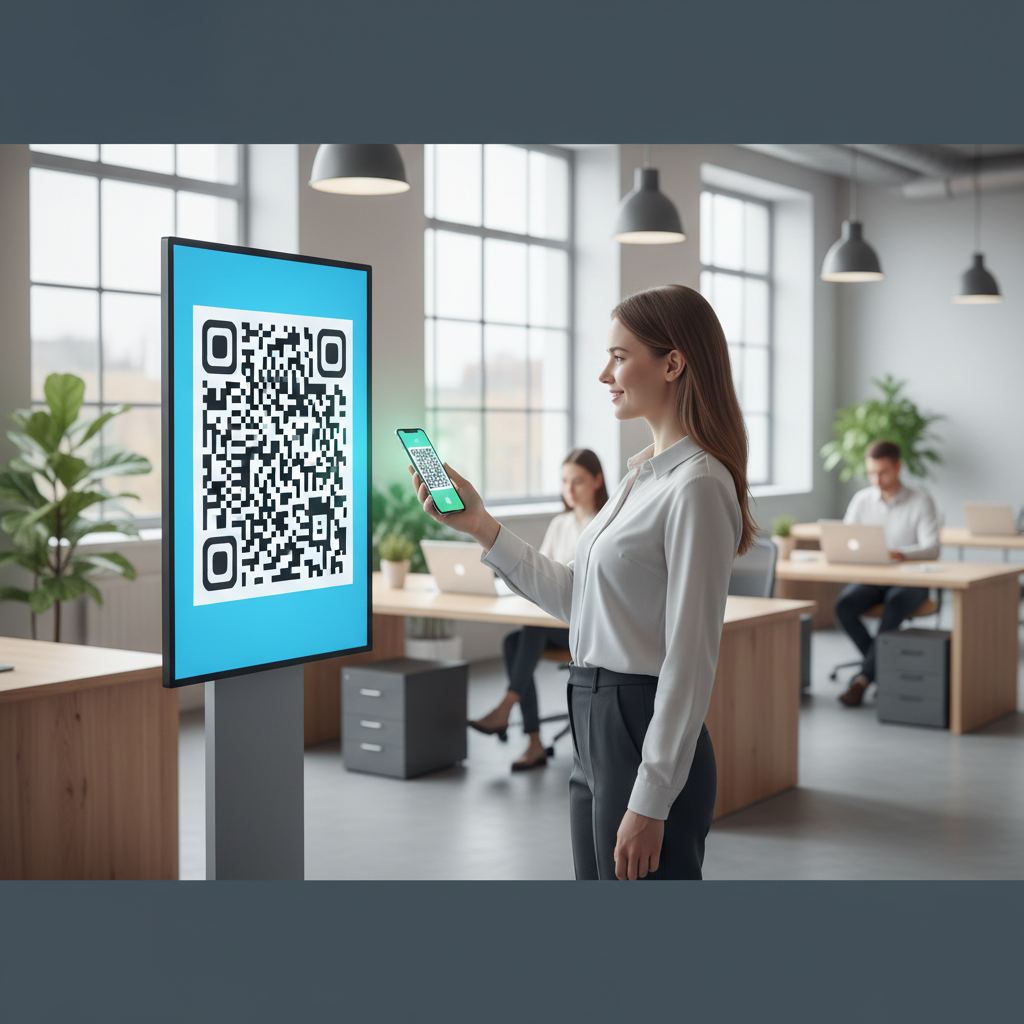
Why Use a Google Form QR Code Generator?
Using a google form qr code generator simplifies the way you share your forms.
Whether you are conducting a survey, gathering feedback, or collecting information, QR codes can make the process seamless.
Key Points
- Easy Access: Users can scan the QR code with their mobile devices, allowing instant access to the form without manual typing or searching.
- Increase Participation: QR codes are convenient and can boost response rates, making it easier for users to engage with your content.
- Track Engagement: By using a QR code, you can track how many people accessed the form via the code, providing valuable insights into your audience.
How to Create a Google Form QR Code Using Code Forge
Creating a QR code for your Google Form using the URL QR Code Generator from Code Forge is a straightforward process.
Follow these steps:
- Open Google Forms: Create your form and ensure it’s ready for sharing.
- Get the URL: Click the ‘Send’ button in Google Forms, select the link icon, and copy the URL.
- Visit Code Forge: Go to the URL QR Code Generator webpage.
- Enter the URL: Paste the copied Google Form URL into the generator.
- Generate QR Code: Customize your QR code if needed and click ‘Generate’ to create your code.
Steps Overview
- Prepare: Finalize your form content and sharing settings.
- Generate: Use the URL QR Code Generator to turn the form link into a scannable code.
- Share: Distribute the QR code in your chosen channels.
Customizing Your QR Code
One of the standout features of the Code Forge QR Code Generator is the ability to customize your QR code.
You can choose different colors, add logos, and alter the shape of the QR code to better reflect your brand identity.
Design Tips
- Colors: Use brand colors but keep sufficient contrast for scannability.
- Logos: Add a small logo without obscuring key code elements.
- Shapes: Modify corners and eyes carefully to maintain readability.
Customizing your QR codes makes them not only functional but also visually appealing.
Visually appealing codes encourage users to engage.
Best Practices for QR Code Usage
To maximize the effectiveness of your Google Form QR code, consider these best practices.
- Test Before Distributing: Always scan your QR code before sharing it to ensure it directs users to the correct URL.
- Provide Context: Include instructions or a brief description near the QR code to inform users about what to expect when they scan it.
- Monitor Engagement: Leverage analytics tools to measure how many users accessed the form via the QR code.
Use Cases
- Events: Use QR codes on badges and posters for quick feedback and registrations.
- Retail: Collect customer feedback at the point of sale.
- Education: Share surveys or quizzes with students easily.
Why Choose Code Forge for Your QR Code Needs?
Code Forge stands out among QR code generators due to its user-friendly interface and robust feature set.
The URL QR Code Generator is free, easy to use, and efficient, allowing you to create high-quality QR codes in seconds.
Plus, Code Forge ensures that you have the tools needed to customize codes to suit your style while maintaining functionality.
Ready to Get Started?
Create your QR code in seconds with our free, easy-to-use generator.
Start generating your Google Form QR codes today with Code Forge's URL QR Code Generator!Common Mistakes to Avoid
Avoiding common pitfalls will help ensure your Google Form QR codes perform well and reach users effectively.
- Not Testing: Failing to scan and test the QR code before distribution can lead to broken links or misdirected traffic.
- Poor Design Choices: Using low contrast colors or overly large logos can make codes hard to scan and reduce engagement.
Frequently Asked Questions
What is a Google Form QR code generator?
A Google Form QR code generator is a tool that creates a QR code from a Google Form URL, allowing users to easily access the form by scanning the code with their mobile devices.
How do I generate a QR code for my Google Form?
To generate a QR code for your Google Form, copy the form's URL, visit the URL QR Code Generator on Code Forge, paste the URL, and click 'Generate' to create your QR code.
What are the benefits of using a QR code for Google Forms?
Using a QR code for Google Forms simplifies access for users, increases participation in surveys or forms, and allows for tracking engagement through analytics.
Can I customize my QR code using Code Forge?
Yes, Code Forge allows you to customize your QR codes with colors, logos, and other features to match your branding.
Is the QR code generator free to use?
Yes, the Code Forge QR code generator is free to use and provides an easy way to create QR codes for any URL.
Conclusion
Using a google form qr code generator like Code Forge's URL QR Code Generator streamlines sharing and improves response rates.
With simple steps, customization options, and best practices, you can create effective QR codes for any Google Form.
Step-by-Step Guide: How to Create a google form qr code generator on BlueQRCode
-
Step 1 — Build and configure your Google Form
Create the form in Google Forms as you normally would: add questions, sections, and any logic (page branching) needed. Before sharing, check Settings to ensure the form accepts responses and that you’ve set the required sharing options. If respondents are outside your organization, make sure “Restrict to users in [your organization]” is turned off. If you want anonymous feedback, disable the collection of email addresses.
-
Step 2 — Get the shareable link (and create a prefilled link if needed)
Click the Send button in Google Forms and copy the link icon’s URL. For better user experience, consider generating a prefilled link for forms where you want some fields already populated (for example, adding a customer ID or event code). Prefilled links can save respondents time and reduce incomplete responses.
-
Step 3 — Open BlueQRCode and choose the URL QR code type
Go to BlueQRCode, select the URL (link) QR code option and paste your Google Form link into the input field. Our google form qr code generator accepts any standard form URL and instantly previews the QR code so you can see how it will look when scanned.
-
Step 4 — Customize and optimize your QR code
Use BlueQRCode’s customization tools to set the size, error correction level, and colors. For Google Forms, high error correction (M or Q) is recommended if you plan to add a small logo or place the QR on textured surfaces. Stick to high-contrast colors (dark code on a light background) to ensure reliable scanning across devices.
-
Step 5 — Download, test, and deploy
Download the QR code in PNG or SVG format depending on your use case. Test the QR with multiple devices (Android, iPhone) and QR reader apps to confirm it opens the Google Form directly and that the form accepts responses. Then add the code to print materials, slides, posters, or digital screens. Because BlueQRCode codes never expire, you can reuse the same code for ongoing campaigns.
Best Practices for google form qr code generator
- Use HTTPS links — Always use the Google Form’s HTTPS URL to ensure secure, seamless mobile navigation and avoid browser warnings that can deter respondents.
- Test on multiple devices — Test scans with different phones, camera apps, and under various lighting conditions to ensure the QR code reliably opens the form and the layout is mobile-friendly.
- Enable mobile-friendly form design — Keep questions concise and use single-column layouts or sections so the form is easy to complete on a smartphone after scanning the QR code.
- Add UTM parameters for tracking — Append UTM tags to the form URL (e.g., utm_source=poster&utm_campaign=event) to track traffic in Google Analytics when you use the form link elsewhere, or to correlate responses by campaign in your reports.
- Provide a short call-to-action nearby — Explain why users should scan the QR (e.g., “Scan to give feedback — 30 seconds!”) and include a brief benefit to increase conversions.
Common Mistakes to Avoid
- Forgetting to allow external responses — If your Google Form is restricted to users within your organization, external respondents will be blocked. Double-check sharing permissions so guests can complete the form.
- Using a long dense link without shortening or prefill — Long URLs can create a denser QR that’s harder to scan. Use BlueQRCode’s URL input (it generates efficient codes), or use Google Forms’ prefilled links to reduce complexity when possible.
- Not testing on printed materials — A QR that scans in a browser preview may fail on print due to size, contrast, or gloss. Print a proof at the final size and test scanning from typical viewing distances before mass printing.
- Placing QR where it’s unreachable — Avoid placing codes too high, too low, or on highly curved or reflective surfaces. Make sure people can comfortably scan from a phone camera without needing to lean or stretch.
📚 Related guides
Real-World Use Cases
-
Events & Conferences
Use a google form qr code generator to collect attendee feedback or session sign-ups. Place QR codes on badges, program booklets, and session screens to let attendees quickly RSVP to workshops or rate talks without waiting in lines.
-
Retail & Hospitality
Restaurants and shops can use QR codes to gather customer satisfaction surveys, loyalty sign-ups, or product reviews. Put the code on receipts, table tents, or product packaging so customers can respond immediately after their experience.
-
Education & Training
Teachers and trainers use Google Forms for quizzes, attendance, and feedback. A QR code on a slide or handout lets students access the form instantly and submit responses from their smartphones during class or remote learning sessions.
-
Healthcare & Field Work
Clinics and field teams can share intake forms, consent forms, or follow-up surveys through QR codes in waiting rooms or on printed instructions. Mobile access reduces paperwork and speeds up data collection while maintaining form security.
Create Your Free google form qr code generator
No sign-up. No watermark. Never expires.
Generate Free QR Code →📚 Related Guides