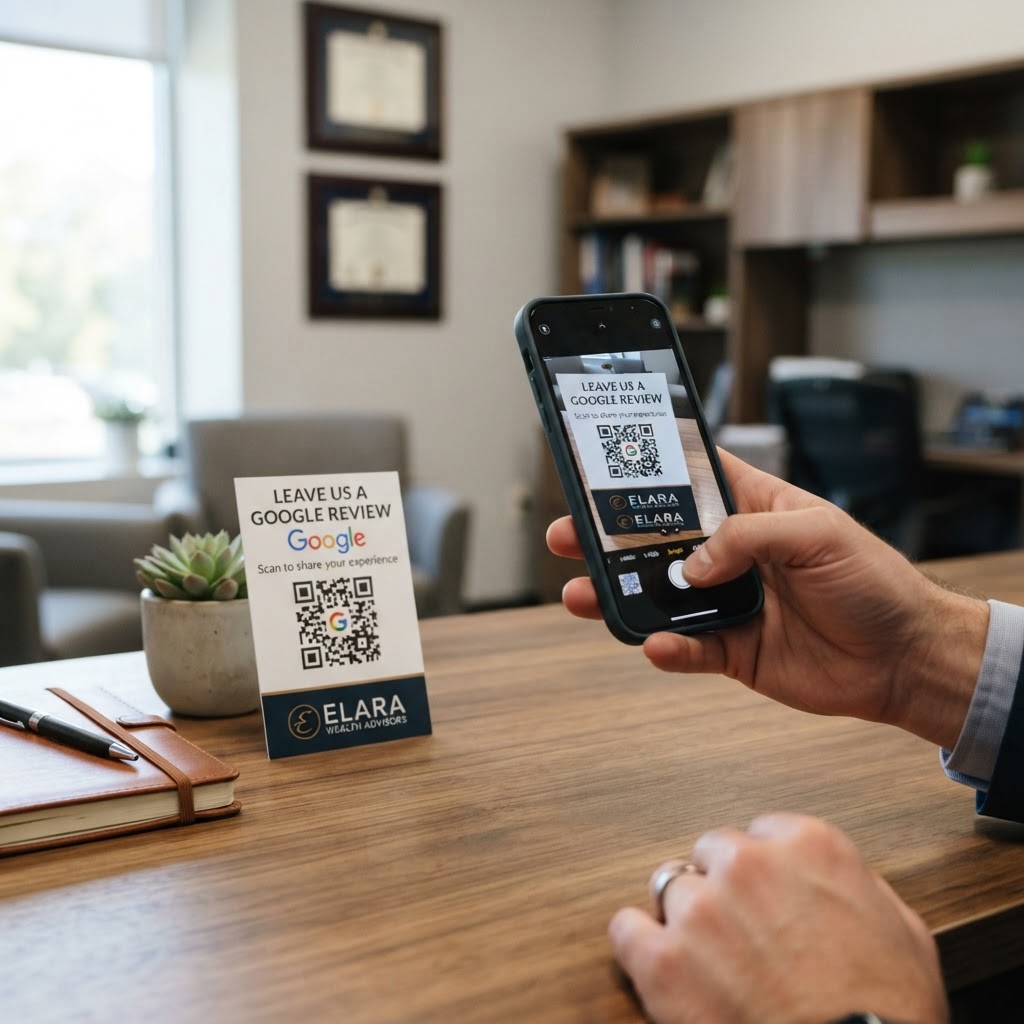
Why a Google review QR code for financial advisor trust matters
In the financial services industry, your reputation is your most valuable asset. When a potential client searches for your services, they look for social proof that you are reliable, transparent, and results-oriented. You can easily build this social proof when you generate yours here to start collecting reviews.
A concrete scenario is the end-of-year review meeting. You just successfully helped a client rebalance their portfolio and hit a major savings milestone, and they are thrilled with your guidance. Without a direct link, they might forget to write a review once they leave your office. Placing a physical QR code on your desk allows them to scan it immediately and share their success story while the sentiment is still fresh and positive.
What you need before you start
To begin, you will need a few simple components to ensure the process goes smoothly. First, verify that you have a verified Google Business Profile for your financial firm.
You will also need the direct URL to your business’s review submission page, which can be found in your Google Business dashboard. Finally, having access to Blue QR Code Generator will allow you to customize the code so it aligns with your professional branding.
How to create your code — step by step
Follow these steps to generate a professional QR code that encourages client feedback seamlessly.
- Locate your review link: Log into your Google Business Profile and navigate to the "Get more reviews" section to copy your unique short URL.
- Visit the generator: Go to the our free Google Review QR Code Generator to start your custom project.
- Paste your URL: Enter the link you copied from Google into the primary input field.
- Apply professional branding: Use the interface to select colors or add a frame that matches your firm's visual identity, ensuring it looks like a high-end financial tool.
- Generate the code: Click the generate button to finalize your design.
- Download your asset: Save the high-resolution file to your computer so it is ready to be printed on stationery or displayed on a tablet.
How to test and deploy it
Before you commit to printing hundreds of brochures, always test the code yourself. Use your smartphone camera to scan the image and ensure it redirects the user directly to the Google review submission form, not just your general business profile.
Once confirmed, incorporate the code into your physical office environment. You can print it on a small, elegant acrylic stand placed at your reception desk or include it on the "Thank You" card you hand out after a successful client consultation. By choosing to use Blue QR Code Generator's Google review QR codes tool, you ensure the technical side is handled with precision.
Common mistakes that ruin results
- Over-complicating the design: Avoid adding too many logos or complex patterns that make it difficult for standard phone cameras to scan the code quickly.
- Ignoring placement: Do not hide the code in a dark corner of your office or on the very back of a document where no one will notice it.
- Failing to explain the value: Simply printing a code without a brief request, such as "Share your feedback to help us serve you better," is often ignored.
- Using a broken link: Always double-check that your URL is correct before mass-printing, as a broken link reflects poorly on your firm’s attention to detail.
Real examples for financial firms
One effective strategy is placing the code on a sleek, branded desk placard that says, "Your success is our priority—rate your experience." This makes the request feel like part of the high-touch service they already pay for. Similar strategies are often used when professionals create a Google Review QR code for an estate agent business to boost local visibility.
Another example involves email signatures and digital invoices. By including a small, professional QR code in your digital footer, you remind clients of their positive experiences even after they have left your office. The Blue QR Code Generator makes it simple to create these assets for both digital and print media, keeping your firm top-of-mind.