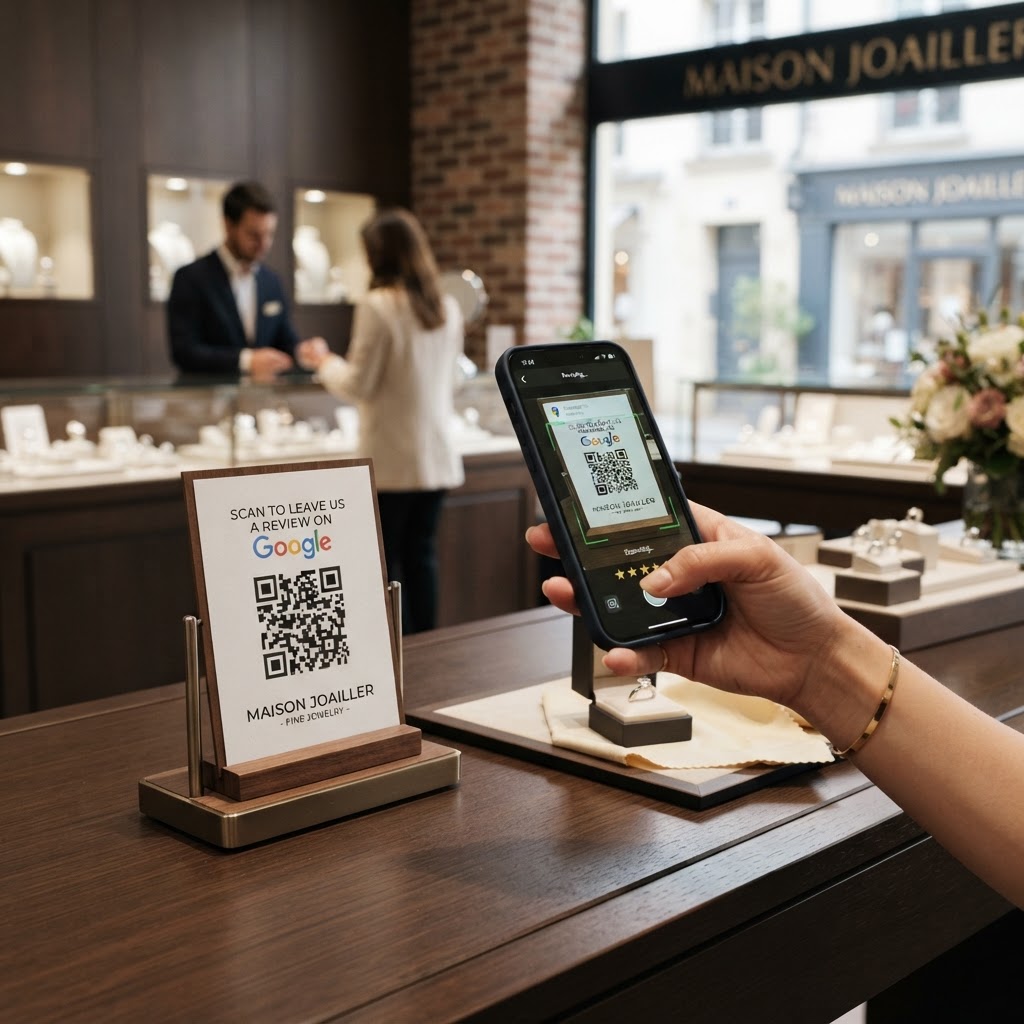
Why a google review qr code for jeweler shops matters
When a client spends significant money on an engagement ring or a custom necklace, they want assurance they are buying from a trusted expert. A glowing review on Google acts as social proof that validates your craftsmanship and service quality to future buyers. If you are looking for an effective way to boost your online reputation, generate yours here to start collecting more feedback.
Without an easy way to prompt a review, most satisfied customers simply forget to write one, leaving your profile stagnant. By placing a custom code on your receipt or counter, you capitalize on the customer's high-energy emotional peak when they receive their jewelry.
What you need before you start
Preparation ensures your QR code is functional and directs customers to the right place. Before you begin, you need access to your Google Business Profile, as you must extract your specific review link directly from the Google interface.
You should also decide on your branding requirements, such as whether you want the code to match your shop's aesthetic. Using Blue QR Code Generator ensures you have high-resolution output suitable for printing on small cards or professional displays.
How to generate a google review qr code for jeweler storefronts — step by step
- Access your Google Business profile: Log into your Google Business dashboard and select the "Get more reviews" button to find your unique review link.
- Copy the review URL: Highlight and copy the direct link that opens the "Write a review" dialog box for your business.
- Open our free Google Review QR Code Generator: Navigate to the our free Google Review QR Code Generator to begin the creation process.
- Paste the link: Enter your copied Google URL into the designated input field on the page.
- Customize your design: Use the available settings to adjust colors or patterns if you want to align the code with your jewelry brand's color palette.
- Download your code: Save the file in a high-resolution format like PNG or SVG, which is ideal for printing on high-quality card stock or display stands.
How to test and deploy it
Testing is mandatory before printing dozens of flyers or engraving a display. Open your smartphone camera or a QR scanning app to ensure that scanning the code instantly redirects the user to your Google reviews page without any authentication errors.
Place these codes in high-traffic, visible areas within your store. Many successful jewelers place the code on a small, elegant sign next to the cash register or include a small card with the final jewelry packaging.
Common mistakes that ruin results
- Printing too small: If the QR code is smaller than one inch, modern smartphones may struggle to focus and scan it quickly.
- Poor contrast: Using light-colored ink on a light background makes the code impossible for cameras to detect accurately.
- Not using a call to action: Simply displaying a code isn't enough; include a small note saying "Scan to share your experience" to encourage interaction.
- Broken links: Always test the link periodically, especially if you have recently updated your Google Business information or moved your storefront location.
Real examples of successful use
A custom jeweler might attach a high-quality card to the box of an engagement ring with a QR code, prompting the buyer to share their proposal story once they return home. This context creates a personal connection and higher rates of review submission. Similar strategies apply to other service-based businesses, such as when you create a Google Review QR code for home renovation contractors.
A watch repair boutique might use Blue QR Code Generator to create a simple tabletop display where customers wait. When they pick up their serviced watches, they are visually prompted to scan the code while finalizing the payment, leveraging the immediate positive interaction. You can easily use Blue QR Code Generator's Google review QR codes tool to implement these strategies for your own shop today.