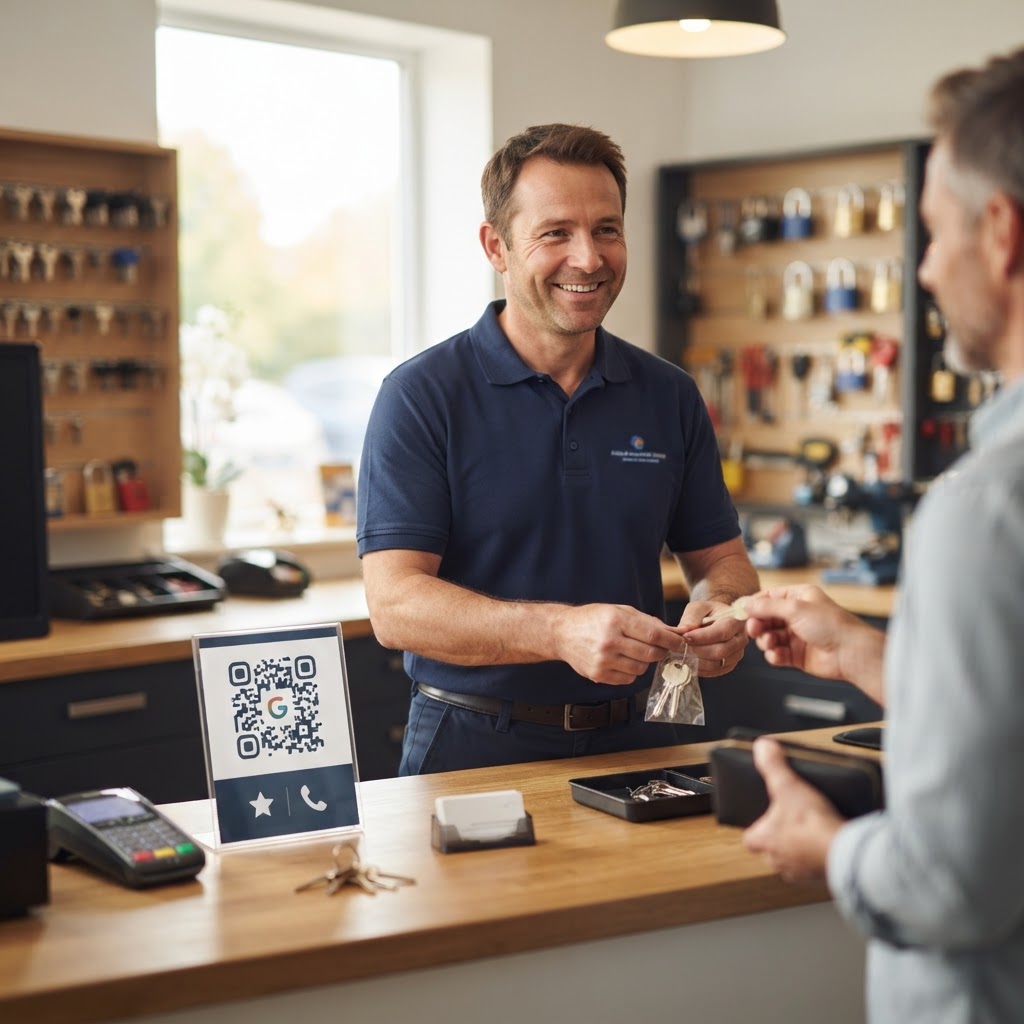
Why a google review qr code for locksmith businesses matters
Trust is the single most important commodity for a locksmith. When a customer is stranded outside their vehicle or home at 2:00 AM, they aren't looking for a website; they are looking for the most reliable expert with the best track record.
By having a simple scanning method ready, you can capture that moment of relief after a successful job to secure a review immediately. This builds your local SEO ranking, making you the first choice for anyone searching for "emergency locksmith near me" in your area. If you want to streamline this for other professional services you might offer, you can explore our guide on using a review QR code for your landscaping business to maximize your reputation across all trades.
What you need before you start
Before you dive into the technical side, ensure you have your business details ready to make the process smooth. You will need a verified Google Business Profile to generate a review link, which is the destination for your QR code.
If you haven't claimed your business on Google Maps yet, do that first. Once your profile is active, keep your "Review URL" handy, as it is the foundation of the process when you use our free Google Review QR Code Generator.
How to create your code — step by step
- Access your Google Business Profile: Sign into your account and navigate to the "Get more reviews" section to copy your unique shareable review link.
- Visit the generator: Head over to our free Google Review QR Code Generator to begin the creation process.
- Paste your link: Carefully copy the URL you retrieved from Google into the input box provided on the tool's interface.
- Customize the design: Use the available options to match your brand colors or add a logo to make the code look professional.
- Download the high-quality file: Once you are satisfied with the design, save your QR code as a PNG or PDF file for printing.
- Print and place: Print the code on professional business cards, invoice slips, or stickers for your van to ensure maximum visibility to clients.
How to test and deploy it
Testing is vital to ensure you don't hand out dead links to customers. Simply open your phone's camera app and scan the generated code to see if it redirects directly to your Google review submission screen.
Blue QR Code Generator makes this incredibly reliable, but always perform a final scan after printing. Place the code on your work van's dashboard or include it on physical invoices you hand over upon job completion; this is a strategic move to use Blue QR Code Generator's Google review QR codes tool to its full potential.
Common mistakes that ruin results
- Using an unverified profile: Ensure your Google business listing is claimed and active before trying to generate a link.
- Poor print quality: Printing on low-quality paper or in a low resolution can make the code unreadable by smartphone cameras.
- Over-complicating the call to action: Don't just stick a code on a wall; add a small "Review us here" note so customers know exactly what the code does.
- Ignoring placement: Putting the code in a dark or hard-to-reach area on your vehicle won't yield scans; make it accessible and well-lit.
Real examples
Consider a mobile locksmith who prints the QR code on a small business card handed to the client right after the door is opened. This physical reminder significantly increases the chance that the client will leave a 5-star review while the relief of being back inside is still fresh.
Another excellent example is a shop-based locksmith who features a framed QR code on the service counter. Customers standing there waiting for a key copy can simply point their phones at the display, ensuring the review process takes seconds rather than minutes.
By leveraging the Blue QR Code Generator, you provide a frictionless experience that separates you from competitors who simply rely on word-of-mouth. If you are ready to modernize your reputation management, you can generate yours in seconds and start seeing real results.