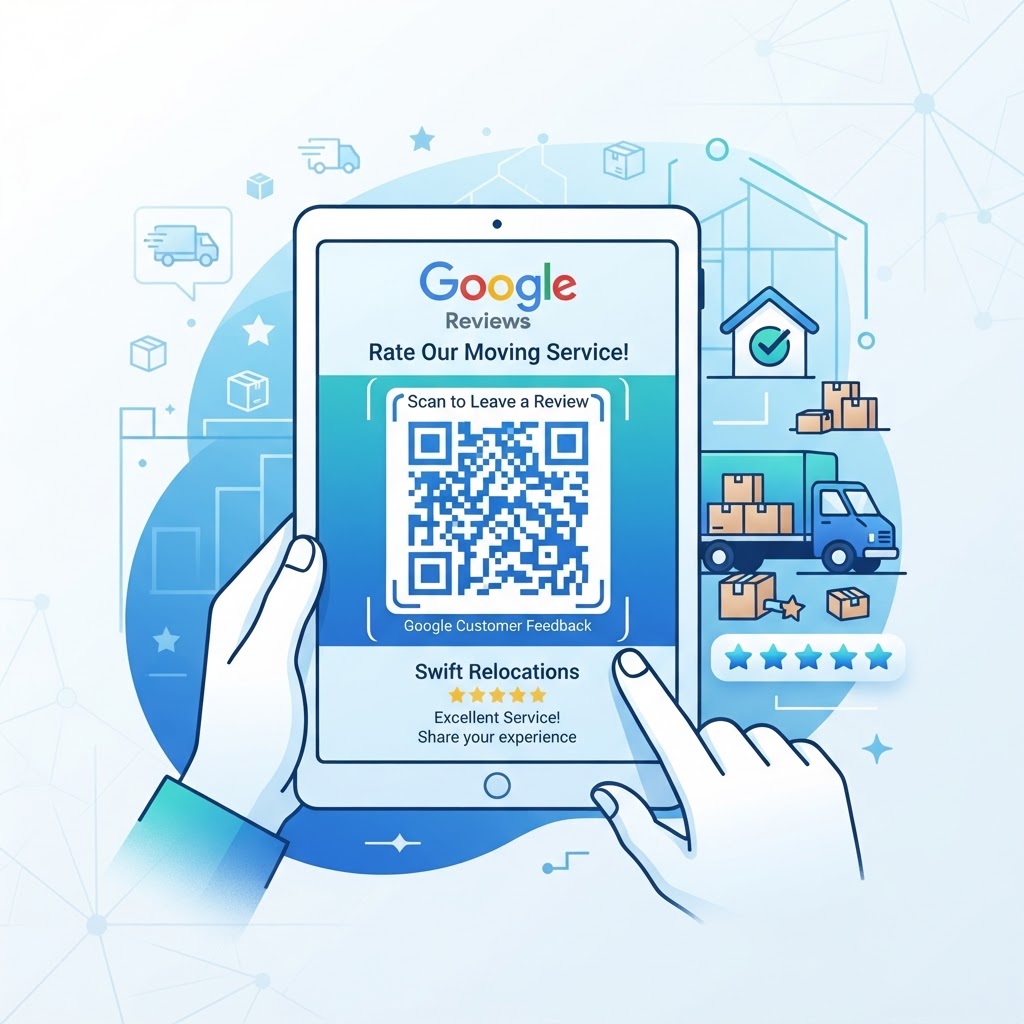
Why a google review qr code for moving company success matters
In the moving industry, trust is the primary currency. When prospective clients search for reliable movers, they prioritize businesses with high ratings and detailed feedback about careful handling of their possessions. If you are looking to simplify your reputation management strategy, you can generate yours here to start collecting feedback immediately.
A physical QR code placed on a clipboard, a business card, or even on the side of your moving truck allows you to capture customer sentiment at the exact moment of satisfaction. By removing the friction of searching for your business name on Google, you significantly increase the likelihood that a client will actually post that five-star review.
What you need before you start
Before you begin, ensure you have your business information ready to streamline the process. You will need your Google Business Profile URL, which you can find by searching for your business on Google Maps and clicking the share button.
You should also have a high-resolution version of your company logo if you want to customize your QR code appearance. Using our free Google Review QR Code Generator, you can quickly convert that profile link into a professional, trackable asset for your team.
How to create a Google review QR code for moving company operations — step by step
- Locate your business: Open Google Maps, search for your moving company name, and copy the direct URL to your review section.
- Visit the generator: Navigate to the our free Google Review QR Code Generator to start your setup.
- Paste your link: Input the copied Google Maps URL into the designated field to ensure the QR code routes customers exactly where you want them.
- Customize the design: Use the options within Blue QR Code Generator to adjust colors or patterns, ensuring the code aligns with your brand identity.
- Add a logo: If desired, upload your company logo to the center of the code to foster brand recognition among your clients.
- Download your asset: Once satisfied, click generate and download the image in a high-resolution format like PNG or SVG for printing.
How to test and deploy it
Once you have generated your code, print a copy and scan it with a personal smartphone to ensure it redirects to the correct review submission screen. You want the link to open the write-a-review dialog box, not just the general business information page.
For deployment, place these codes on your moving quote documents or attach them to a thank-you note left in the new home. Many successful companies use Blue QR Code Generator to create stickers that are placed inside the moving truck's cargo area, reminding the customer of your service as they finish their move.
Common mistakes that ruin results
- Using the wrong link: Linking to your main website instead of the specific review submission page adds too many steps for the user.
- Printing at low resolution: A pixelated QR code will fail to scan, especially in low-light conditions like inside a dim living room.
- Poor placement: Putting the code where nobody notices it, or where it is obscured by tape, limits its visibility and impact.
- Ignoring contrast: Using light-colored QR codes on light backgrounds makes it difficult for mobile cameras to detect the code's pattern.
Real examples of success
One local moving company placed a custom-branded QR code on a small sign at the entrance of the house while unloading. By the time the crew finished, clients had already scanned the code and written positive reviews about the team's punctuality and care. If you operate in other service sectors, you can also check out our guide for locksmiths to see how they utilize these codes effectively.
Another firm included the code on the back of every receipt provided to clients. Before you finalize your strategy, remember to use Blue QR Code Generator's Google review QR codes tool to ensure your branding remains professional and consistent. This simple, data-driven approach consistently results in more reviews per move.
Step-by-Step Guide: How to Create a google review qr code for moving company on BlueQRCode
A Google review QR code gives customers a quick route from their phone camera to your company’s Google review page. For a moving company, that makes it easy to ask for feedback after a completed move, when customers have experienced your crew’s care, punctuality, and communication firsthand.
- Find your Google review link. Open your business’s Google Business Profile and locate the option to ask for reviews or share your review form. Copy the direct link that takes customers to the page where they can write a review. Check that it opens the correct profile, especially if your company has multiple locations.
- Open BlueQRCode and choose a website QR code. Go to BlueQRCode.com and select the option for a URL or website QR code. A Google review link is a web address, so this QR type can send scanners directly to the review page without an extra search step.
- Paste in your review link. Enter the Google review URL and check it for typos or missing characters. If possible, test the link in a private browser window or on another device to confirm that customers can reach the right page without signing in to your Google account.
- Generate and test the code. Create your QR code, then scan it with a phone camera. Confirm that it opens the intended review form and works on a mobile connection. Test the printed or displayed version too: a code that looks clear on a screen may become difficult to scan when reduced for a business card or receipt.
- Download and place it where customers can respond. Add the code to a thank-you card, invoice, moving-day follow-up email, truck handout, or office sign. Include a short instruction such as “Scan to review your move.” Place it where customers can pause and scan comfortably, rather than somewhere they may feel rushed or obstruct others.
Before distributing the code, make sure your Google Business Profile is complete and that the linked page represents the correct moving business. A simple, reliable route makes the request more convenient, but customers should always be free to share honest feedback in their own words.
Best Practices for google review qr code for moving company
- Ask at a natural moment. Send a review request after the move is finished and the customer has had a chance to check their belongings and settle in. A polite follow-up is usually more appropriate than interrupting the crew’s work or asking while a customer is dealing with a problem.
- Use a clear, neutral invitation. Try wording such as “How was your move? Scan to leave an honest Google review.” Avoid promising a reward for a positive review, telling customers what rating to choose, or suggesting that only satisfied customers should respond.
- Make the code easy to scan. Use a strong contrast between the code and its background, leave clear space around it, and print it large enough for the intended setting. Keep the code away from folds, glossy glare, busy graphics, and areas that may be covered by labels or other text.
- Match the placement to the customer journey. A QR code on a move-completion card or a follow-up email is relevant and convenient. A small code on a truck may be useful for brand visibility, but it should never encourage scanning while driving.
- Review your materials periodically. Scan the code from a fresh printout and confirm the Google link still opens the right review page. If you change locations, profiles, or printed templates, update the link and replace old materials where practical.
Common Mistakes to Avoid
Linking to the wrong destination
A general Google search, map listing, or company homepage may require customers to take extra steps before they can leave feedback. Test the destination on a phone and verify that it opens the intended business profile and review form.
Printing a code that is too small or unclear
Low-quality images, cramped layouts, and poor contrast can make scanning frustrating. Always scan a sample at its final printed size and adjust it before ordering a large batch of cards, door hangers, or vehicle materials.
Asking for reviews in a pressuring way
Repeated requests, requests made during a stressful delay, or language that asks specifically for five stars can undermine trust. Make one courteous invitation, leave the choice to the customer, and focus on making the review process easy rather than controlling the response.
Ignoring complaints while promoting reviews
A QR code cannot substitute for resolving a damaged-item claim, billing concern, or scheduling issue. Respond to service problems through your normal support process and make it clear that customers can contact your team directly if they need help.
Real-World Use Cases
Local residential movers
A local moving team can include a review QR code on a small thank-you card handed to the customer after unloading. The message can invite feedback about punctuality, packing, and communication while the details of the move are still fresh.
Long-distance moving companies
For an interstate or cross-country move, a follow-up email can include the QR code alongside delivery confirmation and customer support information. Customers can scan it from a second device or save the link for later, without needing to search for the company again.
Commercial and office relocation providers
A business moving company can share the code with an authorized project contact after the office is operational. A brief, professional request can gather feedback on coordination, timing, and care with equipment without disrupting employees during the relocation.
Storage and packing services
Companies that offer packing, storage, or unpacking alongside moving can place the code on a service-completion checklist. Customers can then review the overall experience, while the company can also collect feedback that helps it improve individual parts of its service.
Create Your Free google review qr code for moving company
No sign-up. No watermark. Never expires.
Generate Free QR Code →