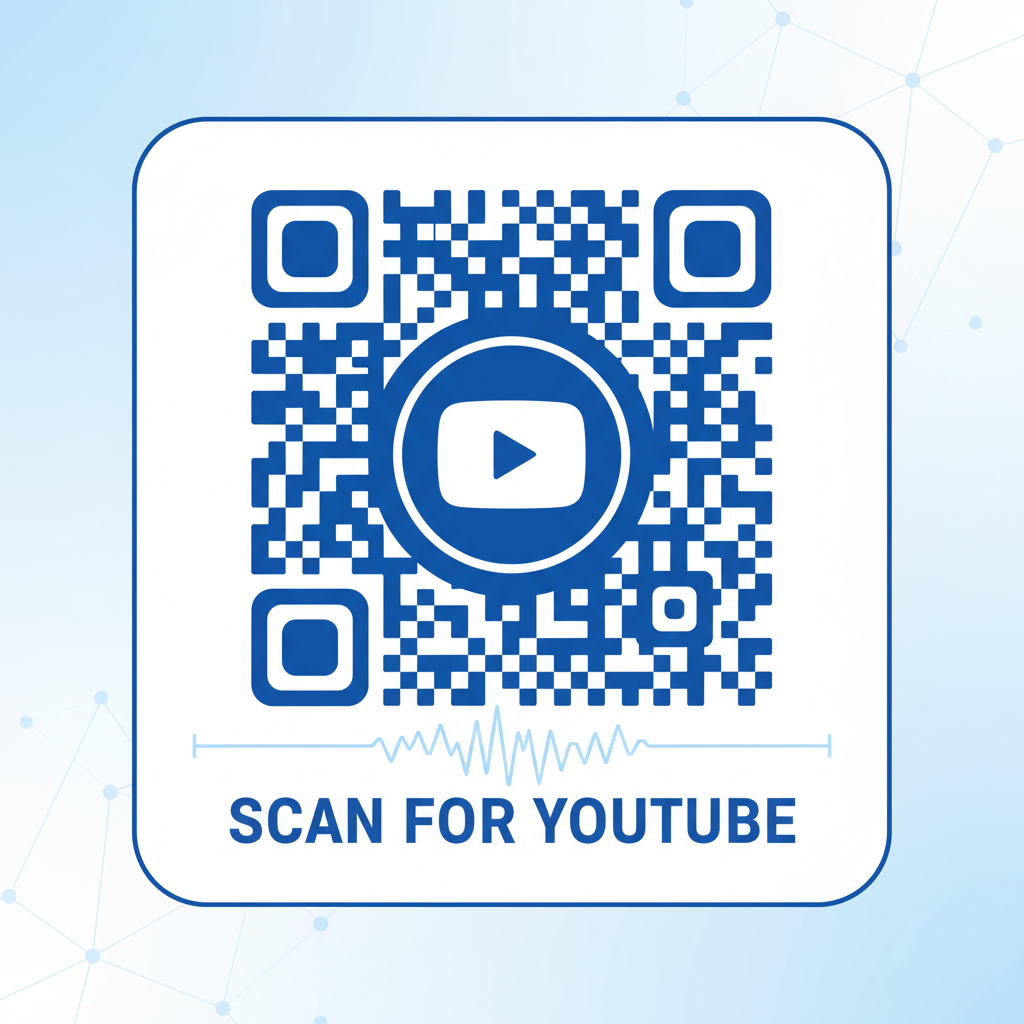
Why a QR Code for YouTube Channel Matters
A QR Code for your YouTube channel can significantly enhance your marketing efforts. Imagine handing out a flyer with a QR code that scans directly to your video content. Instead of typing in a URL, your audience can quickly access your channel, increasing views and subscriber rates.
What You Need Before You Start
- YouTube Channel URL: Have your channel link handy.
- Device with Internet Access: Ensure you’re connected to create and test your QR code.
- Blue QR Code Generator: Visit our free URL QR Code Generator to get started.
How to Create a QR Code for Your YouTube Channel — Step by Step
- Step 1: Access the Generator - Navigate to the Blue QR Code Generator.
- Step 2: Insert Your YouTube Link - In the appropriate field, paste your YouTube channel URL.
- Step 3: Customize Your QR Code - Choose from available designs, colors, and patterns to match your branding.
- Step 4: Generate the QR Code - Click on the ‘Generate’ button to produce your QR code.
- Step 5: Download Your QR Code - Save the QR code image to your device by clicking the download option provided.
- Step 6: Test the QR Code - Use a QR code scanner app on your phone to ensure it directs to your YouTube channel correctly.
How to Test and Deploy It
Before promoting your QR code, always test it across various devices to ensure it functions correctly. Place the QR code on your materials, like flyers or business cards, ensuring it’s clearly printed and scannable. Monitor the traffic to your YouTube channel to measure the effectiveness of your printed campaigns.
Common Mistakes That Ruin Results
- Poor Quality Print: Avoid low-resolution prints that make the QR code hard to scan.
- Neglecting to Test: Always scan the code before distribution to ensure it links correctly.
- Ignoring Placement: Ensure the QR code is easily visible and accessible on all materials.
- Over-Complexity: Avoid adding unnecessary graphics that can confuse the scanner.
Real Examples
Marketers can effectively utilize QR codes for YouTube channels by using them in email signatures, social media posts, and at events. For example, a restaurant owner can include a QR code on the menu. When scanned, it takes customers to cooking videos or promotional content about the dishes offered. Event organizers can distribute flyers with QR codes that link to highlight reels from last year's event, enticing guests to register. These practical uses showcase the versatility of QR codes in promoting your YouTube channel effectively.
Step-by-Step Guide: How to Create a qr code for youtube channel on BlueQRCode
Creating a qr code for youtube channel is quick and free with BlueQRCode. Follow these five simple steps to link viewers directly to your channel and make subscribing effortless.
Step 1 — Prepare the correct YouTube link
Decide which URL you want people to reach. Use your channel URL (for example, https://www.youtube.com/channel/UCxxxxxxxxxxxx) or a branded handle (https://www.youtube.com/@YourHandle). If your goal is to get more subscribers, append the subscribe confirmation parameter to the end of the channel URL like this: ?sub_confirmation=1. That makes the visitor see a subscribe prompt right after opening the link.
Step 2 — Open BlueQRCode and choose the URL QR type
Visit BlueQRCode, select the URL QR code type from the list of 13 QR types, and paste your prepared YouTube channel link into the URL field. BlueQRCode is free, requires no sign-up, adds no watermark, and codes never expire—perfect for long-term printed materials.
Step 3 — Customize the look (optional)
Customize colors, add a short call-to-action nearby, or select a frame if BlueQRCode provides those options. If you add a logo or overlay on the QR code, choose a higher error correction level so the code remains scannable. Keep contrast high—dark code on a light background performs best.
Step 4 — Generate and test the QR code
Click Generate to create your qr code for youtube channel. Always test the code on multiple devices and scanning apps (iOS/Android) and from different distances. Make sure the link opens directly to your channel and, if you added the subscribe parameter, that the prompt appears.
Step 5 — Download and deploy with the right format and size
Download the QR code in the format that fits your use: PNG for quick web use, SVG or PDF for high-resolution print. For print, use a vector format whenever possible so the code scales cleanly. Place the QR code with sufficient white space (quiet zone) around it and include a short instruction like “Scan to subscribe” to improve conversion.
Best Practices for qr code for youtube channel
- Use a subscribe-enabled URL: Add
?sub_confirmation=1to your channel link to encourage immediate subscriptions after scanning. - Keep the surrounding messaging clear: Add a short CTA such as “Scan to watch” or “Scan to subscribe” so users know what to expect.
- Maintain high contrast and adequate quiet zone: Dark modules on a light background scan best. Leave a clear margin around the code to prevent scanning errors.
- Choose the right output format: Use PNG for online distribution and SVG/PDF for printing large posters, brochures, or merchandise to avoid pixelation.
- Test across devices and distances: Scan with several phones and scanning apps to verify reliability; check how the code performs when printed at different sizes.
Common Mistakes to Avoid
- Linking to the wrong page: Don’t link to a generic homepage or a playlist unless that was your explicit goal. Make sure the URL points to the correct YouTube channel, handle, or subscribe link.
- Poor contrast or too small size: A visually attractive design is good, but if the code is too small or low-contrast it won’t scan. Avoid tiny logos that break required module patterns.
- Not testing printed versions: Always print a proof and test the QR code in the real-world environment (lighting, surface reflectivity, curvature). What scans on screen may fail on glossy paper or curved packaging.
- Forgetting tracking: If you want to measure how many visitors come from QR scans, don’t forget to add UTM parameters or use a short redirect so you can see the traffic source in analytics. (BlueQRCode creates the QR image but you can track clicks through URL parameters or your own redirect.)
Related guides
Real-World Use Cases
QR codes for YouTube channels work across industries — they bridge physical and digital content and make it simple for people to find and subscribe to your channel instantly.
- Musicians & Bands: Include a qr code for youtube channel on album sleeves, flyers, or backstage passes so fans can easily access music videos, live performance clips, and subscribe for updates.
- Authors & Publishers: Place a QR code on book jackets or promotional bookmarks that links to the author’s YouTube channel for readings, interviews, or book trailers.
- Retail & Consumer Products: Put a qr code for youtube channel on product packaging to direct customers to tutorials, how-to videos, or product demos that reduce returns and improve satisfaction.
- Events & Conferences: Use QR codes on badges, posters, or program booklets to send attendees to a channel hosting session recordings, speaker interviews, and post-event playlists.
- Real Estate & Property Marketing: Add a qr code to yard signs or brochures that links to a YouTube channel with virtual tours, neighborhood walkthroughs, and client testimonials.
Create Your Free qr code for youtube channel
No sign-up. No watermark. Never expires.
Generate Free QR Code →Using a qr code for youtube channel is one of the simplest, most cost‑effective ways to grow views and subscribers from printed materials and real-world interactions. With BlueQRCode you can create a clean, permanent QR code quickly—then test, print, and promote your channel wherever your audience is.