Why This Topic Matters
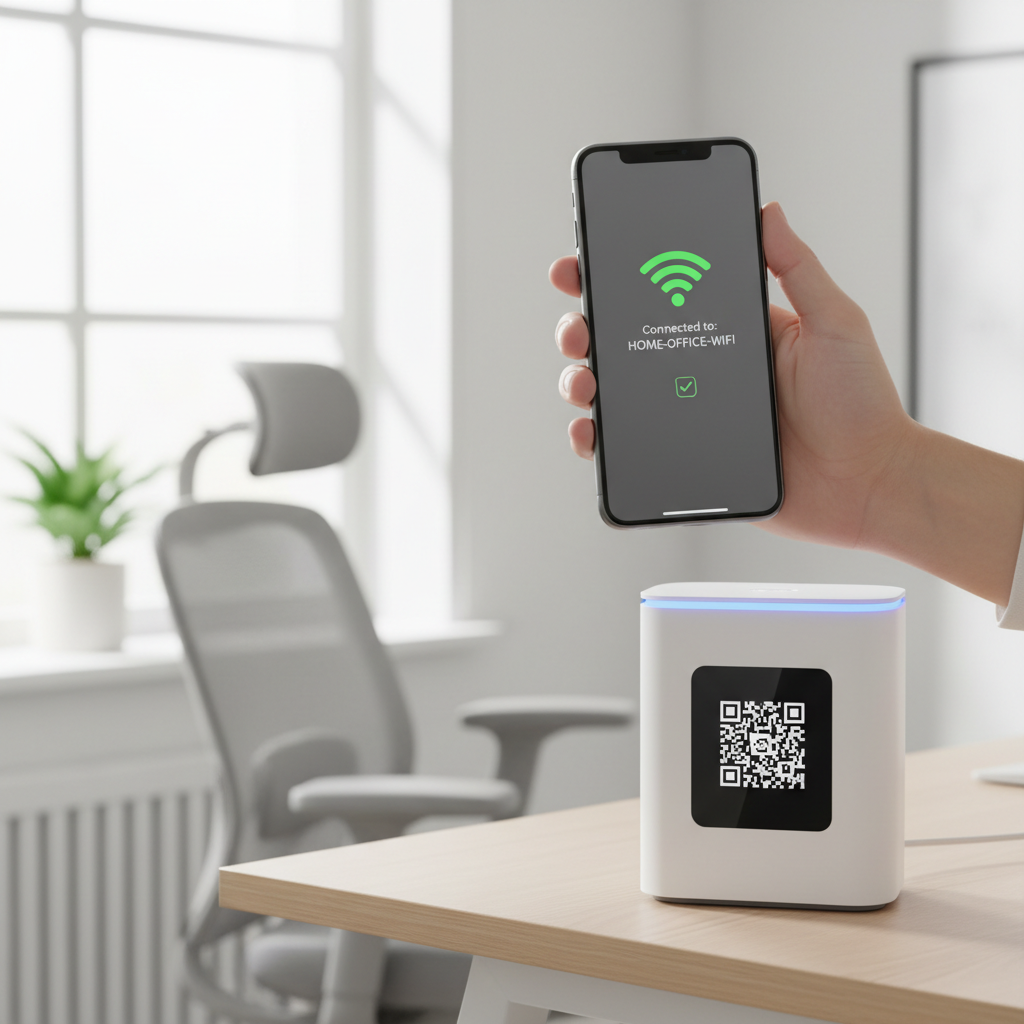
QR codes for WiFi (qr code wifi) store wireless network credentials so guests can join a network by scanning instead of typing a password. This eliminates friction and speeds up onboarding across homes, businesses, and public venues. You can easily create your own codes using our free QR Code Generator.
In 2026 the demand for seamless onboarding is higher than ever as devices proliferate; WiFi QR codes provide a simple, widely supported bridge between the physical and digital experience.
Key Points
- QR codes can encode SSID, password, and encryption so devices can join automatically.
- Native support in modern iOS and Android means no third-party app is required.
- Widely useful across hospitality, healthcare, education, retail, and smart homes in 2026.
What is QR Code WiFi and Why It Matters in 2026
A QR code WiFi is a specially encoded QR code that stores your wireless network credentials — including the network name (SSID), password, and encryption type — so a smartphone or tablet can scan and connect automatically. When a visitor points their camera at the code, the device reads the data and prompts to join the network, removing the need to type credentials.
Try it now: Generate a free Qr Code Wifi →
From a technical standpoint, WiFi QR codes follow a standardized format recognized natively by both iOS (since iOS 11) and Android (since Android 10). The QR code encodes data using the WIFI:T:[encryption];S:[SSID];P:[password];; string structure, where encryption is typically WPA, WEP, or left blank for open networks. If you're looking for insights on creating WiFi QR codes for specific applications, check out our article on WiFi QR Code For Cafe.
Step-by-Step Guide
Brief intro sentence.
- Step 1: Open your browser and go to the free QR code generator on blueqrcode.com to select the WiFi QR option. Look for the WiFi tab among the available QR types and open the WiFi-specific input form.
- vCard
- URL
- Step 2: Enter your network name (SSID) exactly as it appears on your router, matching capitalization and spacing. An incorrect SSID will prevent devices from connecting, so double-check this field before proceeding.
- Step 3: Generate the QR code and test it by scanning with a modern device camera to confirm the prompt to join the network appears and the connection succeeds.
Step-by-Step Guide: How to Create QR Code WiFi on blueqrcode.com
Creating a WiFi QR code on blueqrcode.com is a fast, intuitive process that requires no technical knowledge and no account registration. The generator produces a professional-quality code with no watermark and no expiry date.
Best Practices
Follow a few simple practices to ensure QR-based onboarding is secure and reliable.
- Double-check SSID and password entries for exact spelling and capitalization.
- Prefer using a WPA-secured guest network rather than exposing your main network.
- Test the QR code on multiple devices before printing or placing it in public areas.
Common Mistakes to Avoid
Be aware of a few frequent pitfalls when creating and deploying WiFi QR codes.
- Entering the wrong SSID and expecting the code to work — mismatched SSID prevents connection.
- Displaying the network password publicly without using a segregated guest network, which can expose sensitive systems.
Conclusion
WiFi QR codes are a simple, effective way to remove friction from network onboarding across many settings. They are widely supported, quick to generate, and make connectivity seamless for users.
```No watermark · No expiry · Works on all phones
Your QR code is ready in under 30 seconds.
Generate Free QR Code →