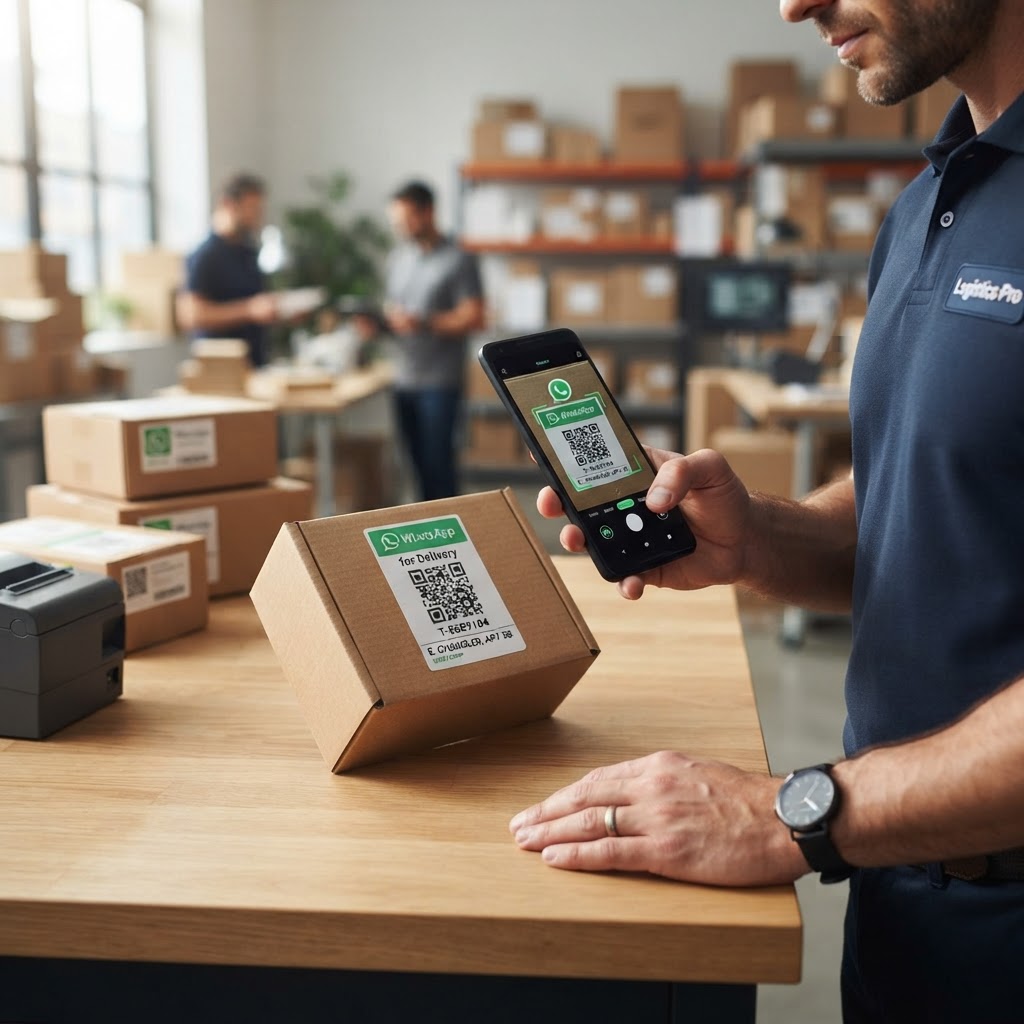
Why a WhatsApp QR code for delivery service matters
In the logistics industry, clear communication is the difference between a repeat customer and a negative review. Imagine a scenario where a customer receives a package, finds a small issue, and sees a sticker on the box with a scannable code that immediately opens a chat with your support team.
By using the Blue QR Code Generator, you provide a frictionless way for clients to request status updates or report issues without digging for a phone number. This setup drastically lowers the barrier to contact, allowing your team to handle inquiries faster through our free WhatsApp QR Code Generator.
What you need before you start
To begin, you will need a verified WhatsApp Business account linked to a mobile number that you use for customer support. It is recommended to use a business-dedicated line rather than a personal account to ensure professional communication standards.
Additionally, have your business phone number ready in international format, including your country code without the plus sign. You should also decide on a default welcome message, such as "Hi, I need help with my delivery order," to make the user experience as smooth as possible when they use Blue QR Code Generator's WhatsApp QR codes tool. If you are exploring other industries, you might find inspiration in our guide on the WhatsApp QR Code for Contractor Success.
How to build your QR code — step by step
- Access the tool: Open the our free WhatsApp QR Code Generator in your browser.
- Enter your number: Carefully input your business phone number, ensuring the country and area codes are accurate to avoid connection errors.
- Set your message: Draft a short, helpful automated message that will appear in the customer's text field, such as "Requesting order status for..."
- Customize the design: Select a frame or color scheme that matches your company's branding to build trust and professional recognition.
- Review the preview: Test the auto-generated link to ensure it opens a chat window correctly with your pre-filled text.
- Download your asset: Save your file in a high-resolution format like PNG or SVG, which you can then print on your shipping labels or delivery invoices.
How to test and deploy it
Before mass-printing your codes, always perform a physical scan using both iOS and Android devices. You want to confirm that the chat window opens immediately upon scanning without additional browser prompts or lag.
Place your code in high-visibility areas like the exterior of your delivery boxes, printed on the bottom of delivery receipts, or as a small sticker on the product packaging. If you need help getting started quickly, visit our tool to generate yours in seconds and ensure your logistical communication is future-proof.
Common mistakes that ruin results
- Poor contrast: Printing a light-colored QR code on a light background makes it impossible for cameras to focus and scan.
- Incorrect formatting: Forgetting the international country code prefix prevents the link from initiating the WhatsApp application properly.
- Insufficient size: Making the QR code too small for a scanner to read; ensure it is at least 1x1 inch for clear scanning.
- Lack of instructions: Failing to include a simple prompt like "Scan for Delivery Support" near the code, which leaves the customer wondering what the code does.
Real examples
A local organic grocery delivery business added these QR codes to their reusable cooling bags to handle rescheduling requests efficiently. By allowing customers to quickly message them, they reduced missed delivery attempts by nearly 30% in the first quarter.
Another example involves a regional furniture delivery service that uses these codes on the packing slip to assist with assembly questions. This proactive approach saves their support team hours of time each week while helping customers get their items ready for use faster.