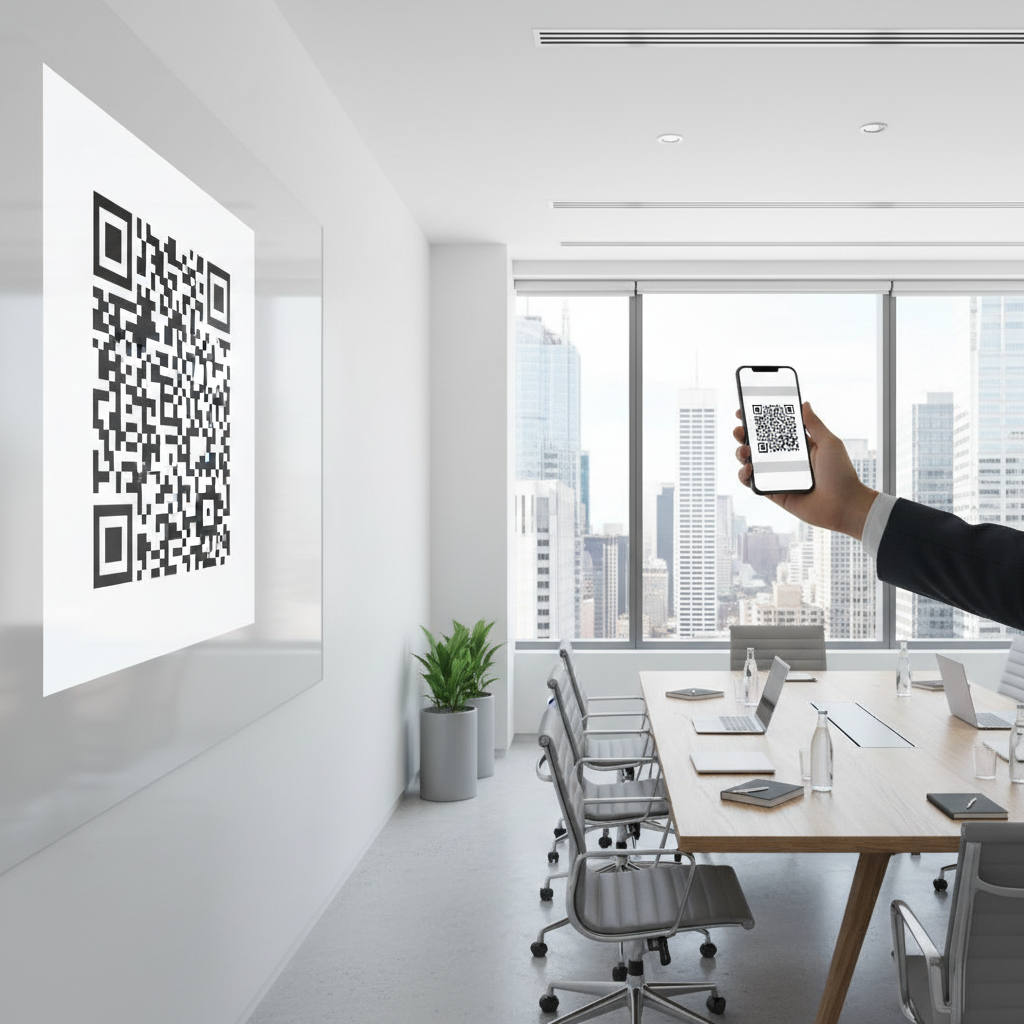
Why a WiFi QR Code for Conference Room Matters
Imagine hosting a large corporate meeting where numerous guests require internet access. Instead of handing out passwords manually or having them struggle with complicated sign-ins, a wifi qr code for conference room access provides a seamless experience, enabling participants to connect quickly. This not only enhances productivity but also leaves a positive impression of your organization. You can use our free WiFi QR Code Generator to create the code effortlessly.
What You Need Before You Start
- WiFi Network Name: The SSID (Service Set Identifier) of the network you wish to share.
- Password: The password for the wireless network. Ensure it's correct to avoid connection issues.
- Device for Generation: A computer or smartphone with internet access to use the Blue QR Code Generator.
How to Create a WiFi QR Code for Conference Room — Step by Step
- Visit the Generator Tool: Go to Blue QR Code Generator's WiFi QR Code tool.
- Enter Your Network Name: In the SSID field, input the name of your WiFi network.
- Input Your Password: Type the password for the network in the designated field. Ensure it’s accurate to avoid connectivity issues.
- Select Encryption Type: Choose the appropriate encryption method (usually WPA/WPA2) from the options provided.
- Generate QR Code: Click the 'Generate' button to create your WiFi QR code instantly.
- Download the QR Code: Save the QR code image to your device. You can also print it for easy display in your conference room.
How to Test and Deploy It
Before distributing the QR code, make sure to test it. Use a smartphone to scan the QR code and verify that it connects to the network correctly. Place the QR code in a visible area of the conference room, such as on the meeting table or displayed on a screen. For additional guidance, refer to our article on creating WiFi QR Codes for various settings.
100% Free — No signup required
Create your Wifi Qr Code For Conference Room in seconds
Create Free QR Code →Common Mistakes That Ruin Results
- Incorrect SSID: Double-check that the WiFi network name is spelled correctly.
- Wrong Password: An incorrect password will prevent guests from connecting. Test this before sharing.
- Forgetting Encryption: Not specifying the right encryption method can lead to failed connections.
- Low-Quality QR Codes: Make sure the QR code is clear and easy to scan. Avoid resizing it too small for visibility.
- Not Testing First: Failing to test the QR code before deployment can lead to frustrated attendees.
Real Examples
Consider a hotel hosting a business conference. They place a wifi qr code for conference room access at the entrance and on each table, allowing guests to effortlessly connect to the internet. This setup enhances their reputation for exceptional service.
Another example can be found at tech workshops where multiple presenters share their materials. Using a wifi qr code for conference room ensures that all attendees have quick access to online resources, improving their overall experience.
```No watermark · No expiry · Works on all phones
Your QR code is ready in under 30 seconds.
Generate Free QR Code →Step-by-Step Guide: How to Create a wifi qr code for conference room on BlueQRCode
Creating a wifi qr code for conference room on BlueQRCode is fast and straightforward. The QR code lets attendees connect instantly without typing long passwords — ideal for meetings, workshops, and hybrid events. Follow these five steps to generate and deploy a reliable QR code for your conference room network.
Step 1 — Choose the WiFi QR Type and Enter Network Details
Open BlueQRCode and select the WiFi QR code option. Enter the conference room SSID (network name) exactly as it appears on the router or access point. Select the encryption type used by the network (WPA/WPA2/WPA3 or None) and provide the network password if it is secured. Accuracy here is critical: the SSID and encryption must match the network settings for devices to connect automatically.
Step 2 — Configure Guest vs. Private Network Settings
Decide whether the QR code will connect users to a guest network or the main office network. For conferences, create or use a dedicated guest SSID to isolate attendee devices from corporate resources. On BlueQRCode you simply enter the guest SSID and password; no additional router configuration is needed for the code itself. If you plan temporary access, note that BlueQRCode codes never expire but you can regenerate a new code if you change the password later.
Step 3 — Customize and Preview the QR Code
Customize the visual options if desired — color, label, or size — while keeping strong contrast for reliable scanning. Use the preview feature to confirm that the QR code looks correct and that any label clearly states “Scan to connect to WiFi” or similar. Remember that high-contrast dark-on-light colors scan best across a wide range of devices.
Step 4 — Generate, Test, and Download
Click Generate to create your wifi qr code for conference room. Before distributing it, test the code with multiple devices (iPhone, Android, tablets, and laptops where supported). Scan the code, confirm the device connects automatically, and check that internet access and any room-specific resources work as intended. Once confirmed, download the code in the appropriate format (PNG or SVG) for print and digital use.
Step 5 — Deploy and Monitor
Place the QR code in high-traffic and logical locations: the conference room entrance, registration desk, presentation screen, table signs, and digital meeting invitations. Provide a short instruction line nearby — e.g., “Scan to connect to Conference Room WiFi.” After deployment, monitor attendee feedback and connectivity. If you rotate passwords or change SSIDs, regenerate and reissue new QR codes.
Best Practices for wifi qr code for conference room
- Use a dedicated guest SSID for conference room access to protect internal networks and maintain security boundaries between attendee devices and corporate systems.
- Keep the QR code high contrast and at least 2 x 2 inches (5 x 5 cm) for printed signage; for large rooms, provide multiple codes near seating areas and the front of the room.
- Include concise instructions next to the QR code: “Open your camera app, point at this code, and tap the notification to join the WiFi.” This reduces confusion for less technical attendees.
- Test across devices and OS versions. iOS and most Android phones support WiFi QR scanning via the native camera, but confirm behavior with older phones and laptops beforehand.
- Rotate the guest password periodically or after large events. If you need to revoke access quickly, change the guest network password and generate a new wifi qr code for conference room attendees.
Common Mistakes to Avoid
- Incorrect SSID or encryption selection: Typos or wrong security settings will prevent automatic connections. Double-check spelling, capitalization, and whether the network uses WPA2 vs. WPA3.
- Using the corporate production network: Never give attendees access to internal systems via the conference room network. Always create and use a guest SSID to limit risk.
- Poor print quality or size: Small, low-contrast, or low-resolution QR codes can fail to scan. Export a high-resolution PNG or SVG from BlueQRCode and verify printed samples before the event.
- Assuming all devices support QR-based WiFi join: Some older devices and enterprise-managed laptops may not support automatic WiFi connection via QR codes — provide manual SSID and password instructions as a fallback.
Real-World Use Cases
- Corporate meetings and boardrooms: Accelerate meeting start times by placing a wifi qr code for conference room on the welcome board and inside the meeting agenda slides so presenters and guests can connect instantly.
- Conferences and trade shows: Place codes at registration desks, exhibitor booths, and breakout rooms to give attendees quick access to event-specific WiFi without queues or manual password distribution.
- Training sessions and workshops: Instructors can display the QR code at the front of the room and on training materials so participants can quickly download resources, access shared drives, and participate in live demos.
- Hybrid and video conferencing setups: Provide a dedicated conference room WiFi via QR code for guest presenters and remote-contribution devices to ensure stable connections and avoid interfering with AV equipment on the main network.
Create Your Free wifi qr code for conference room
No sign-up. No watermark. Never expires.
Generate Free QR Code →